10 Best Meeting Scheduling Apps (Manually Tested 2026)

Anwar Choudhury
•

Introduction
Finding a time for a meeting shouldn't require endless emails or messages back and forth. Meeting scheduling software makes it easier to share your availability, let people choose a suitable time and automatically manage the booking.
For this guide, I tested 10 meeting scheduling platforms to see how they perform in real use. I looked at the booking experience, calendar syncing, availability, team scheduling, integrations, reminders, customization, pricing and how easy each platform is to use.
Whether you are booking one-to-one meetings, managing appointments or coordinating a growing team, this guide will help you compare the different options and find the scheduling software that best fits your needs.
The 10 best meeting scheduling software
Warmcal for professional booking page and affordable team scheduling
Calendly for simple and reliable meeting scheduling
HubSpot Meetings for scheduling connected to your CRM
Doodle for group polls and finding a time that works for everyone
Google Appointment Scheduling for simple scheduling within Google Calendar
Cal.com for flexible and customizable scheduling
Microsoft Bookings for appointment scheduling within Microsoft 365
Koalendar for simple scheduling with customizable booking pages
SavvyCal for calendar overlays and flexible scheduling
TidyCal for straightforward meeting scheduling
Feature-by-feature Comparison of all Scheduling Software
Category | Warmcal | Calendly | HubSpot | Doodle | Google Appointment Scheduling | Cal com | Microsoft | Savvycal | Koalendar | Tidycal |
|---|---|---|---|---|---|---|---|---|---|---|
Focus | Branded booking pages and team scheduling | One-to-one and team scheduling | Meeting scheduling built into the HubSpot CRM | Group scheduling and polls | Calendar platform with basic appointment scheduling features | Flexible, open-source scheduling platform | Appointment scheduling built into Microsoft 365 | Calendar overlay and flexible meeting scheduling | Simple appointment scheduling with customizable booking pages | Straightforward booking and meeting scheduling |
Best for | Client-facing teams, sales, marketers, recruiters, founders, consultants, agencies | Internal teams, freelancers, Sales, recruiting, agencies, service businesses | Sales, Team and Businesses already using HubSpot Suite | Educators, Teams, community groups, internal meetings | Individual and Google Workspace users who need simple appointment booking | Developers, startups, SaaS companies, and businesses wanting full control over scheduling | Businesses already using Microsoft 365, Outlook and Teams | Professionals and teams that regularly coordinate busy calendars | Individuals and small businesses looking for simple online scheduling | Individuals and small teams looking for simple scheduling |
Free plan | Yes | Yes | Yes | Yes (with Ads) | Yes | Yes | Yes | No | Yes | Yes |
Team Paid Plan Monthly | $99/mo Unlimited Seats (No seat pricing) or $35/mo for smaller teams up to 3. | ~$20/seat/mo team plan | Included with HubSpot paid plans | ~ $19.95/seat/mo | ~ $16/seat/mo on standard plan | ~ $16/seat/mo | $20/seat/mo | Pro: $9.99/seat/mo | $29 lifetime or $12/month Pro | |
Team scheduling | Yes, Round robin, collective routing, syncing, designed for business teams | Yes. Round-robin, collective scheduling, lead routing | Yes. Round Robin and team availability on higher plans | Co-hosting, admin roles, activity reports | Limited. Designed mainly for individual appointment scheduling with support for adding up to 20 co-hosts on eligible plans | Co-hosting, admin roles, activity reports | Yes, with staff schedules and availability | Yes | Yes | Yes |
Branding & customization | Strongest point: Banners, Wallpapers, intros, videos, social medial posts, much more | Limited: Logo, URL, Embed colour | Limited branding options | Limited | Very limited customization | Technical customization (open source, APIs, custom code), not visual customization. | Limited branding options | Basic. Colors, avatar, banner and custom branding | Some customization options such as colour, logo etc | Basic branding |
Calendar sync | Google and Outlook support | Google, Outlook, and other major calendars | Google Calendar and Outlook | Google Calendar, Outlook, Office 365, | Google Calendar focused | Google, Outlook, Apple, CalDAV and more | Outlook / Microsoft 365 | Google Calendar, Outlook and other calendars | Google Calendar and other calendar integrations | Google Calendar, Outlook and other calendar integrations |
CRM integrations | HubSpot | HubSpot, Salesforce, and more | Native HubSpot CRM integration | None | Limited | HubSpot, Salesforce, and more | Microsoft ecosystem and Microsoft Graph API | Yes | Yes. HubSpot, Close and others | Limited |
Round robin scheduling | Yes | Yes | Yes | Limited | No | Yes, on the Teams plan | Limited | Limited | Yes | Yes |
Video conferencing integrations | Zoom, Google Meet, Microsoft Teams | Zoom, Google Meet, Microsoft Teams | Zoom, Google Meet, Microsoft Teams | Zoom, Google Meet, Microsoft Teams | Google Meet and some third-party integrations through Workspace | Zoom, Google Meet, Microsoft Teams | Microsoft Teams | Zoom, Google Meet and other options | Zoom, Google Meet, Whereby and more | Zoom, Google Meet and Microsoft Teams |
Automation | Yes | Yes | Yes | Basic | Basic reminders and calendar notifications | Workflows, webhooks and API integrations | Yes | Basic reminders and notifications | Yes. Reminders, workflows, Zapier, API & webhooks | Yes. |
Routing forms | Yes, qualify before booking meeting | Yes | Yes | Limited | No | Basic | No | Limited | Limited / not a core feature | No |
Analytics | Booking page views, team performance, and booking insights | Booking and workflow insights | Meeting activity and CRM reporting | Basic | Basic calendar and appointment insights | Basic | Basic | Basic booking and business insights | Yes. Fathom and scheduling insights | Yes. Booking statistics and Google Analytics on paid plans |
Learning curve | Easy to use and customize your booking page | Moderate, easy to start but advanced features add complexity | Easy if you already use HubSpot but can feel overwhelming for new users | Easy | Very easy for basic scheduling | Medium to High. | Easy if you already use Microsoft 365 | Easy to get started | Easy to use, with more advanced options for teams | Easy to get started, with some limitations as requirements become more complex |
Warmcal: In-Depth Review
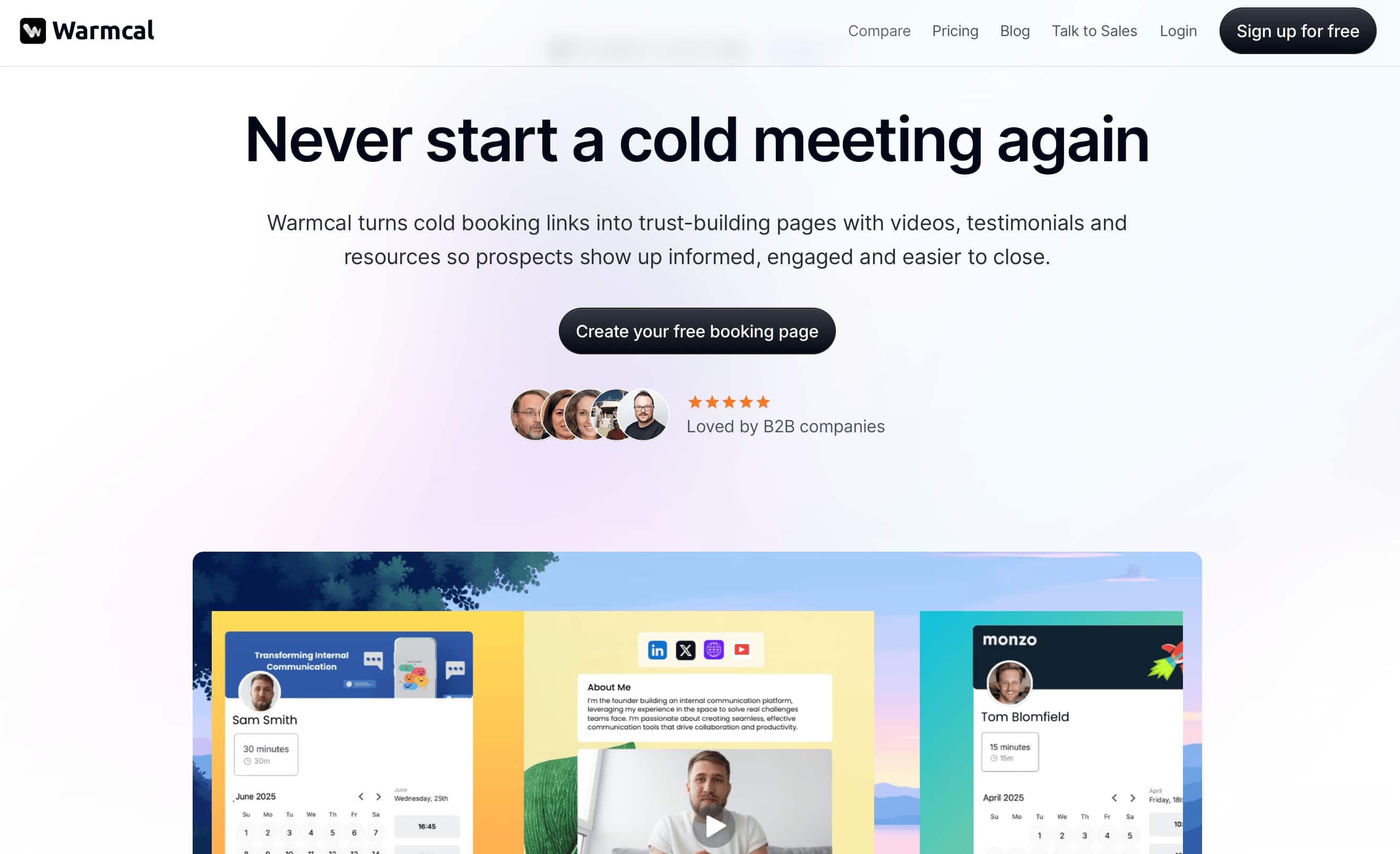
Warmcal is a scheduling platform designed for businesses like sales, marketing, recruiting and more that want more from their booking experience. Instead of focusing only on showing available times, it combines scheduling with personalized booking pages, pre-meeting questions and team scheduling.
When testing Warmcal, the booking page was the feature that stood out most. You can add images, videos, banners and other content to prospects, clients more information before they book. It also keeps the core scheduling process simple while giving businesses more control over how their booking experience looks and works.
Features
1. Booking Page
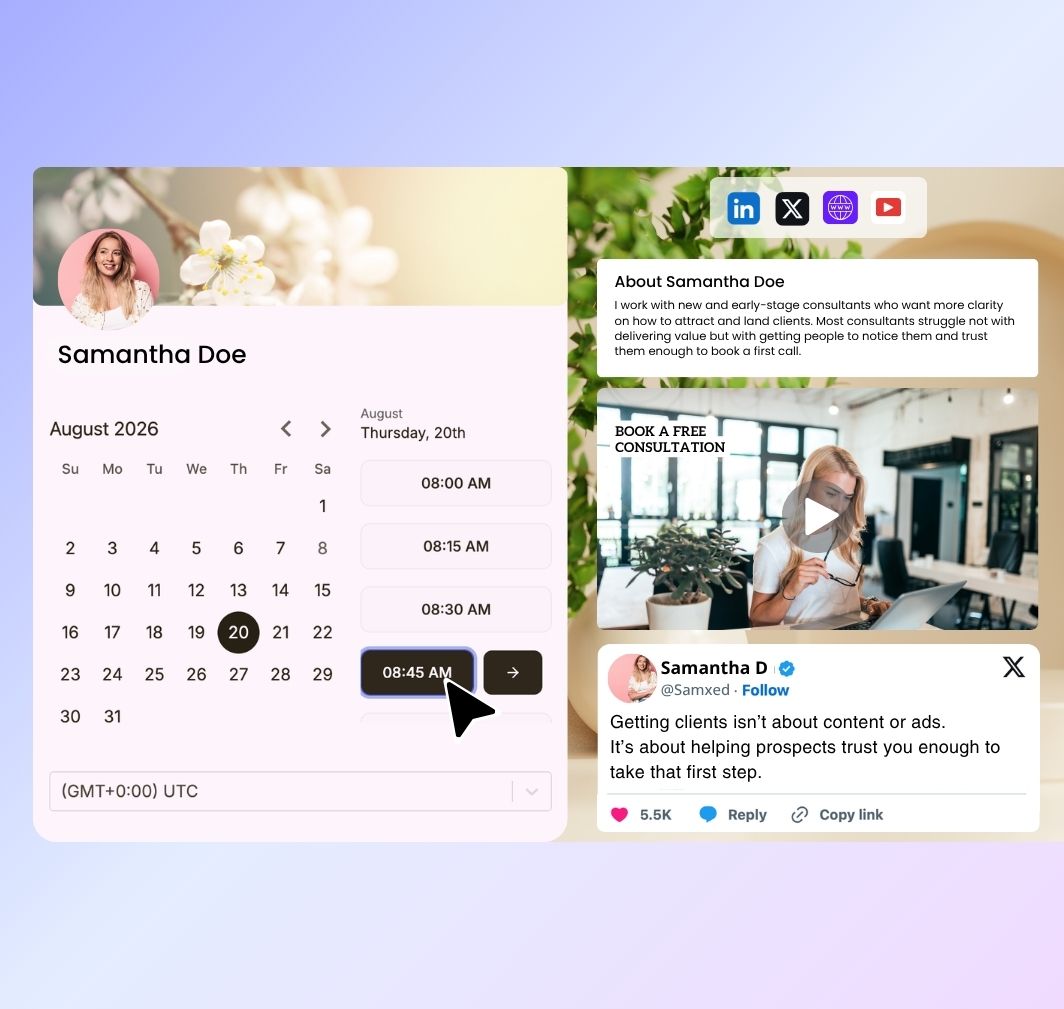
The booking page is one of the biggest differences I noticed when testing Warmcal. Instead of sending someone straight to a basic calendar, you can create a more personalized page that gives visitors more information before they choose a time.
You can add branding elements such as images, videos, banners and social proof. This makes the booking page feel more like part of your business rather than just a scheduling link.
I think this is particularly useful for businesses where the booking page is part of the first impression. Someone can learn more about the company before booking, rather than simply choosing a time and leaving.
2. Team Scheduling
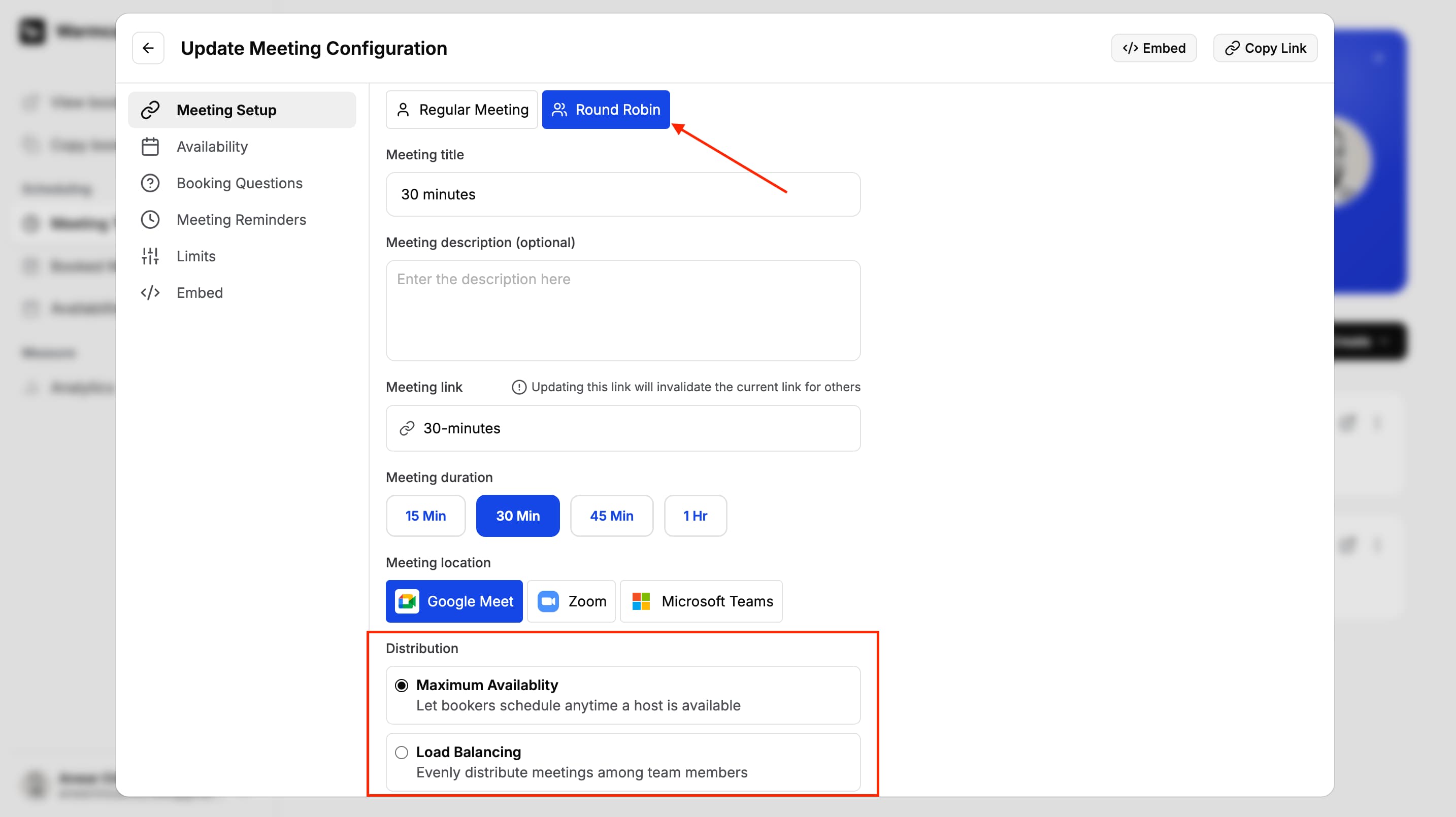
I tested Warmcal's Round Robin feature to see how easily meetings could be distributed across a team. You can add team members, connect their calendars and allow Warmcal to automatically distribute bookings based on availability.
The setup was straightforward and I didn't need to manually check which team member was available before accepting a booking.
Another thing I noticed is the pricing model. Warmcal uses fixed monthly pricing rather than charging for every additional team member, which can make the cost more predictable as a team grows.
3. Meeting Questions
Warmcal lets you add custom questions to your booking process so you can collect information before someone schedules a meeting. Instead of only asking for basic contact details, you can ask about what they need or what they want to discuss.
I found this useful because it gives you some context before the meeting takes place. For sales teams and client-facing businesses, these questions can also help identify whether a meeting is actually relevant before it gets booked.
The main thing to keep in mind is not to add too many questions. A long form could make the booking process feel more complicated than it needs to be.

4. Meeting Links
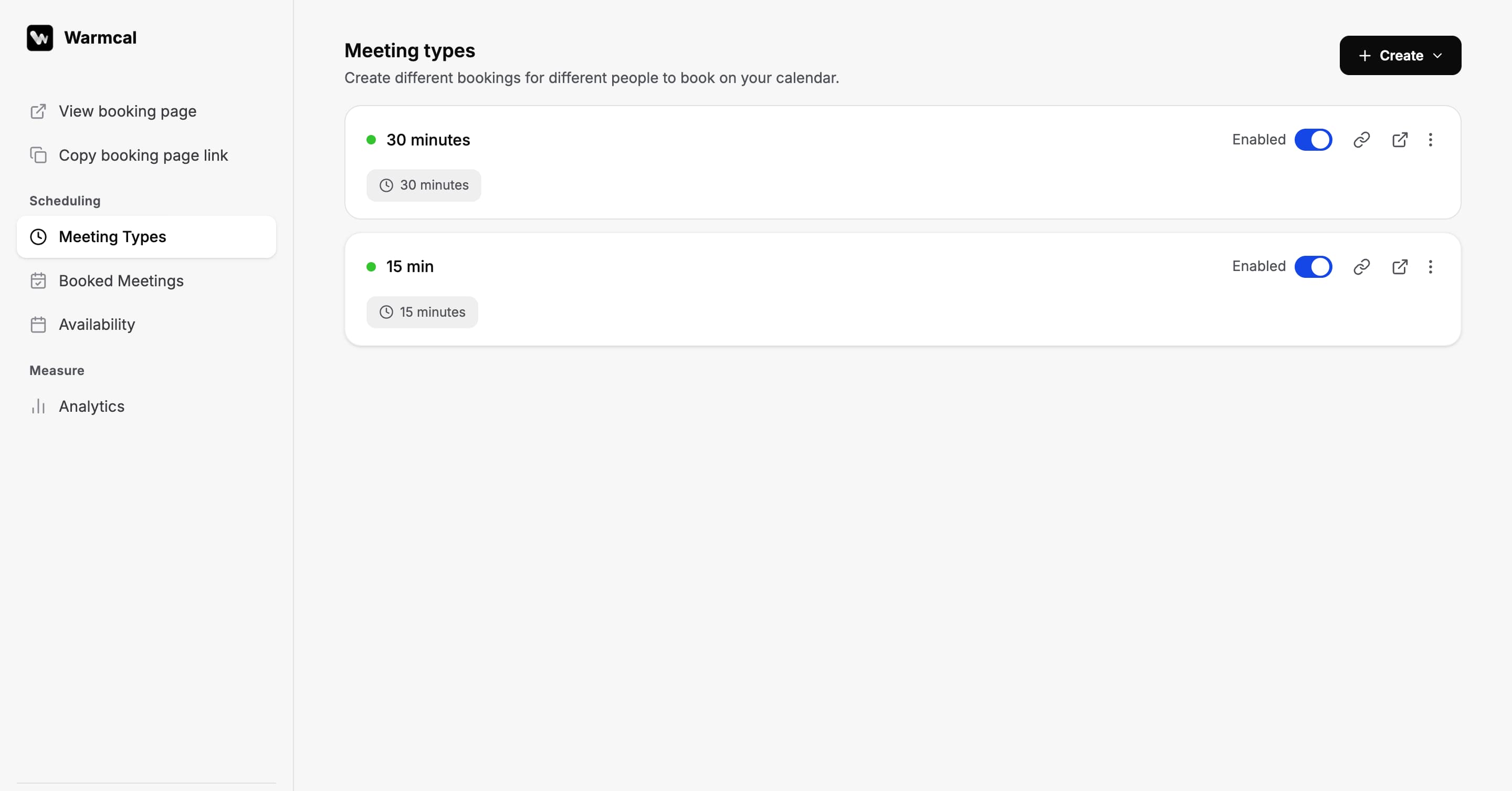
Creating a meeting link in Warmcal was quick and straightforward. You can create one-to-one or Round Robin meetings and configure settings such as meeting duration, availability, booking limits and reminders.
What I liked is that the booking page can be customized before you share the link, so the person booking gets more than just a calendar with available times. Once everything was configured, I was able to create and share a meeting link within a few minutes.
You can also choose a customised base link and set your own username, giving all your meeting links a more consistent and professional URL.
5. Integrations
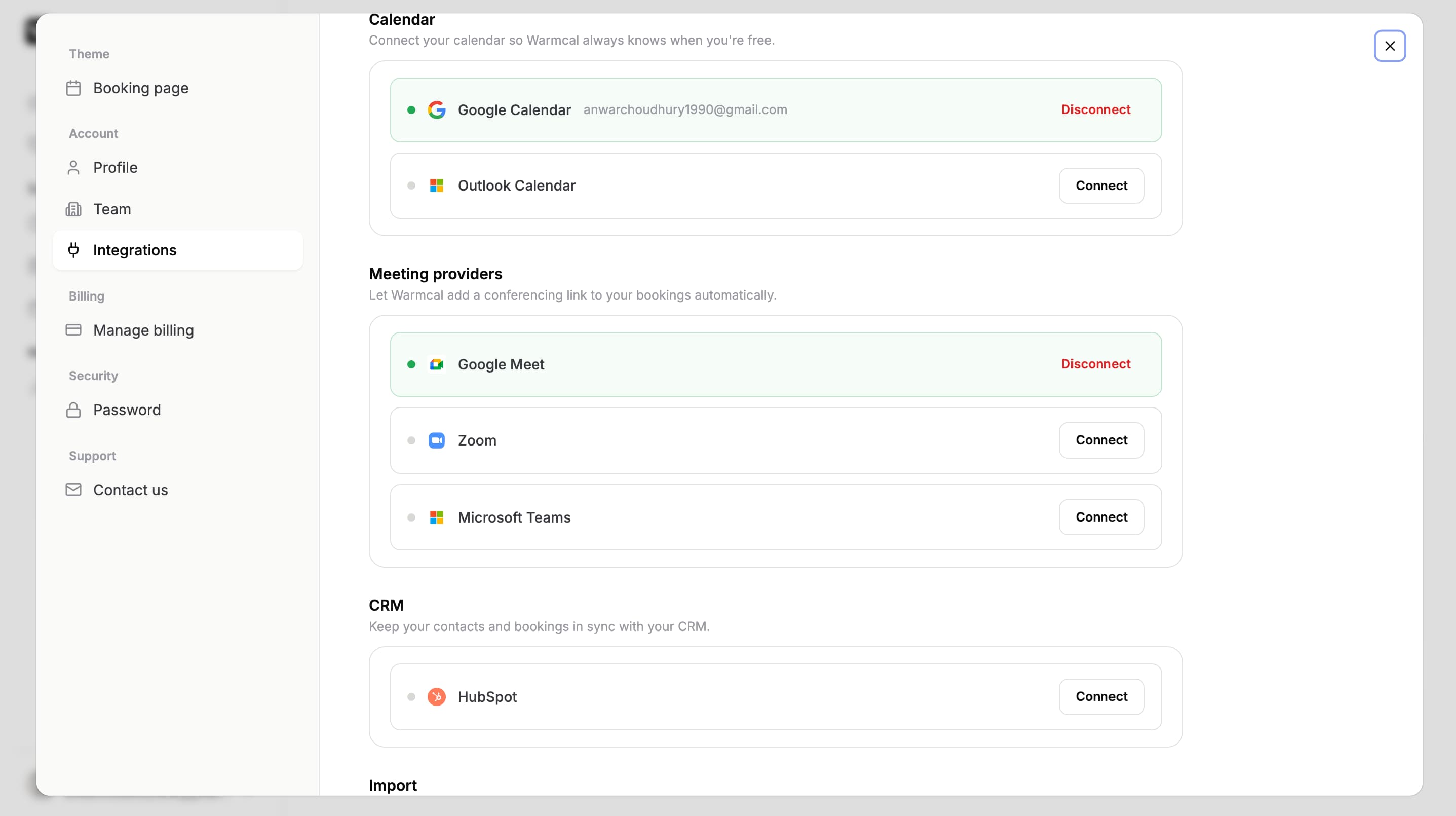
Warmcal supports the main integrations businesses need to manage their meetings. You can connect Google Calendar and Outlook to keep availability updated and help prevent double bookings. Video conferencing integrations can also automatically add meeting details to bookings, while the HubSpot integration connects meetings with your CRM.
One feature I found particularly useful was the ability to import existing Calendly settings. Instead of rebuilding your meeting types from scratch, you can bring your existing settings across, which makes switching much easier.
Warmcal Pros and Cons
Pros
Highly customizable booking pages
Personalized booking experience with images, videos and branding
Round Robin and team scheduling
Pre-meeting questions for collecting information before meetings
No per-seat pricing for growing teams
Calendly import makes switching easier
Cons
Smaller integration ecosystem as Warmcal is still building and shipping new integrations quickly
Better suited for businesses that value personalized booking experiences rather than users looking for the simplest possible scheduling link
Too many pre-meeting questions can make booking feel longer
Businesses with strict compliance requirements should check the platform's requirements
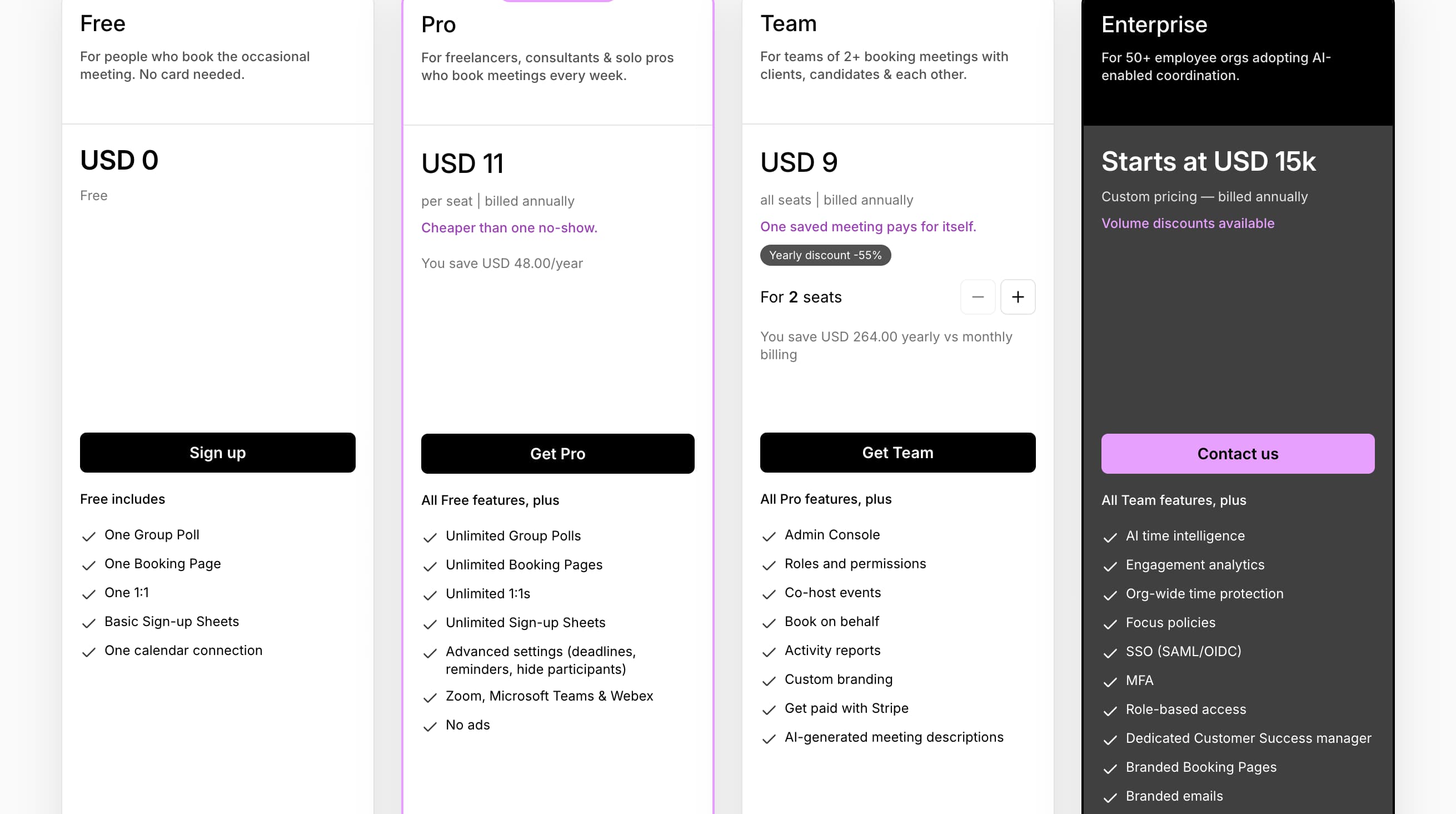
Pricing

Calendly: In-Depth Review
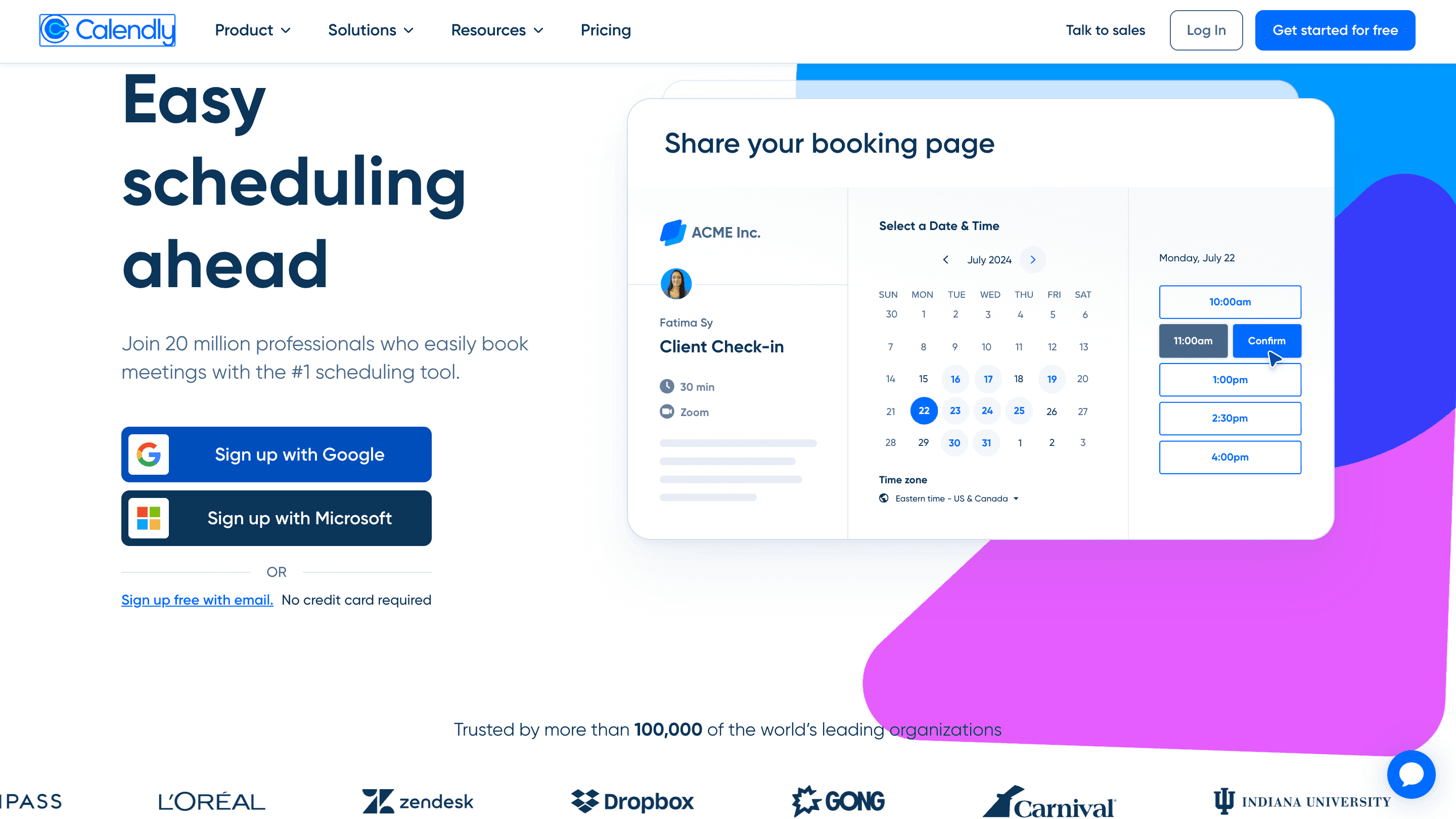
Calendly is one of the most established meeting scheduling platforms and remains a popular choice for businesses that want a reliable way to manage bookings. When I tested it, the setup was straightforward and the booking experience felt polished, with features such as calendar integrations, team scheduling, reminders and workflows making it a strong all-round scheduling tool.
Features
1. Booking page
One of the first things I noticed when testing Calendly was how simple the booking page is. You can add basic branding such as a profile photo and company logo, but there are limited options to change the overall design or layout.
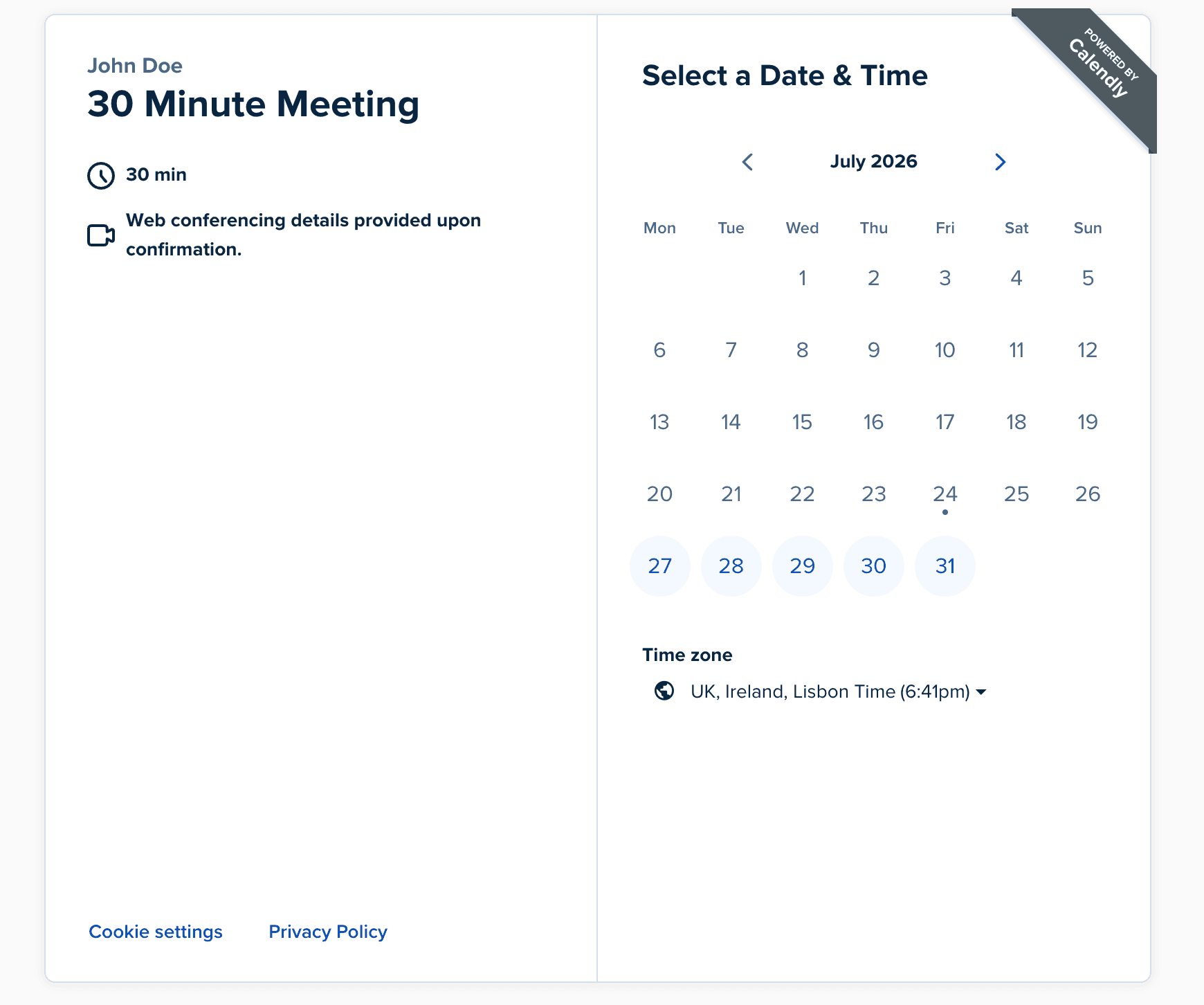
I also found a G2 re1view where a user said the limited customization made it difficult to align the booking page with their brand. For businesses that just need a simple scheduling link this works well, but if the booking experience is an important part of your brand, Calendly can feel restrictive.
Source: G2
2. Availability
Calendly gives you good control over when people can book meetings. You can set working hours, add buffers between meetings, create different availability rules for different event types and set booking limits. I found a G2 review that specifically highlighted these controls as useful for managing time and keeping availability organised.
3. Calendar Connections
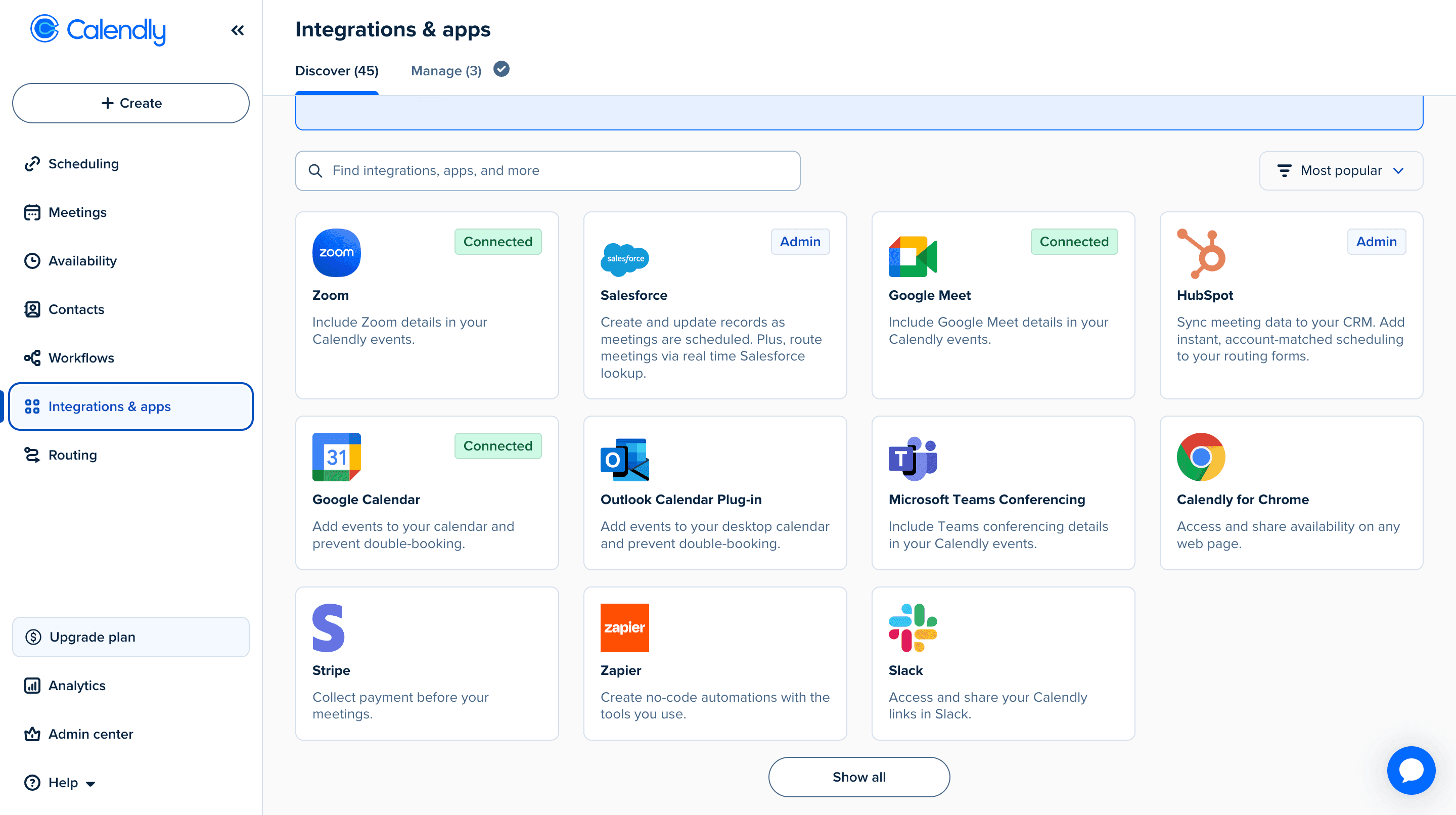
Calendly connects with popular calendar providers including Google Calendar, Outlook, Microsoft Exchange and Apple Calendar. When I tested it, connecting my calendar was straightforward and only took a few steps. Once connected, Calendly checks your availability automatically and adds new bookings to your calendar, making it easy to manage meetings across different calendar systems.
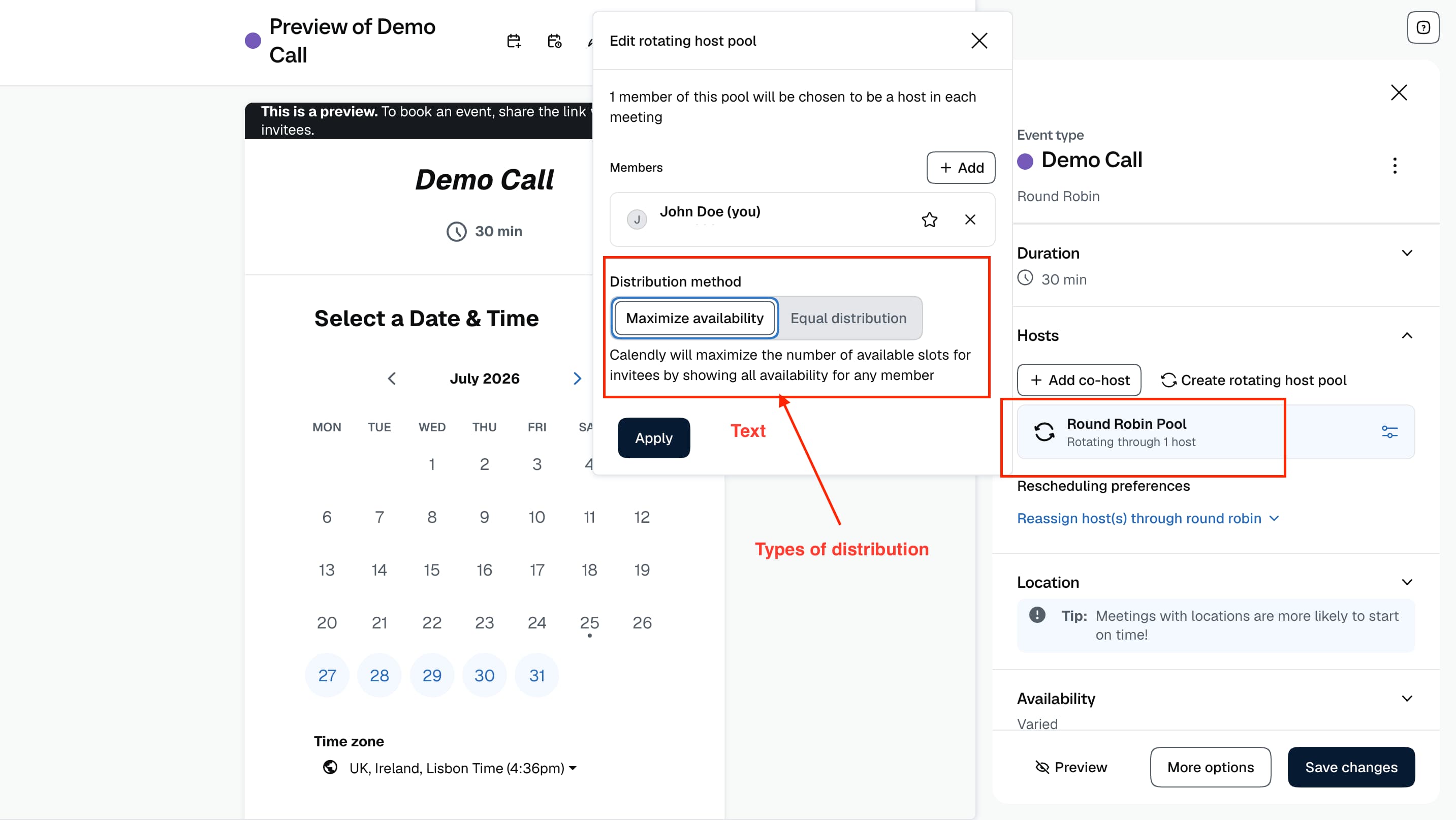
4. Round Robin Scheduling
I tested Calendly's Round Robin feature to see how easy it was to distribute meetings across a team. The setup worked well overall, although there are several routing and distribution settings to work through before everything is configured. Once set up, meetings can be shared between team members automatically based on their availability, removing the need to manually decide who should take each booking.
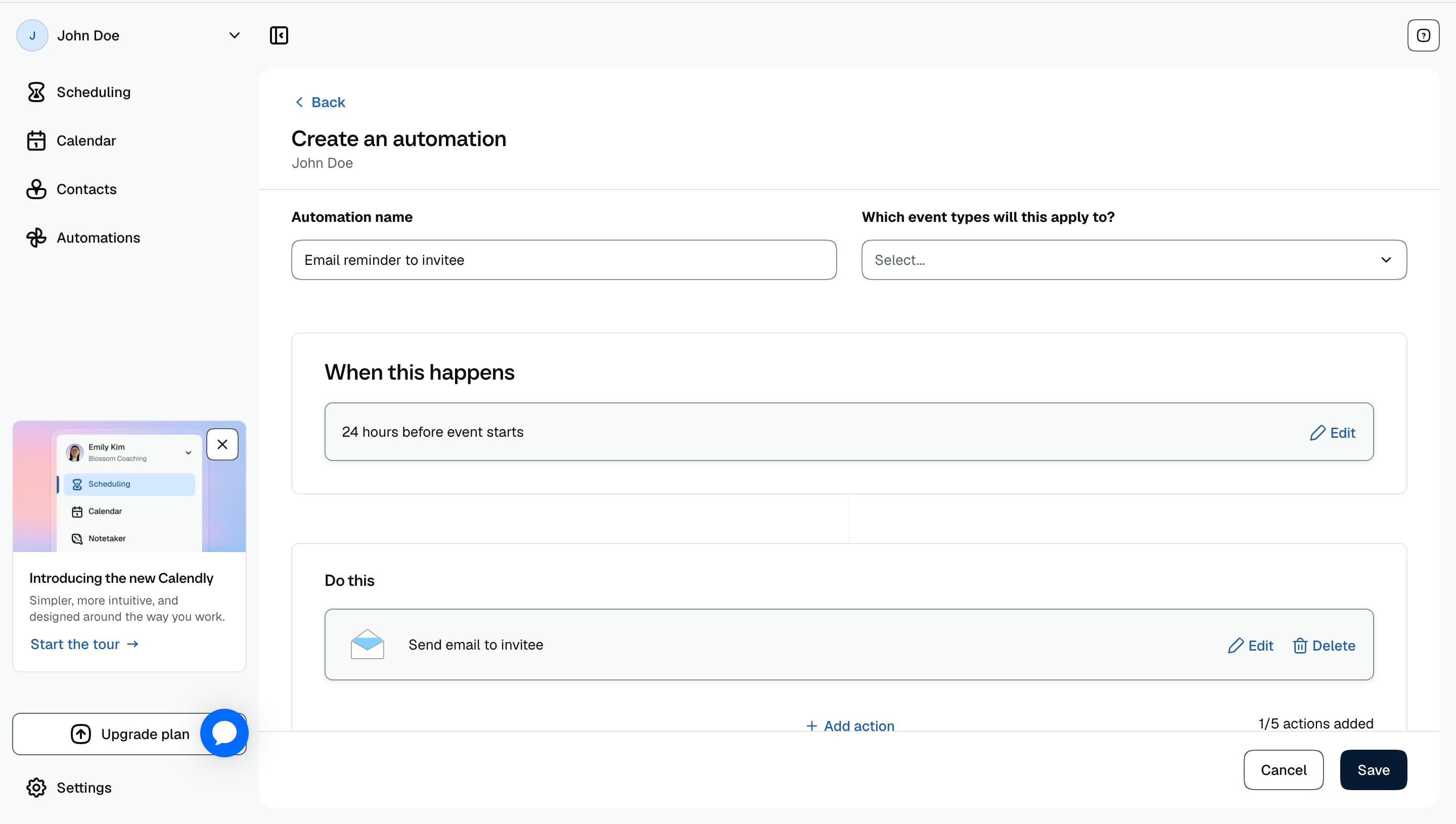
4. Reminders
Calendly makes it easy to send confirmation emails, reminder emails and SMS reminders before a meeting. Setting them up only took a few minutes and everything worked as expected during testing.
By default, reminder emails were sent from notifications@calendly.com, although mine landed in the spam folder. If you prefer, you can connect your own email provider instead.
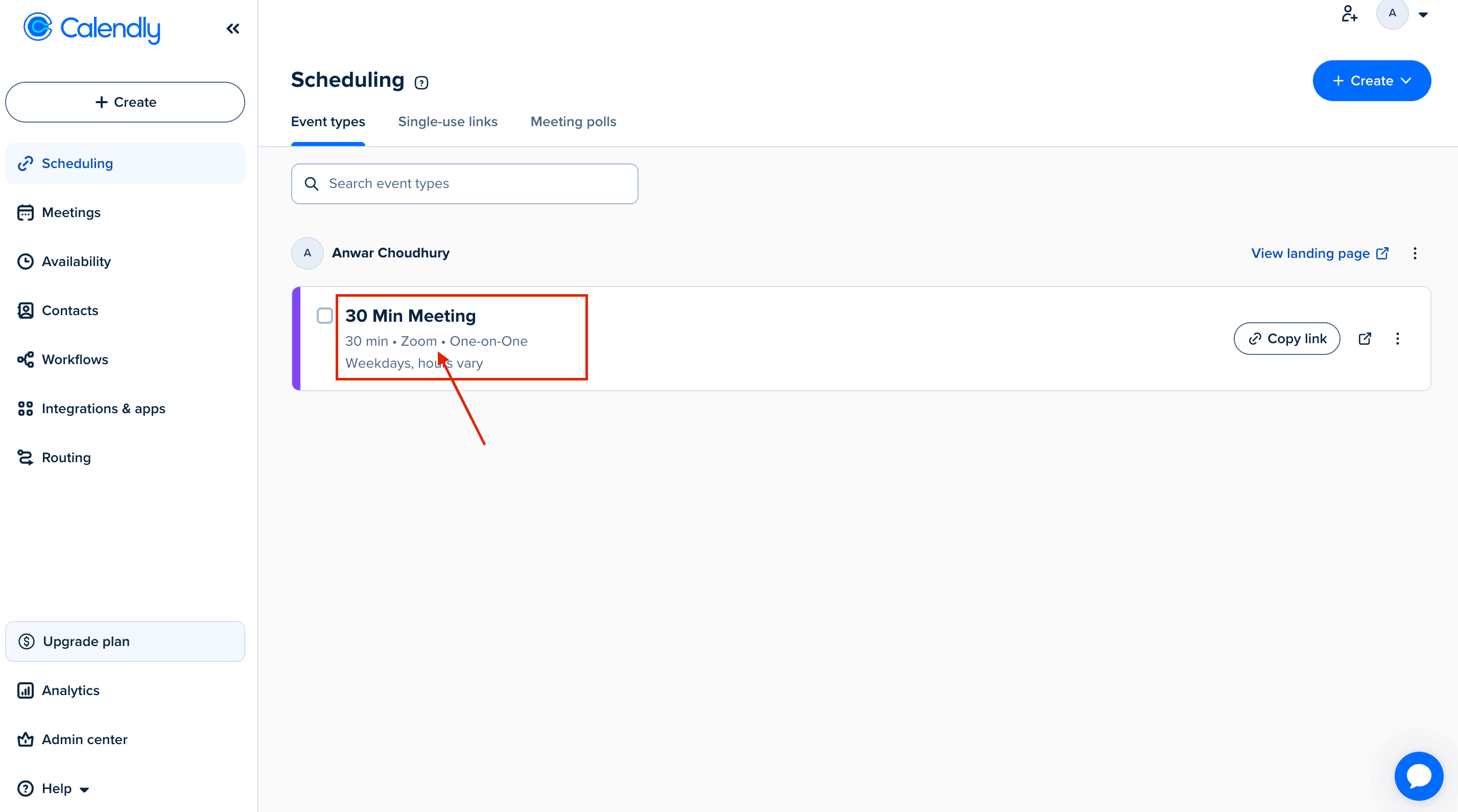
5. Meeting Links
Creating a meeting link in Calendly was quick and straightforward. You can choose the meeting type, set the duration and availability, then share the link with whoever needs to book.
I found the process simple enough to get a basic meeting link live within a few minutes. Once someone books, Calendly automatically adds the meeting to the connected calendar and handles the confirmation and reminders.
Calendly Pros and Cons
Pros
Simple and easy booking experience
Wide range of calendar and business integrations
Strong team scheduling with Round Robin
Reliable reminders and notifications
Easy to create and share meeting links
Good option for businesses of different sizes
Cons
Limited branding and customization options
Advanced features are locked behind higher plans
Pricing can become expensive for teams
Some advanced settings can take time to understand
Less flexibility for businesses wanting highly personalized booking experiences
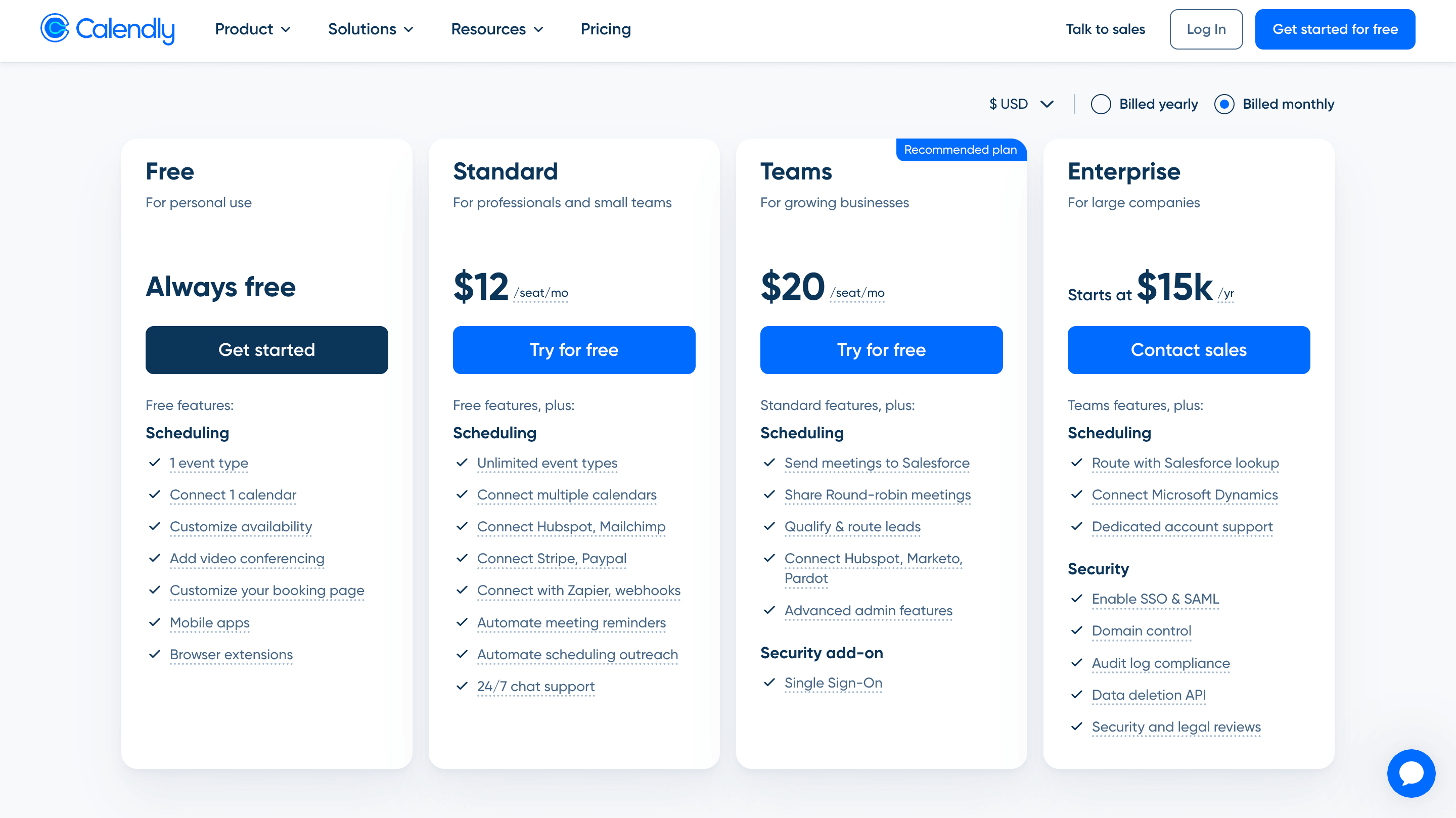
Pricing
HubSpot Meetings: In-Depth Review
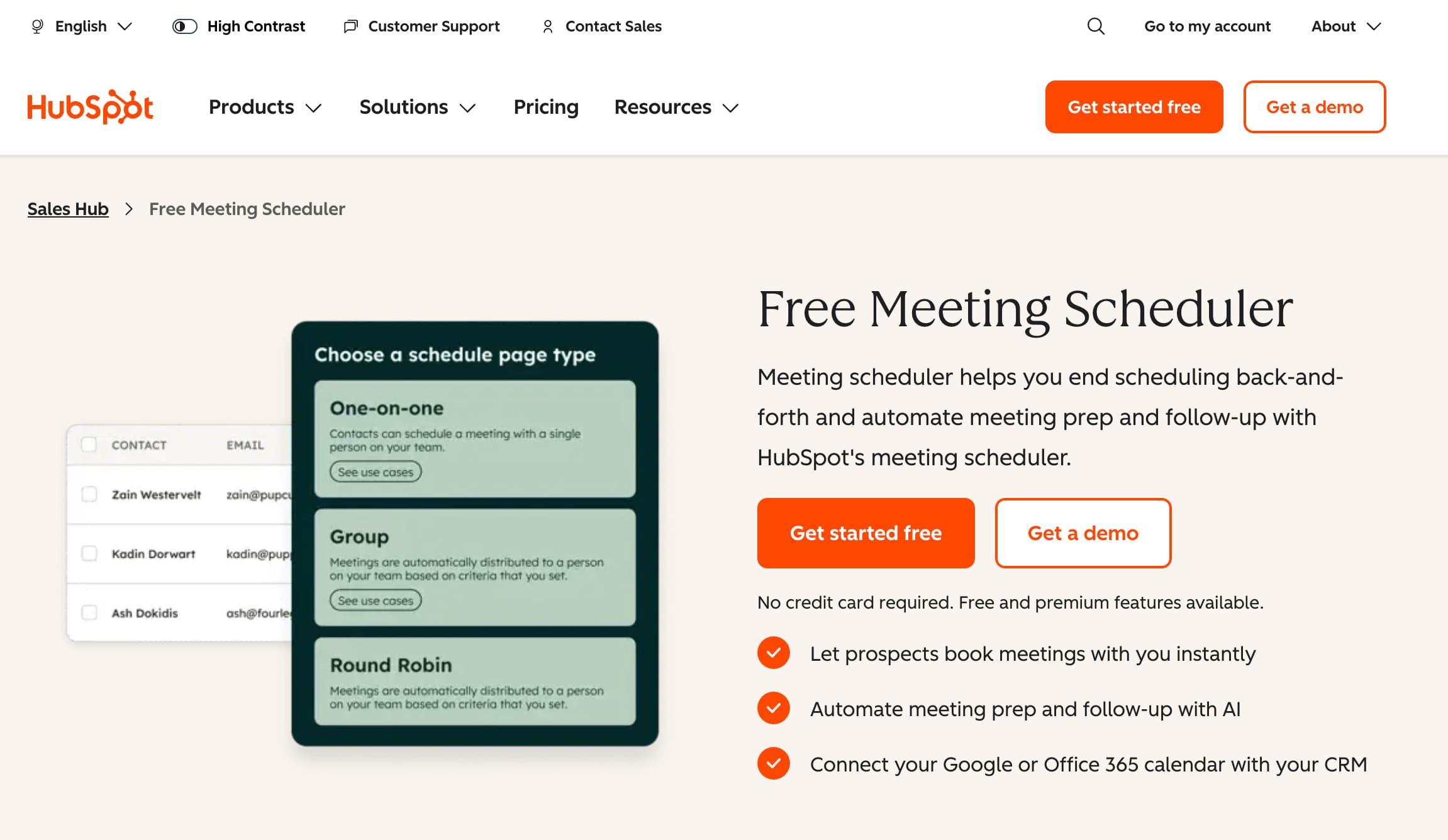
HubSpot Meetings takes a slightly different approach to scheduling because it is built directly into HubSpot’s wider CRM. Instead of being just a tool for sharing a booking link, it connects meetings with contacts, deals and sales activity.
When I tested it, the basic booking process worked well and connecting calendars was straightforward. But as I went deeper into the settings, the experience felt more complex than a dedicated scheduling tool, especially when setting up availability and team scheduling.
The main advantage is really the wider HubSpot ecosystem. If your business already uses HubSpot, having meetings, contacts and sales activity connected in one place makes a lot of sense.
Features
1. Calendar Integrations
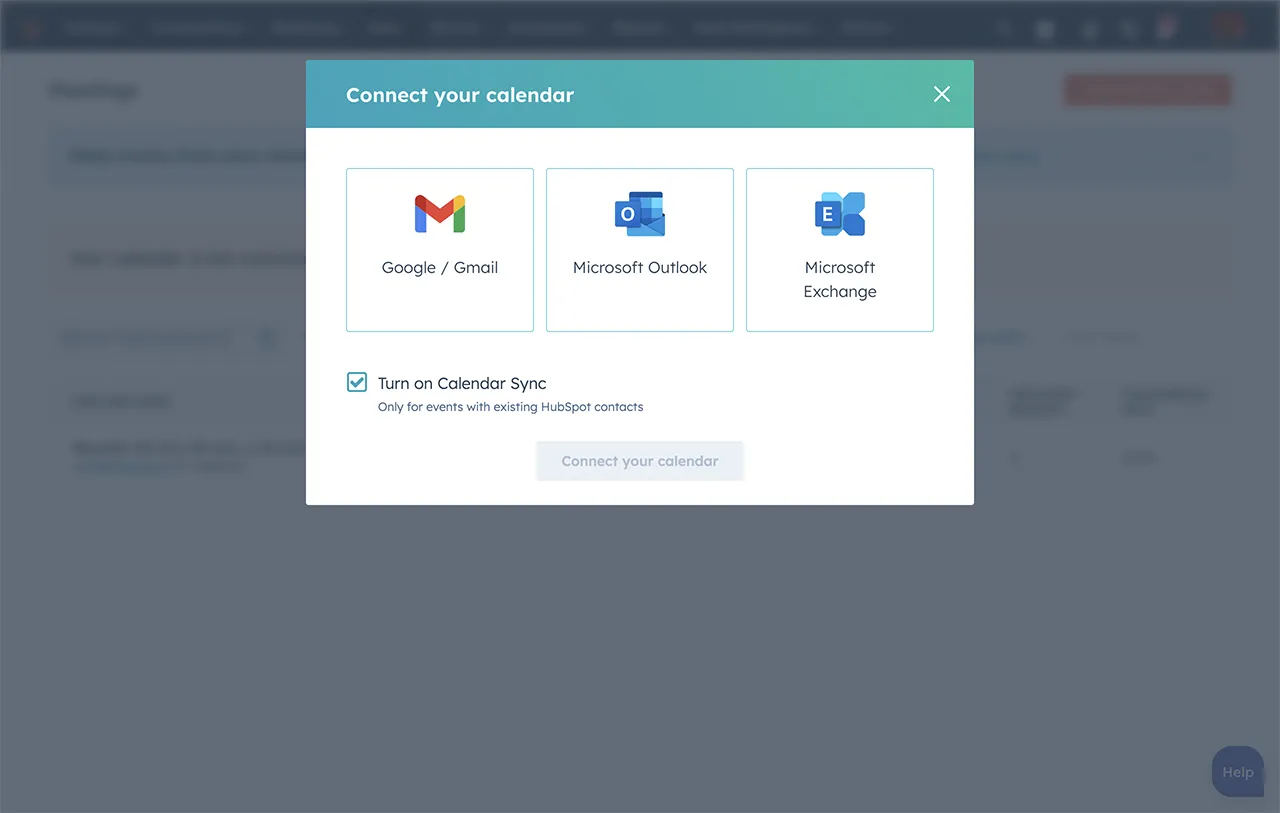
HubSpot Meetings connects with Google Calendar, Outlook and Microsoft 365 to keep your availability in sync. When I connected my Google Calendar, existing events were automatically marked as busy, while new meetings booked through HubSpot appeared on my calendar straight away.
The setup was fairly straightforward during testing, and HubSpot also provides guidance for connecting your calendar if you're setting it up for the first time.
2. Meeting Links
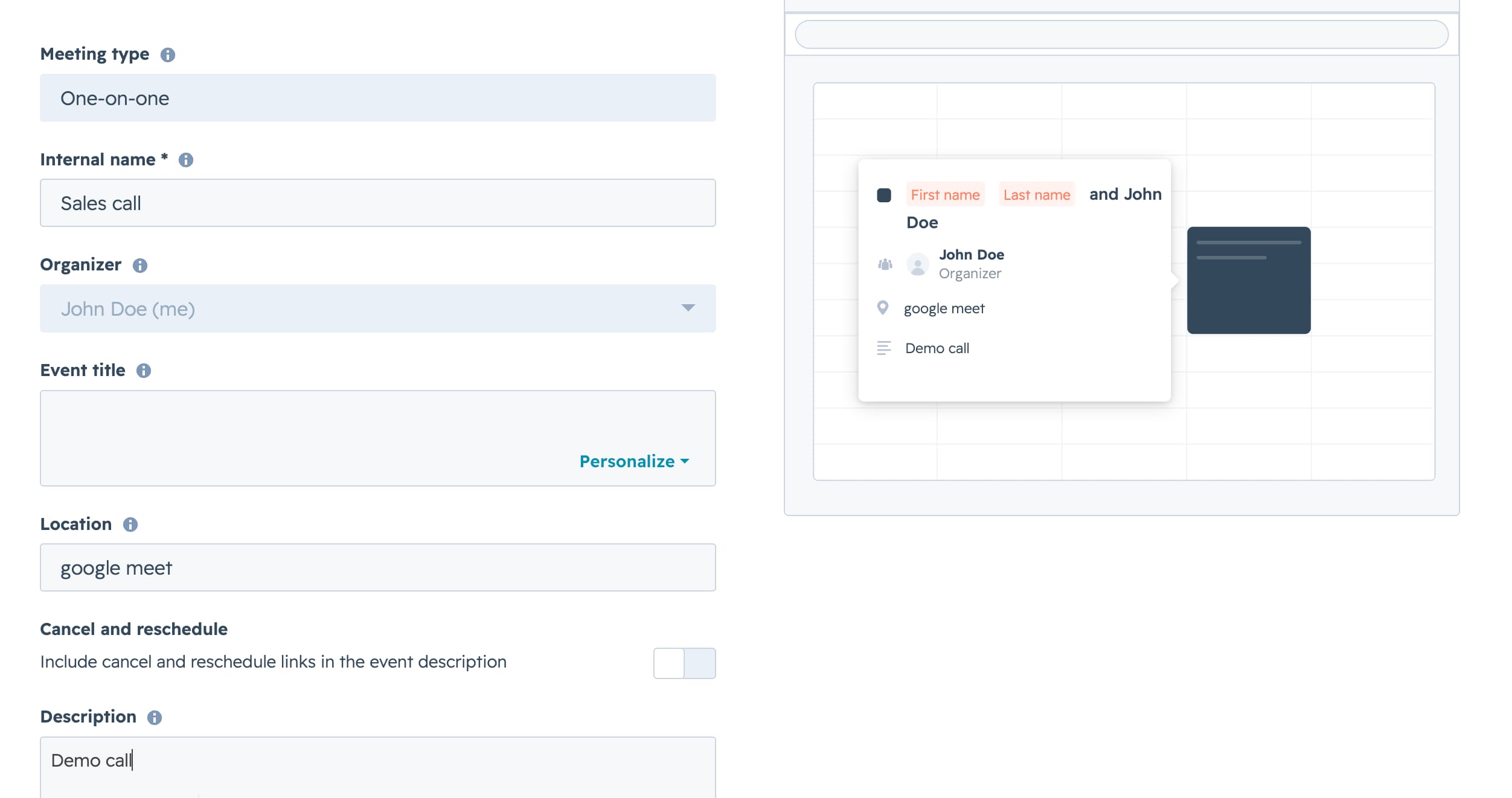
Creating and sharing meeting links in HubSpot was straightforward. Once the meeting type was set up, I could quickly create a link and share it without needing to manually coordinate availability.
I also found a G2 review that highlighted the ability to easily connect meeting links as one of the useful built-in sales features. This is one of HubSpot's strengths because meetings can work alongside the CRM without needing another third-party app for basic sales workflows.
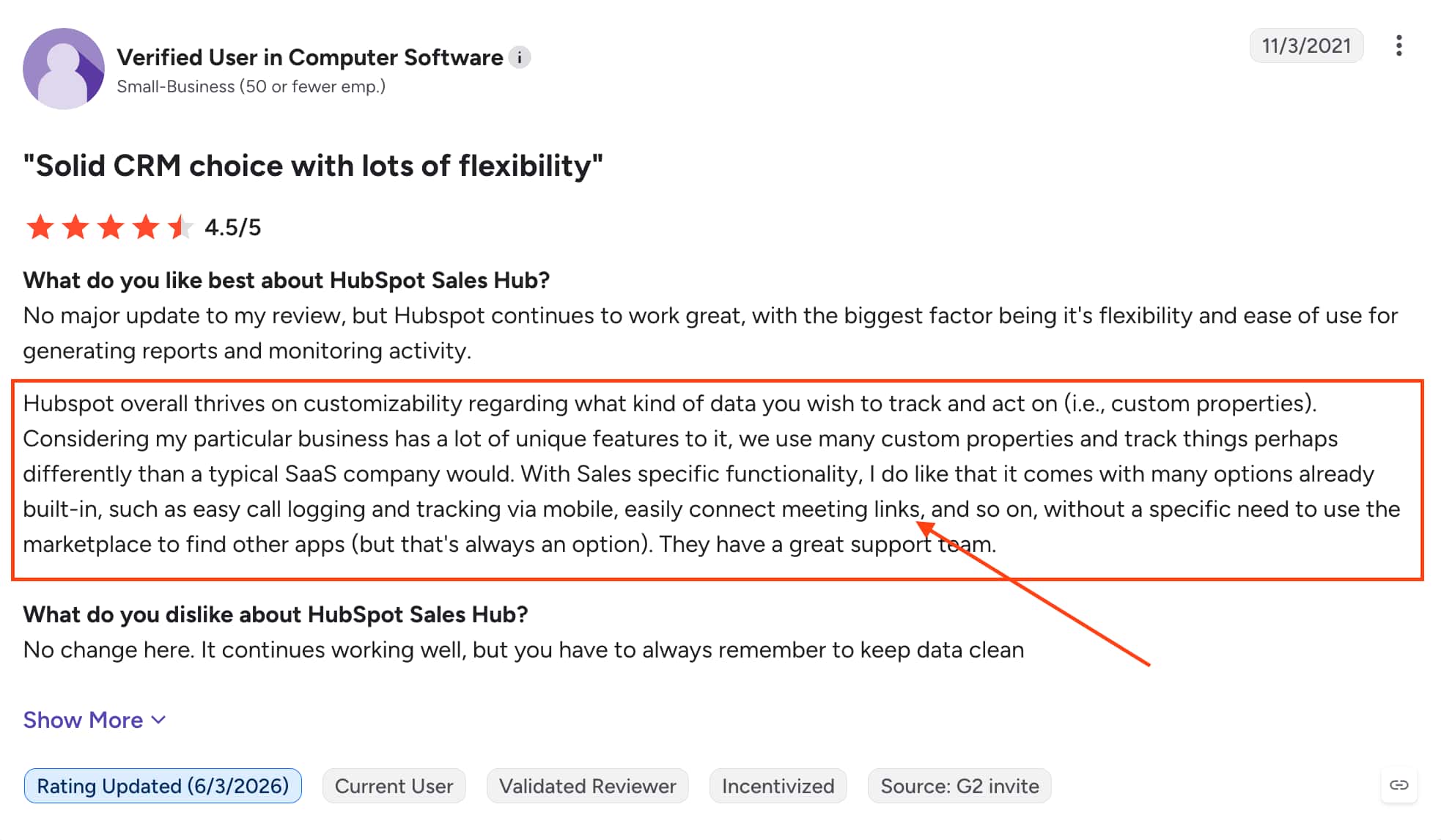
Source: G2
3. Availability
HubSpot gives you control over when people can book meetings by setting working hours, meeting durations and availability for different days. During testing, the basic setup was straightforward, but I found it became more time-consuming when I wanted different working hours throughout the week.
I also found the availability settings a little confusing at first. It wasn't immediately obvious to me whether the availability I changed was being applied across all meetings or just the specific meeting I was editing. If you're new to HubSpot Meetings, this is something worth paying attention to when setting up your schedule.
You can see How to Change Availability of HubSpot Meetings for a step-by-step guide.
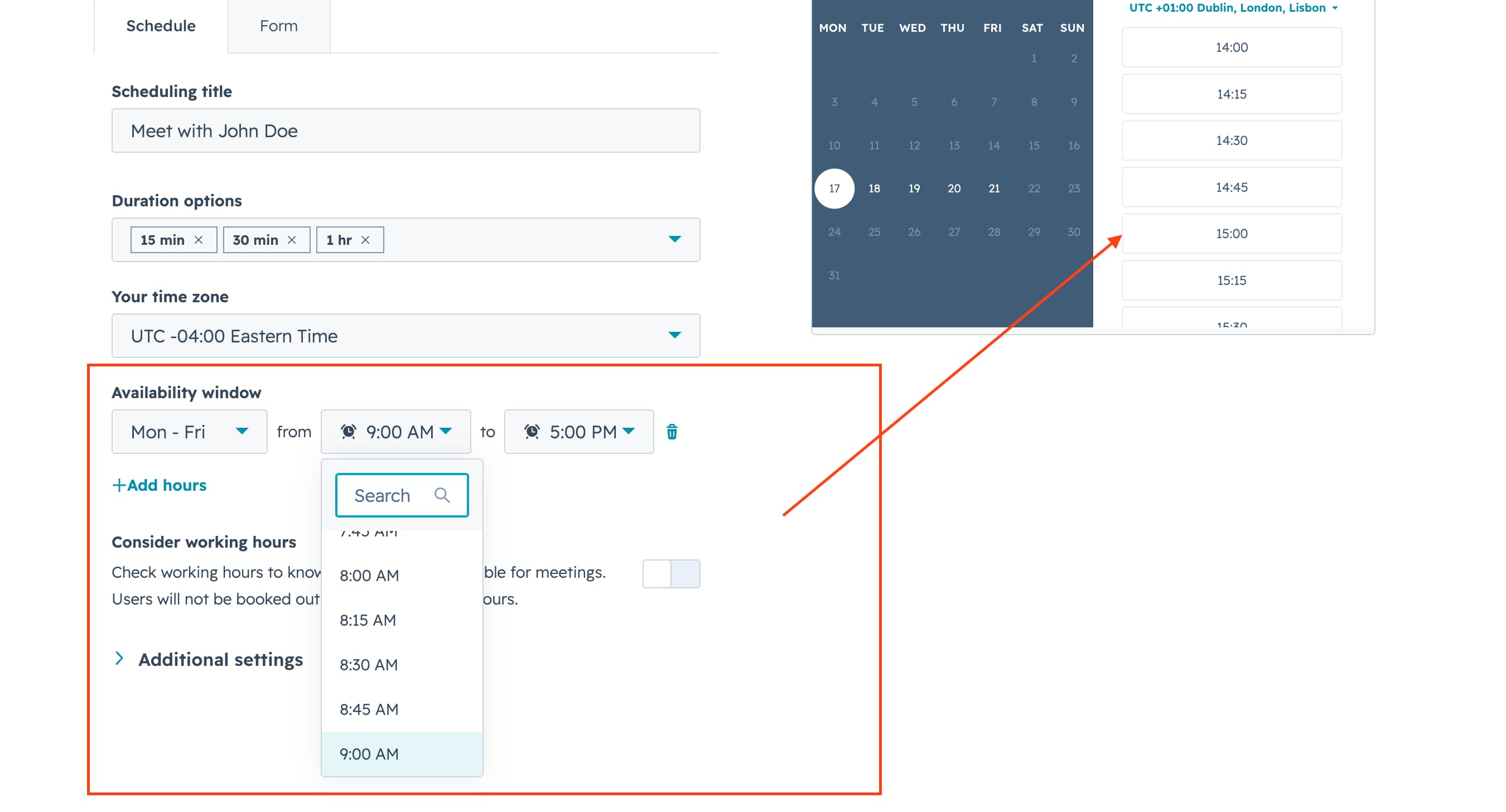
Source: Youtube
4. Booking Page
HubSpot's booking page felt quite basic when I tested it. The design felt a little off-brand and there were limited options to customise the page to match your business. Overall, it also felt less personalised compared with some dedicated scheduling platforms.
For businesses that want their booking page to help build their brand before a meeting, this is worth considering. I also found a Reddit discussion where a user raised similar concerns about the appearance and customisation of HubSpot's meeting pages.
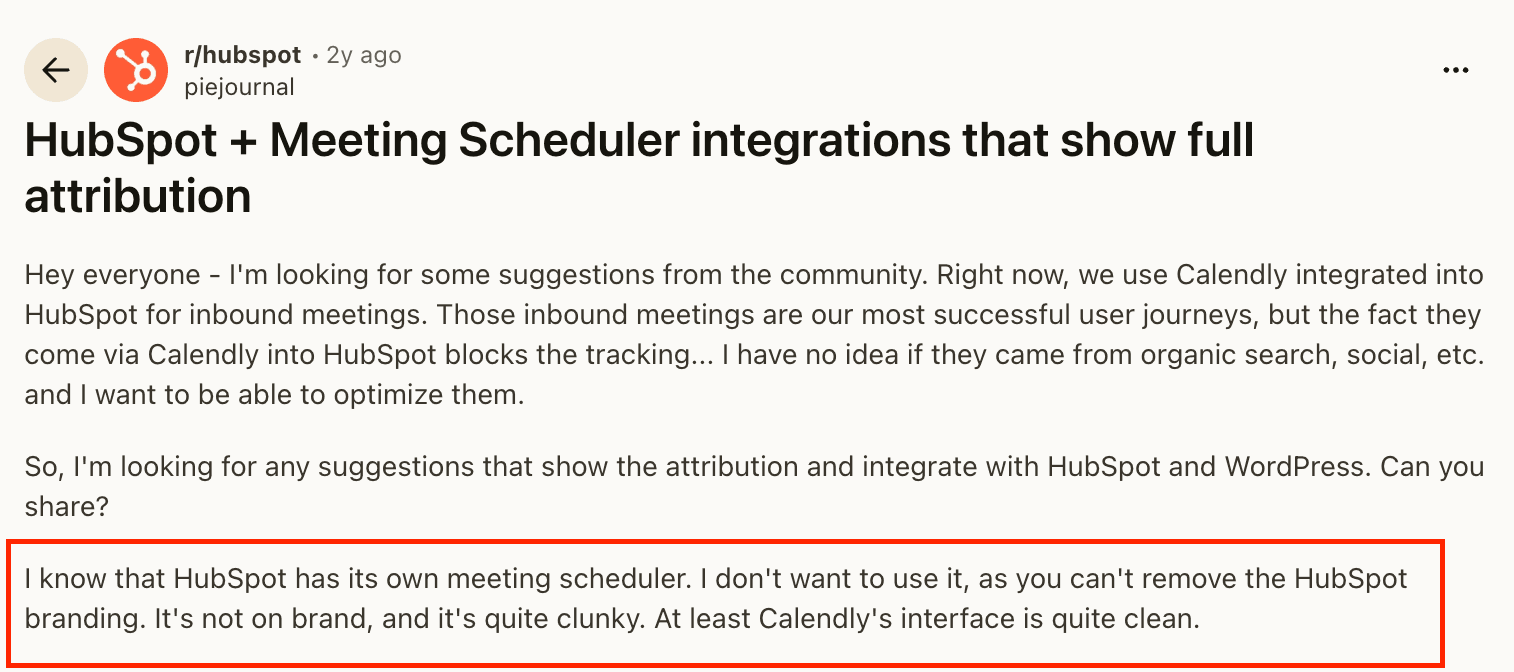
Source: reddit
5. Reminders
HubSpot lets you send meeting confirmations and reminders to help keep attendees informed before a meeting. During testing, the basic reminder setup was straightforward and worked well for standard meeting bookings.
The bigger advantage is that reminders can work alongside HubSpot's wider automation. Once a meeting is booked, you can trigger actions such as updating contact records, creating tasks or starting workflows.
I found this useful for businesses already using HubSpot, although some of the more advanced automation features require higher-tier plans. If you only need basic meeting reminders, HubSpot may offer more functionality than you actually need.
Pros
Works directly with the HubSpot CRM
Easy to connect meeting links with contacts and sales activity
Strong automation and workflow options
Good calendar integrations with Google, Outlook and Microsoft 365
Useful team scheduling features
Good option for businesses already using HubSpot
Cons
Interface can feel cluttered and dated
Booking page customization is limited
Availability settings can be confusing
Advanced features require higher HubSpot plans
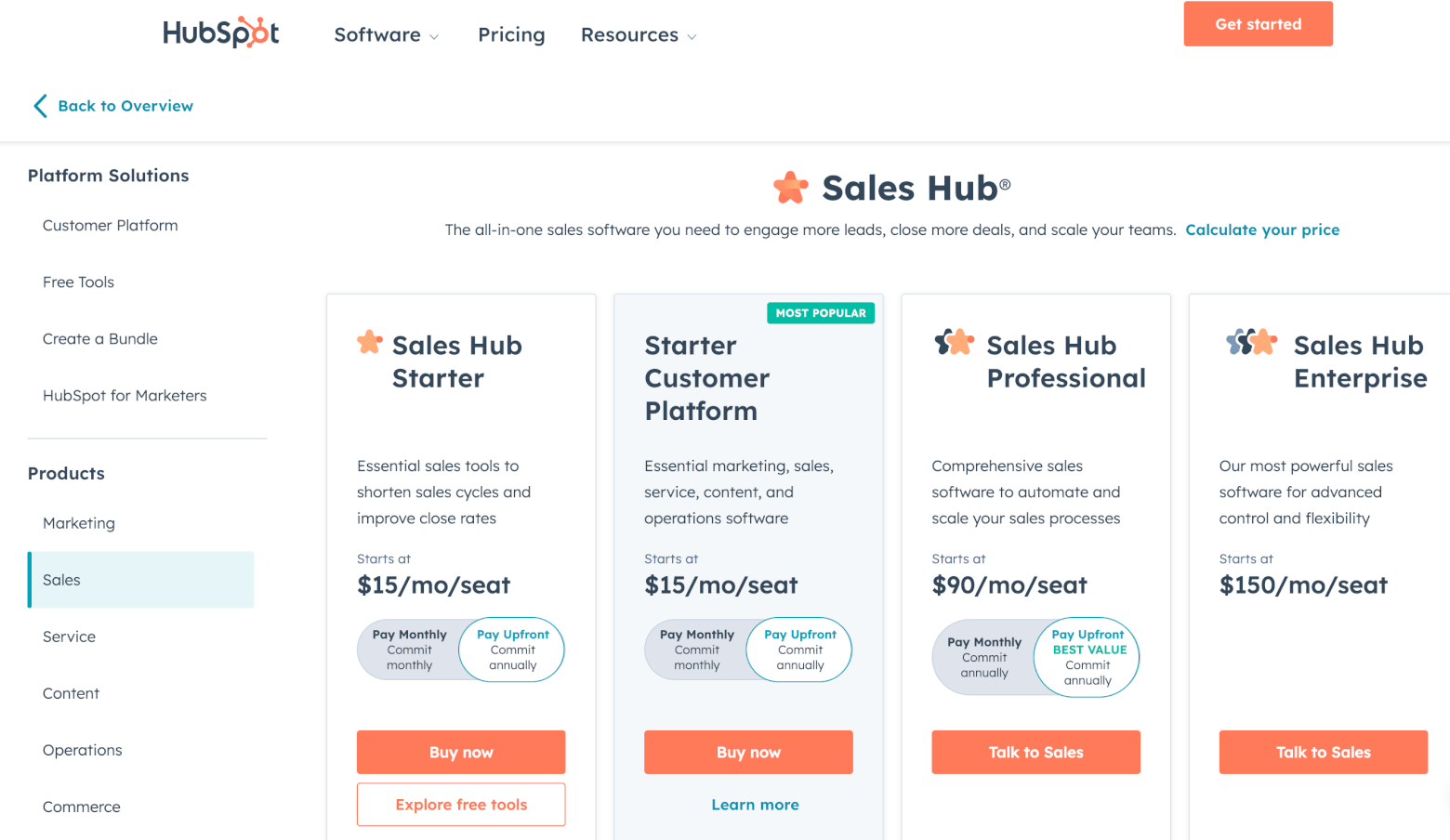
Can become expensive as your team grows
May offer more functionality than you need if you only want simple scheduling
Pricing
Doodle
Doodle is a scheduling platform best known for its Group Polls, where you can suggest several times and let participants choose which options work for them. It also offers booking pages for one-to-one meetings and sign-up sheets for situations where people need to choose individual time slots.
When testing Doodle, the Group Poll was the feature that stood out most. It was quick to set up and participants could respond without creating an account, which makes it useful when you're trying to coordinate people from different organizations. Doodle also offers a more traditional booking experience if you need people to choose an available time directly.

Features
1. Group Poll
Group Polls are what Doodle is mainly known for, so this was the first feature I tested. Creating a poll took less than a minute. I selected several possible times and shared the link, while participants could mark each option as available, if needed or unavailable.
I found this particularly useful for meetings where several people need to agree on a time. Participants don't need to create a Doodle account to respond, which removes an extra step from the process.
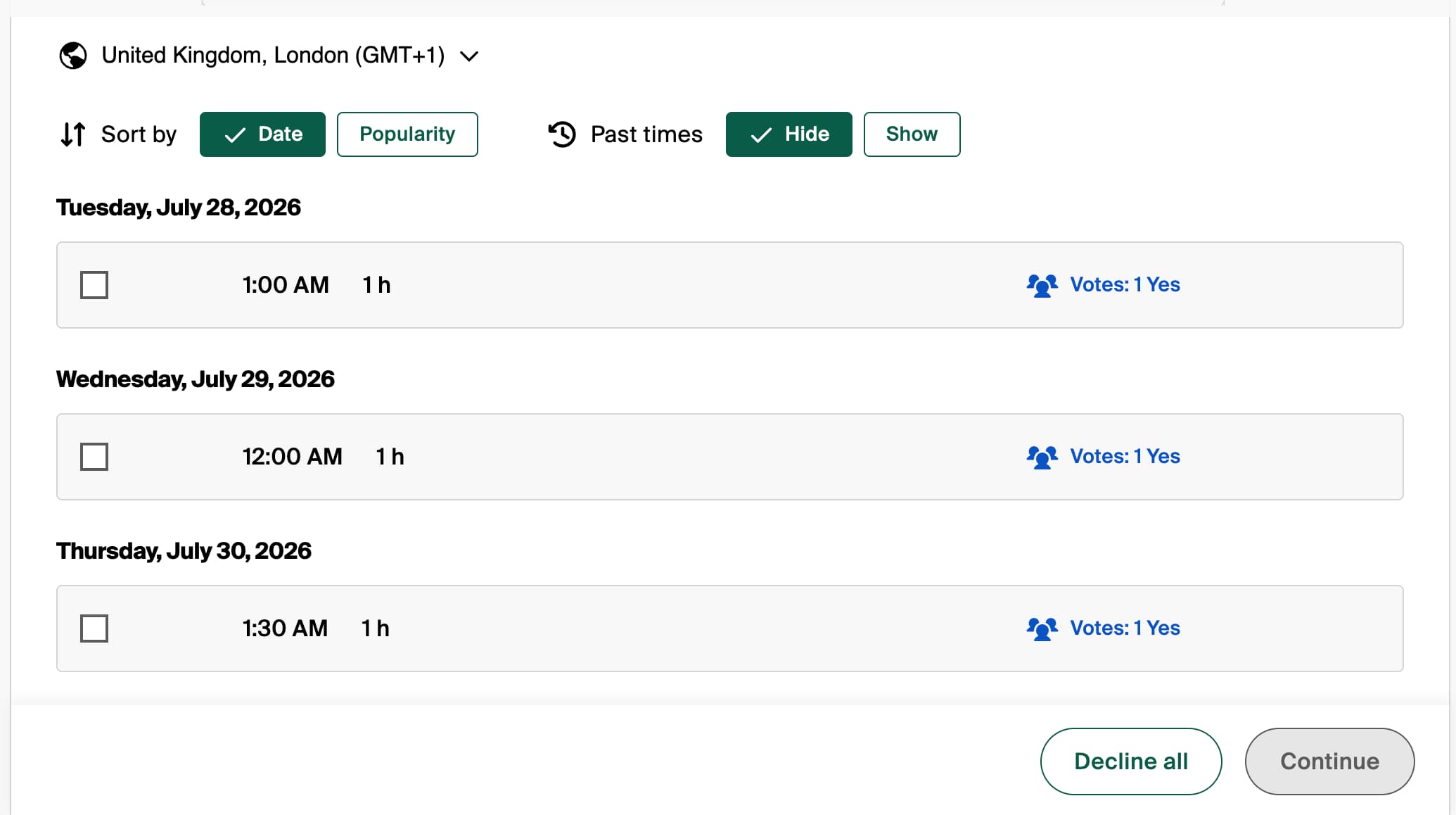
I also noticed several positive G2 reviews mentioning how convenient this is when coordinating with people outside your organization.

2. Booking Experience
Setting up a Doodle booking page was straightforward. I connected my calendar, configured my availability and had a shareable booking link ready within a few minutes.
The booking process itself was simple and there wasn't much of a learning curve. However, one thing that stood out during testing was the advertising on the free booking experience. The ads and pop-ups made the page feel less professional when compared with a cleaner business booking page.
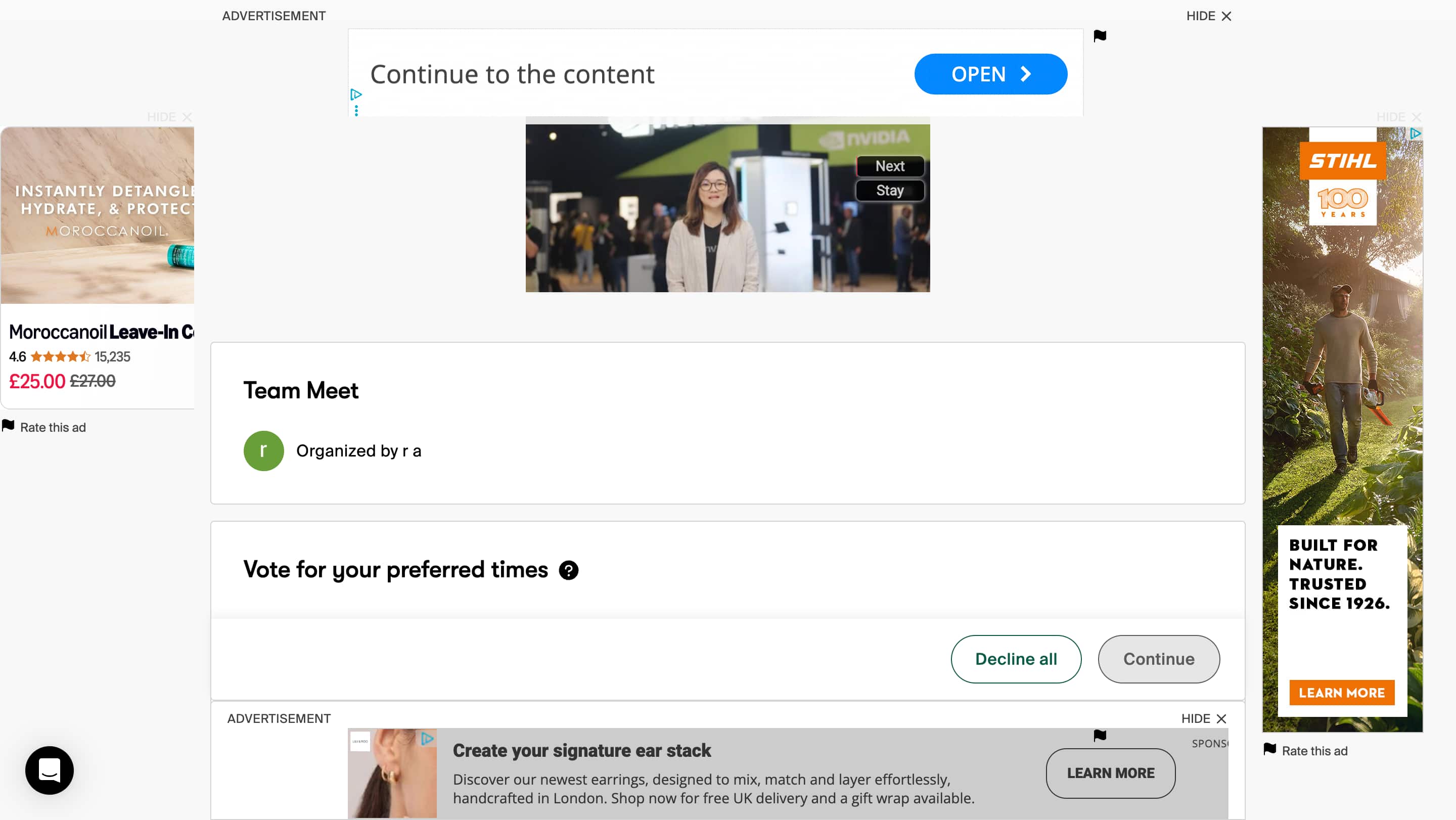
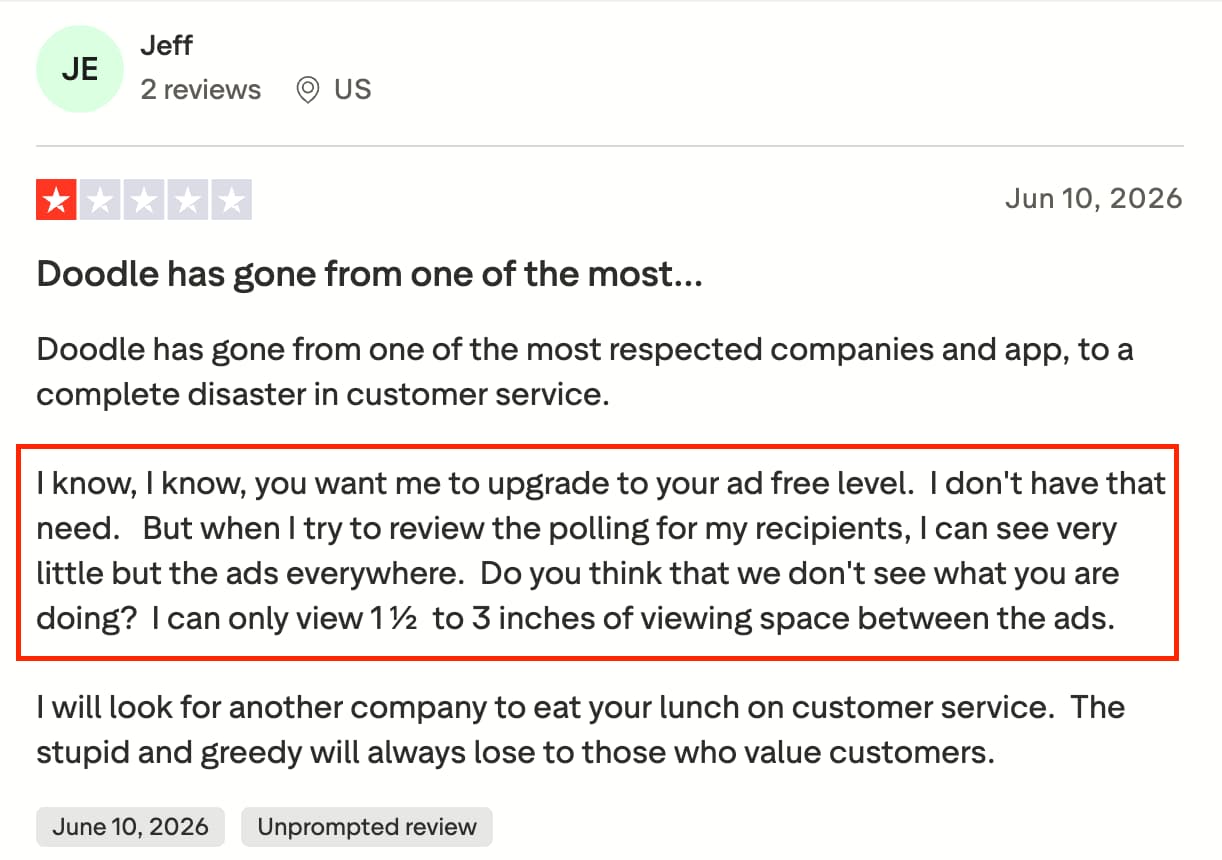
I actually found it really annoying and distracting and many people left reviews on Trustpilot about being unhappy with the amount of advertising on the free plan.
3. Booking Types
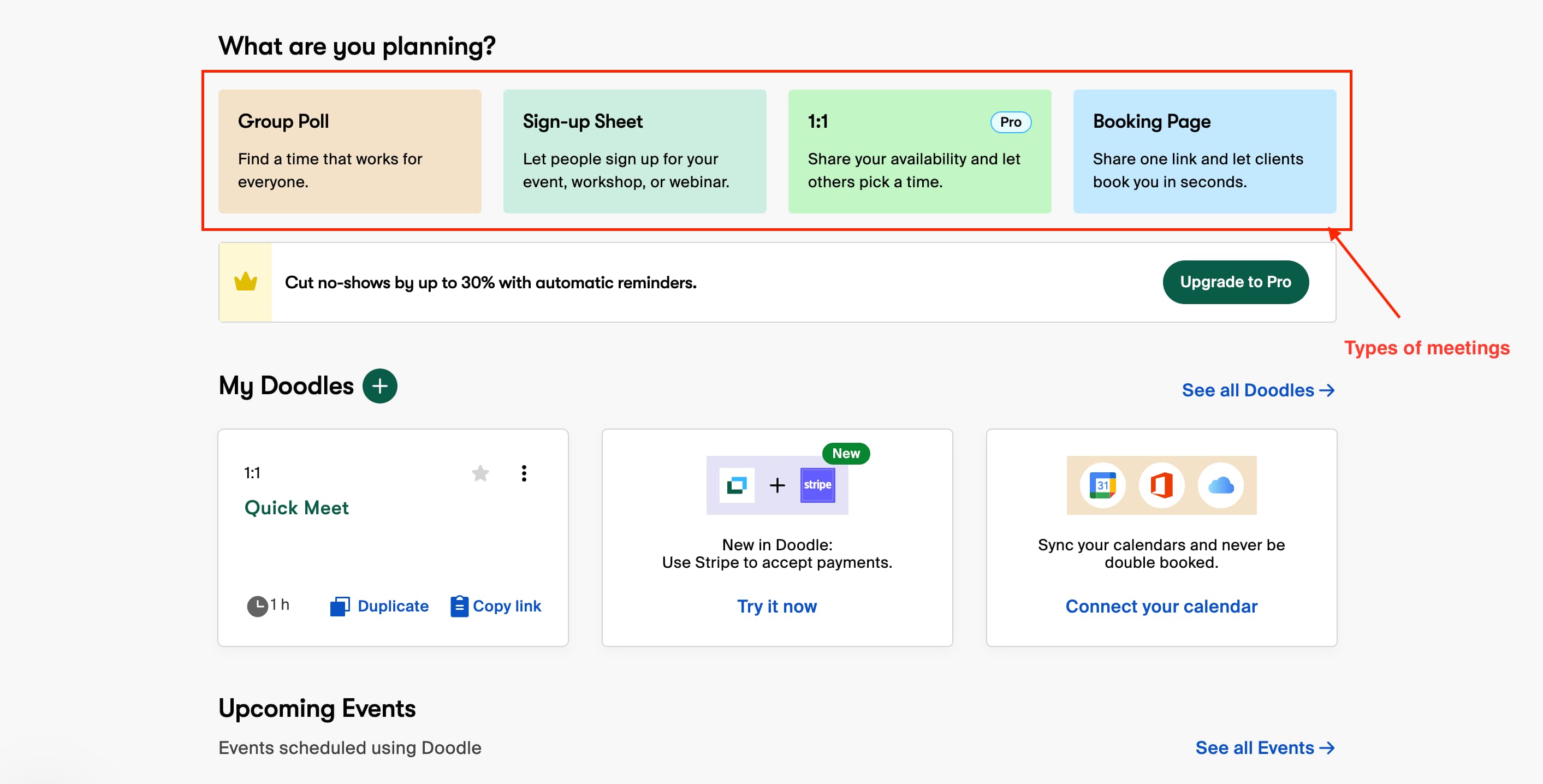
Doodle gives you several ways to organise meetings depending on what you need. You can use a Group Poll when everyone needs to agree on a time, a Booking Page for one-to-one appointments or a Sign-up Sheet when people need to claim individual slots.
I found this flexibility useful because different meetings need different scheduling methods. A group meeting can work better with a poll while a client meeting is easier to arrange through a booking page.
The downside is that if you only want a simple scheduling link, some of these additional options may not be necessary.
4. Calendar Integrations
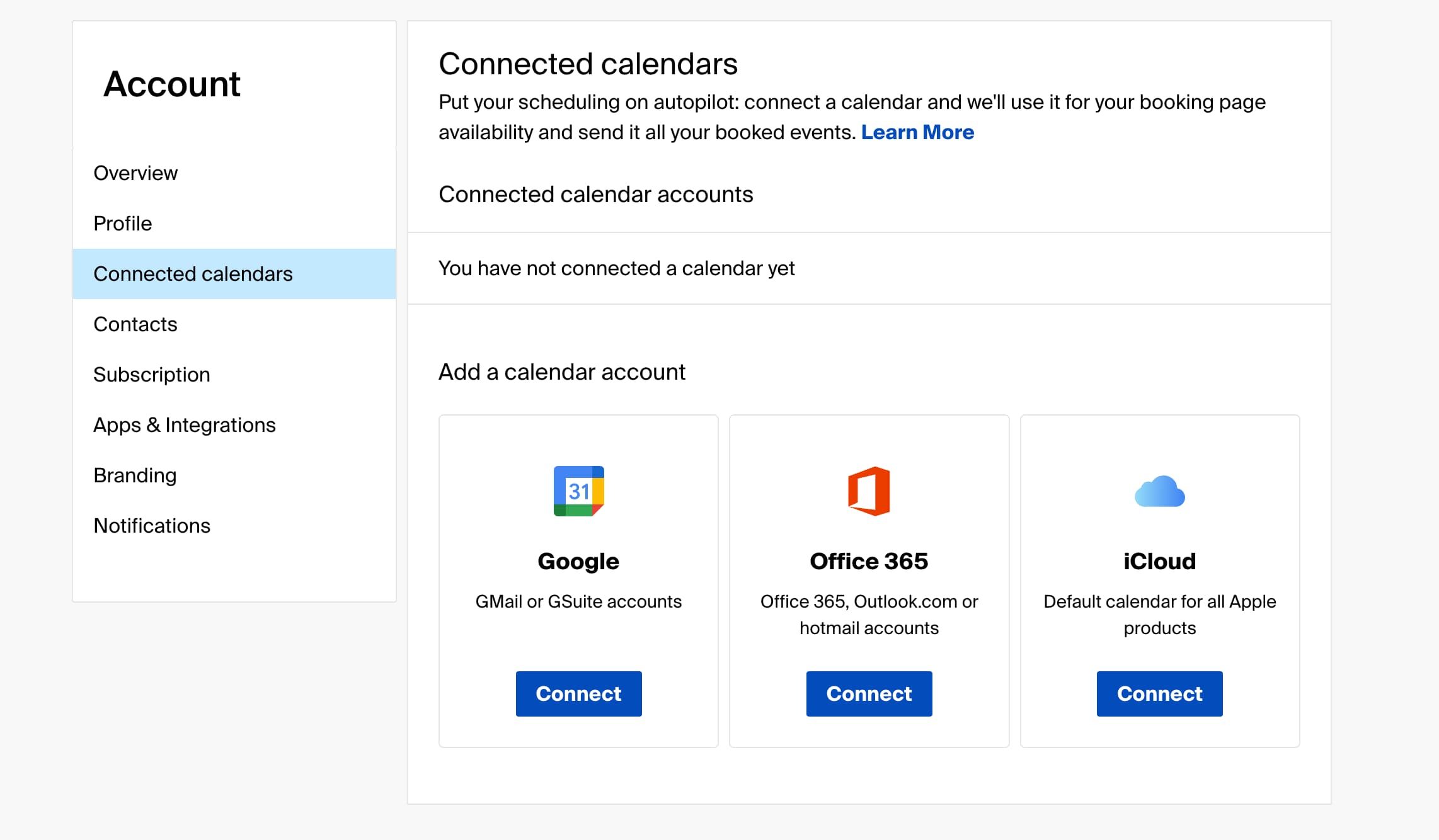
Connecting my calendar was quick and straightforward. Doodle supports Google Calendar, Outlook and iCloud, allowing it to check availability when people are booking meetings or responding to polls.
I also connected video conferencing options including Zoom, Google Meet and Microsoft Teams. The integrations worked without much configuration and automatically made the meeting setup easier.
5. Team Scheduling
Doodle's team features focus more on shared scheduling and administration than automatic meeting distribution. You can add team members, manage bookings and allow other people to help organise meetings through the team features.
When comparing this with Calendly's Round Robin, I found the approach quite different. Doodle is useful when multiple people need to manage scheduling together, but it isn't as focused on automatically distributing incoming meetings between sales or support team members.
Doodle Pros and Cons
Pros
Excellent Group Poll feature for finding a time that works for everyone
Participants don't need an account to respond to polls
Multiple ways to schedule including polls, booking pages and sign-up sheets
Simple setup with little learning curve
Good calendar and video conferencing integrations
Useful for coordinating meetings across different organisations
Cons
Free booking pages can include advertising, which can look less professional
Limited branding and customization compared with dedicated scheduling platforms
Team features are more focused on collaboration than automatic meeting distribution
Can feel like several different scheduling tools rather than one unified experience
Less suitable for sales teams that need advanced routing
Some useful features require higher-tier plans
Pricing
Google Appointment Scheduling
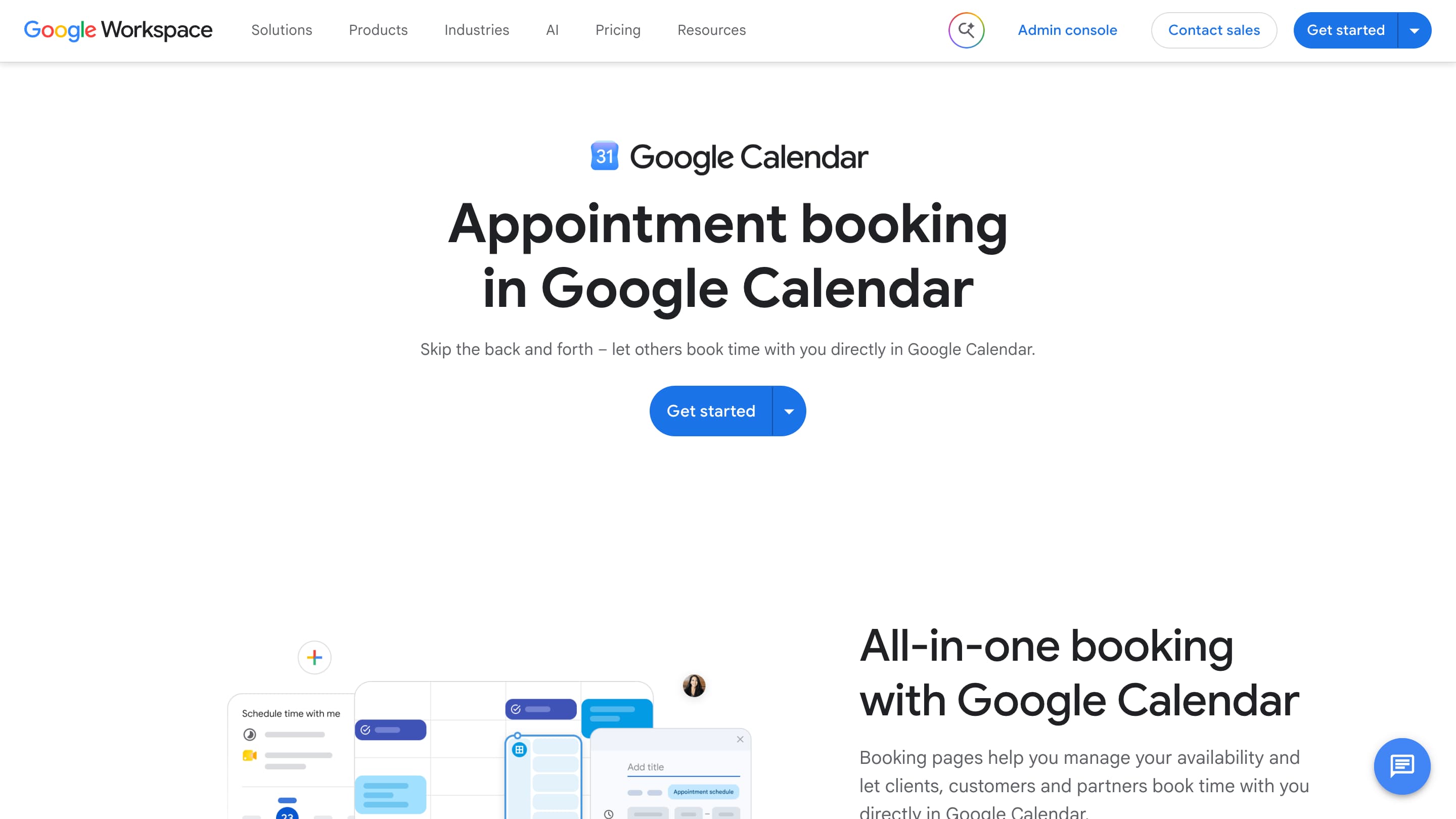
Google Appointment Scheduling is a calendar software that also includes appointment scheduling add on. Rather than being a dedicated scheduling platform, it's designed to help individuals and businesses manage their calendars while offering a simple way for others to book available time slots.
Features
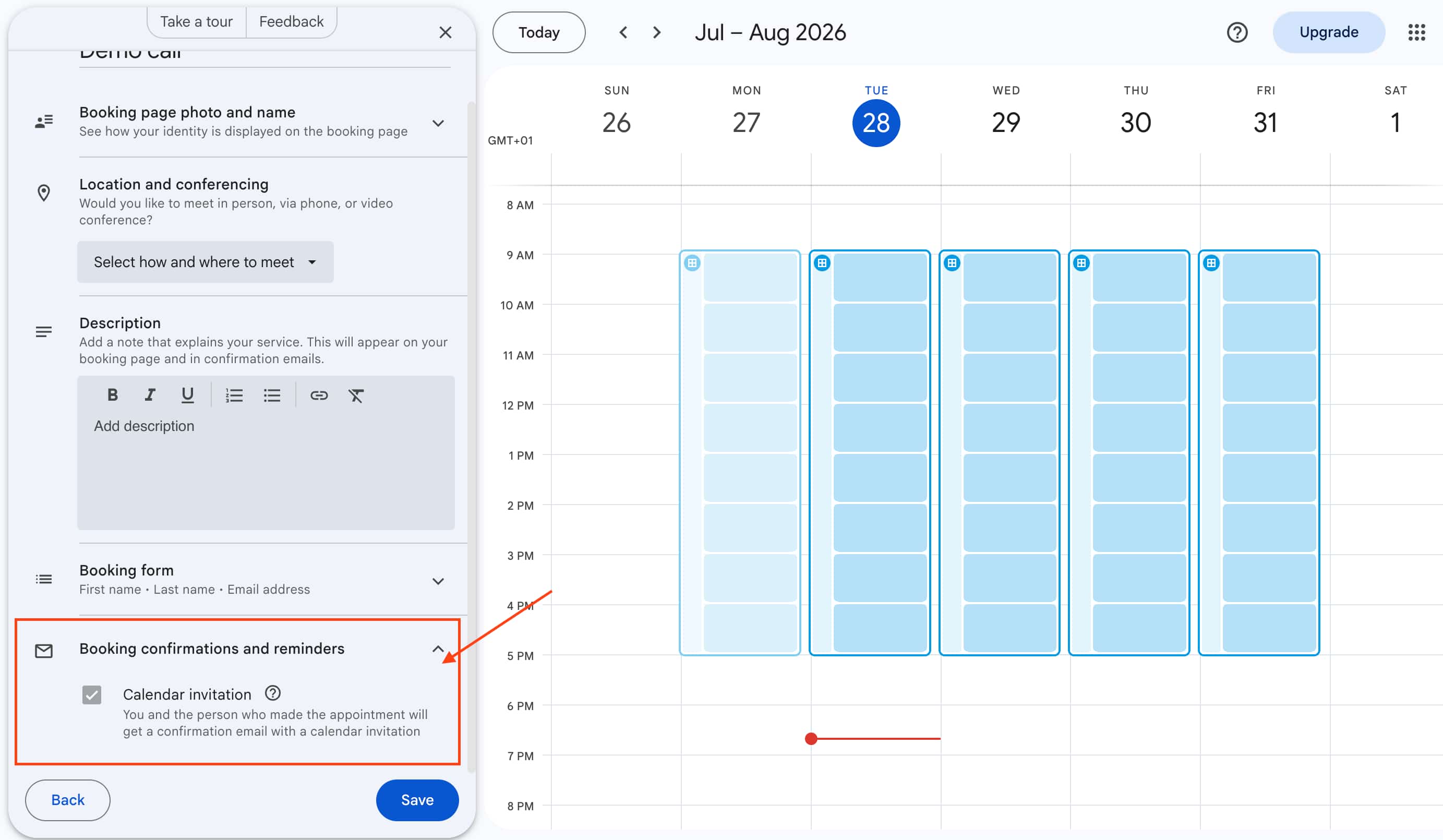
1. Appointment Scheduling
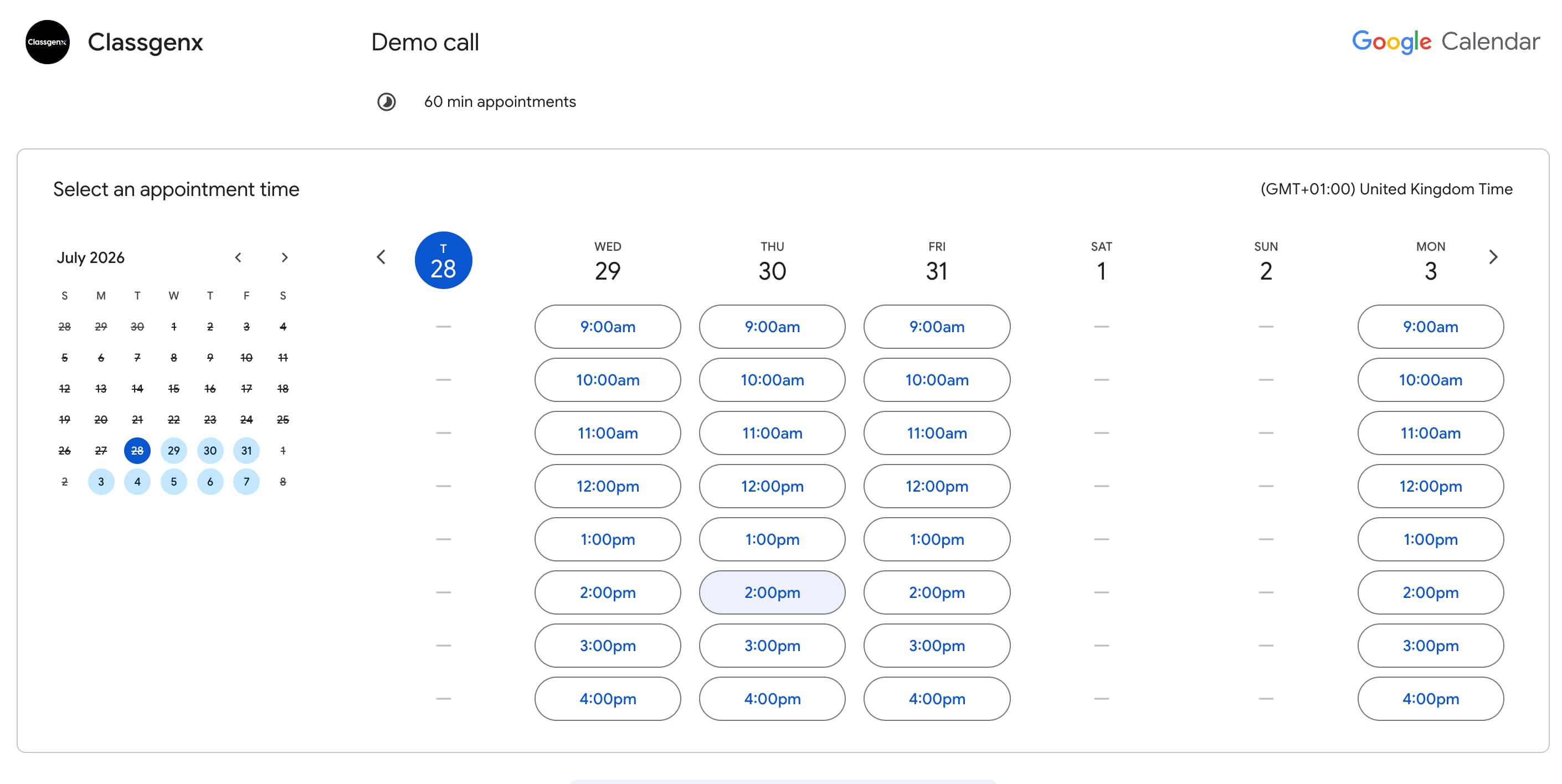
Creating an appointment schedule was simple. I could set my availability, choose the meeting duration and share a booking link where someone could select an available time.
The experience feels very much like an extension of Google Calendar rather than a separate scheduling product. This makes it easy to use, but businesses looking for more advanced scheduling features may find it limited.
2. Calendar & Availability
This is probably Google's biggest advantage. Your appointment schedules work directly with Google Calendar, so existing events automatically affect your availability and new bookings appear in your calendar.
I was also able to set booking windows and buffers between appointments. However, when working with multiple calendars, I found it could become a little confusing to keep track of which calendar was controlling availability.

3. Team Scheduling & Co-hosts
I tested the co-host feature by adding another person to an appointment schedule. Setting this up was straightforward and works well if two or more people need to be involved in the same appointment.
However, Google Appointment Scheduling doesn't provide advanced team features such as Round Robin or lead routing. This makes it better suited to simple team bookings rather than businesses managing a high volume of incoming meetings.
4. Google Meet Integration
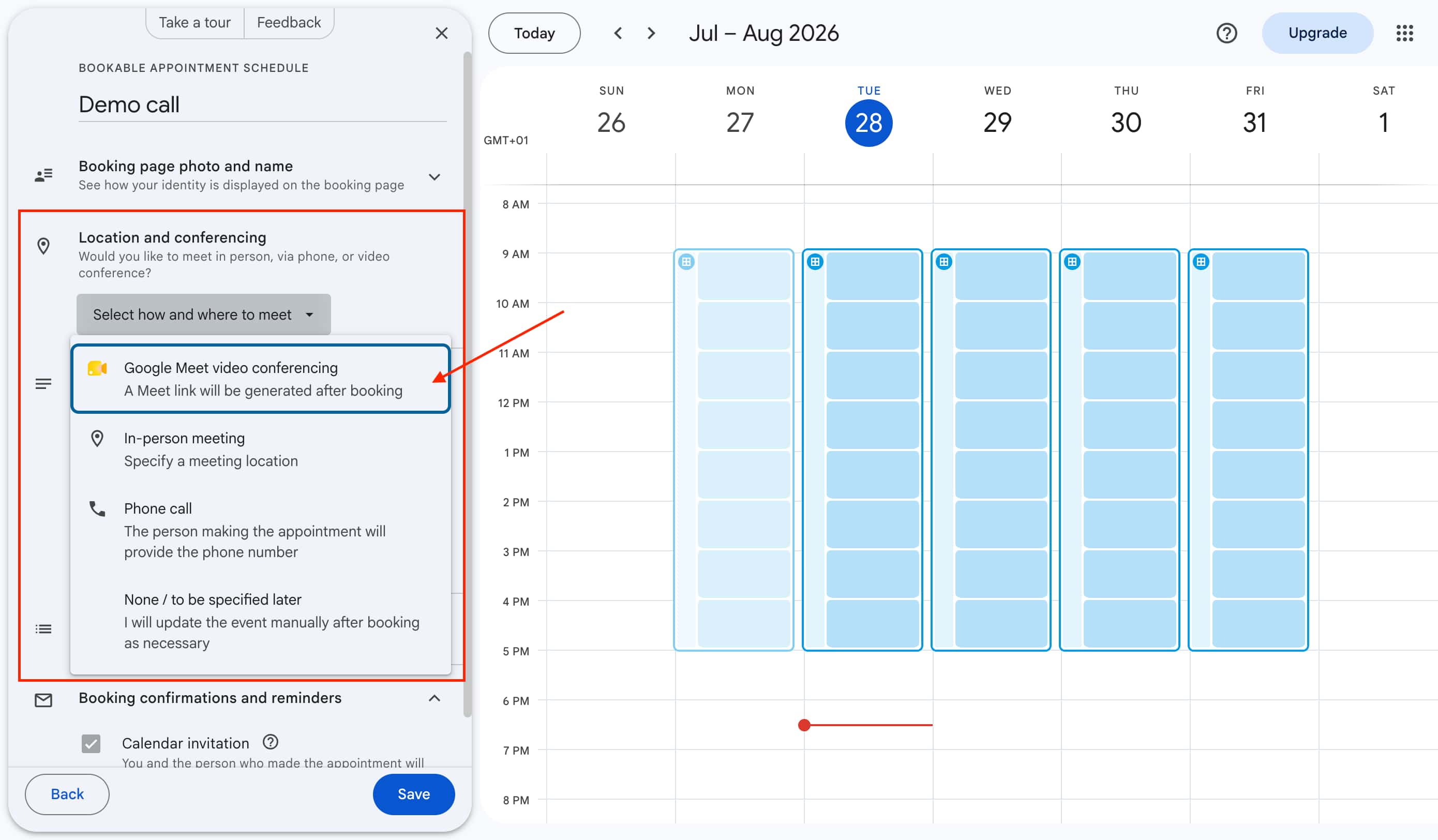
Google Meet integration was probably the easiest part of the setup. When creating an appointment schedule, I selected Google Meet as the meeting location and a meeting link was automatically created when someone booked.
There was no additional integration or configuration needed, which makes the process particularly convenient if your business already uses Google Workspace.
5. Reminders
Google automatically sends a confirmation when someone books an appointment, along with a calendar invitation. The person booking and the host both receive the relevant meeting details.
I found this simple and reliable during testing. Additional reminder options are available depending on the Google Workspace plan you're using, although the notification features are more basic than what you'll find in dedicated scheduling platforms.
Google Appointment Pros and Cons
Pros
Very easy to set up if you already use Google Calendar
Works seamlessly with Google Workspace
Google Meet integration works without extra setup
Simple availability and booking controls
Co-hosts make basic team scheduling possible
Familiar interface for Google users
Cons
Limited booking page customization
No advanced Round Robin or routing features
Less suitable for larger teams managing lots of meetings
Limited automation compared with dedicated scheduling tools
Multiple calendar management can become confusing
Fewer integrations and advanced scheduling options
Pricing
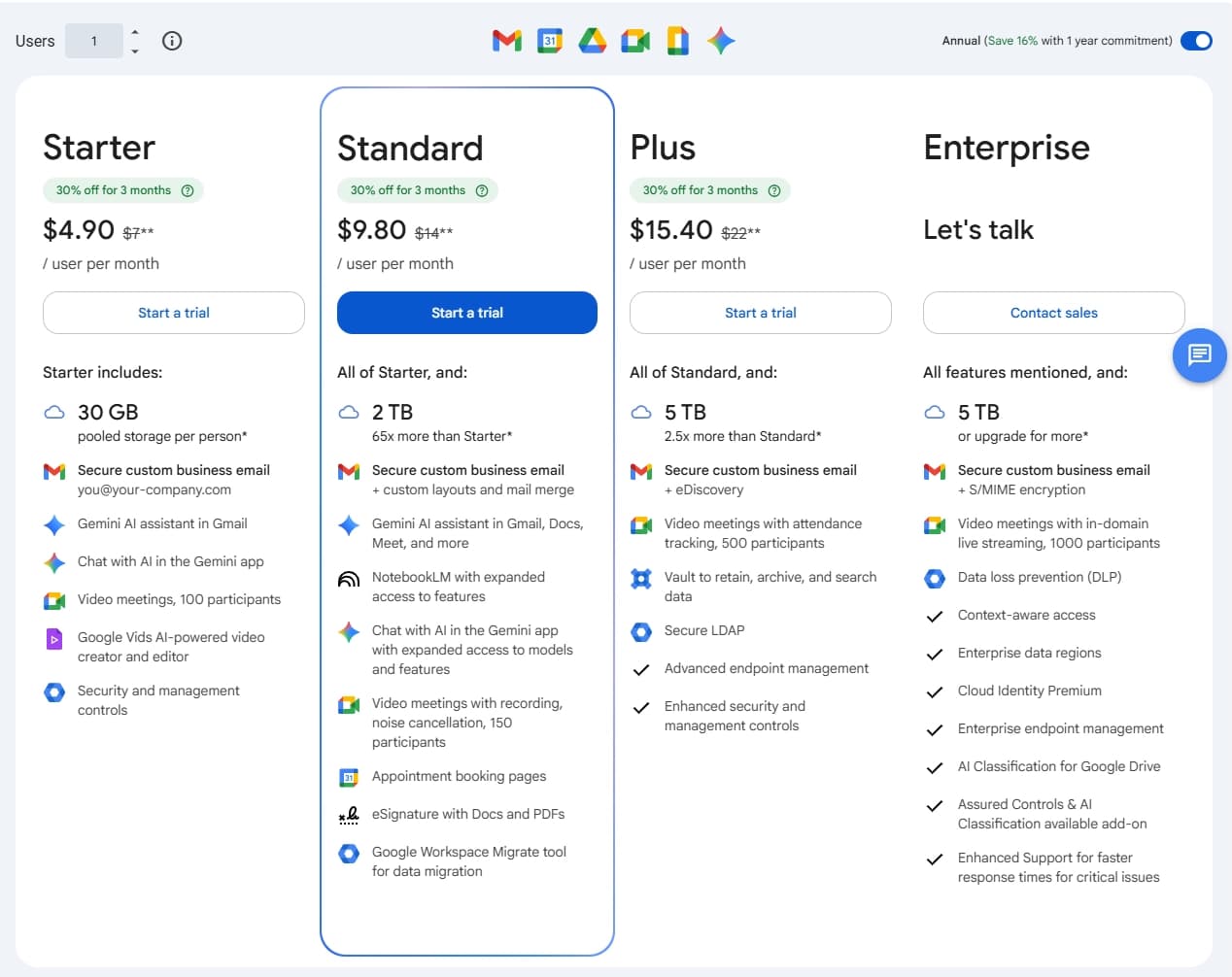
Cal Com
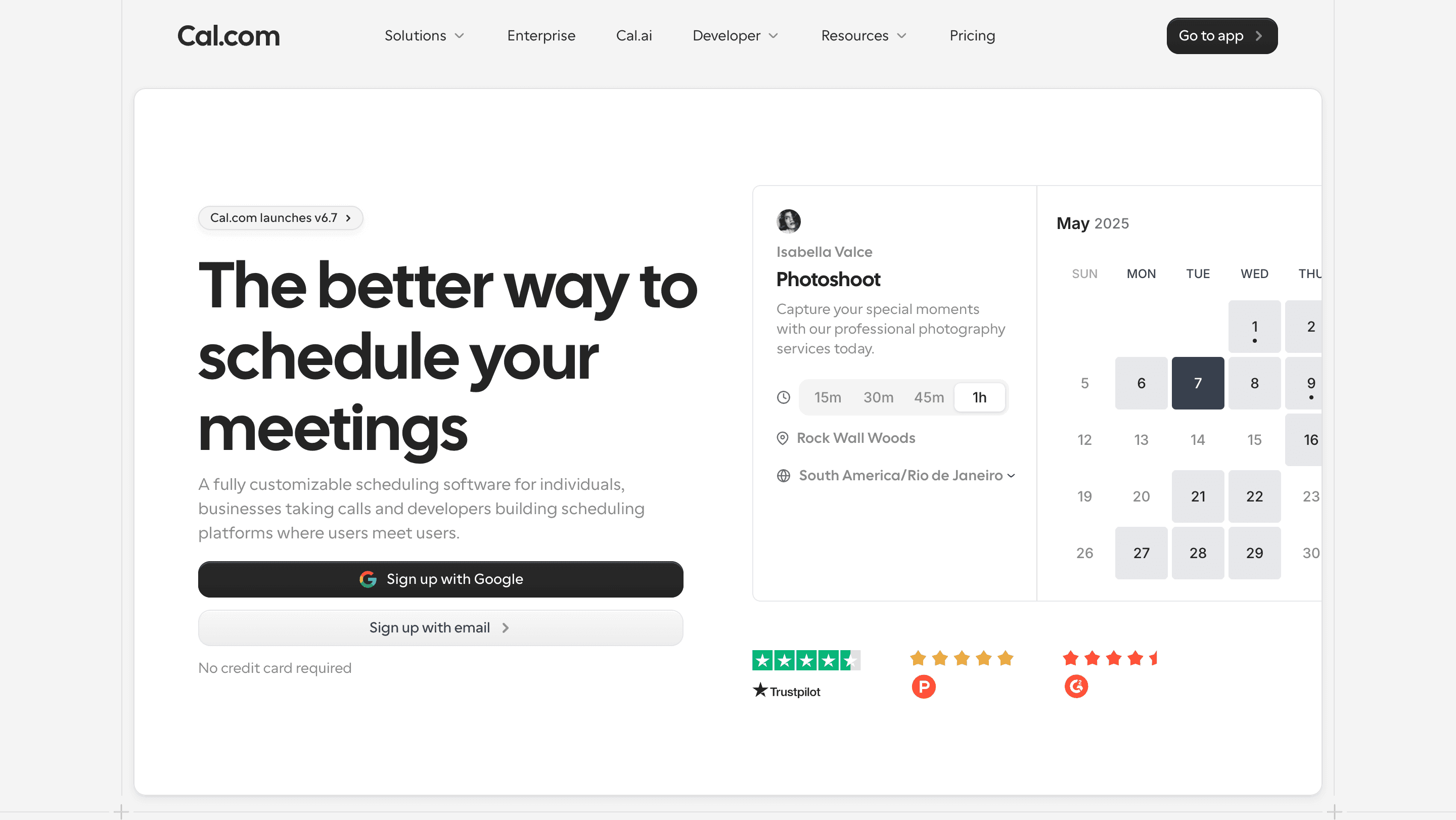
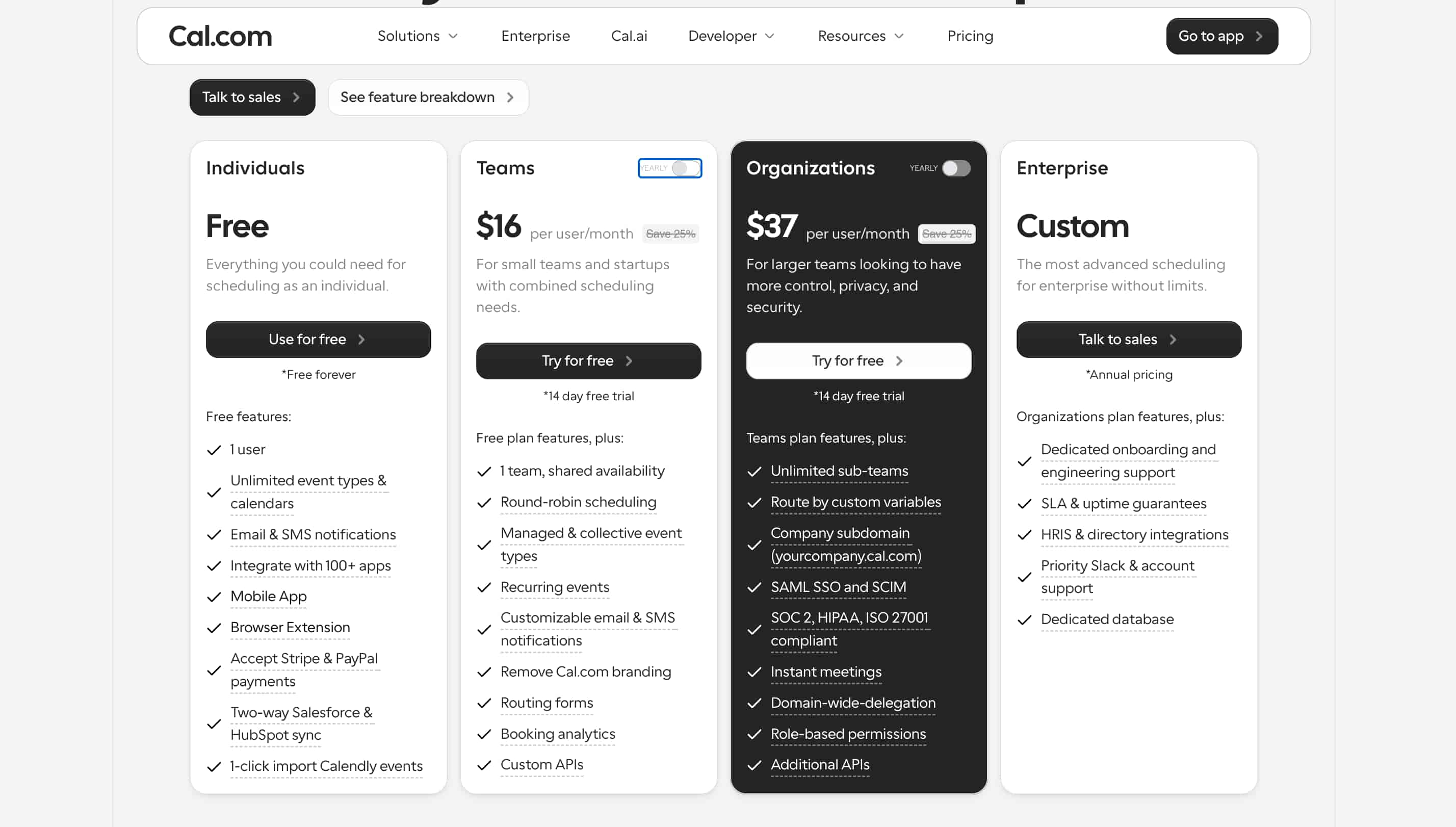
Cal.com takes a different approach to meeting scheduling by giving users more control over how their scheduling system works. Rather than focusing only on making booking simple, it offers features such as open-source access, custom workflows, APIs, self-hosting, team scheduling and routing.
When testing Cal com, I found it offered a lot of flexibility, particularly around availability and how meetings can be routed. However, there are more settings to work through than with simpler tools like Calendly, so it can take longer to get everything configured the way you want.
Features
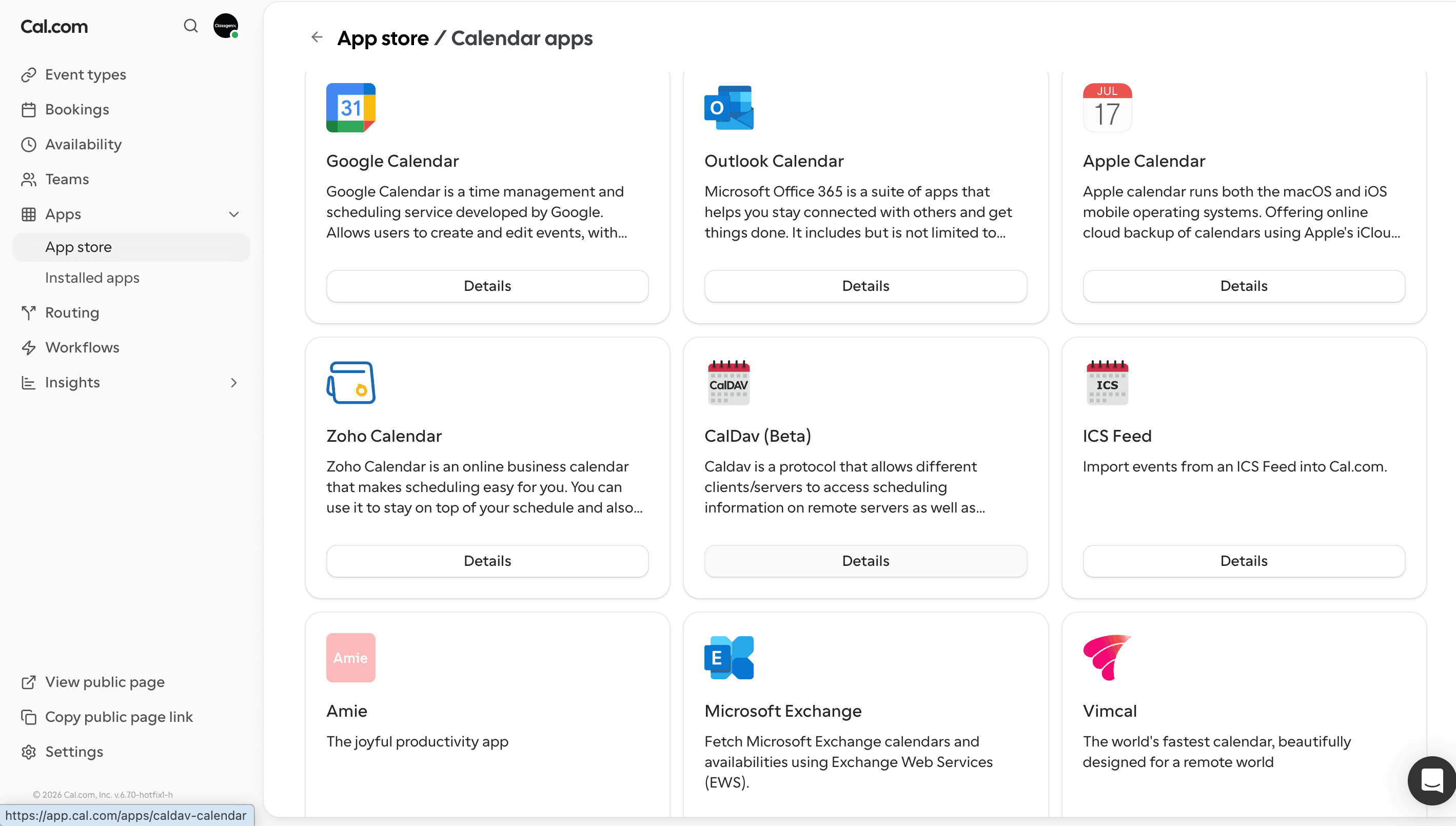
1. Integrations
Connecting my calendar to Cal com was straightforward. Once connected, it checked my availability and prevented people from booking over existing calendar events. I also found it easy to connect video conferencing tools so meeting links could be added automatically.
Cal com supports a wide range of calendar and third-party integrations, which makes it a good option for businesses that want their scheduling system connected with other tools.
2. Open Source
One of cal com's biggest differences is that it is open source. This gives businesses and developers more control over how the platform is used, including options such as self-hosting, customisation and deeper integration with existing systems.
I can see why this appeals to technical teams that have specific requirements around data, security or how their scheduling system works.
However, this flexibility isn't necessarily important for everyone. If you simply want to create a booking page and start scheduling meetings, cal com's additional options can make the product feel more complicated than a traditional scheduler.
3. Lead Routing & Custom Rules
Cal.com's routing features allow businesses to send bookings to the right person based on information collected during the booking process. You can create rules that determine where a meeting should go rather than sending every visitor through the same booking flow.
This could be useful for sales teams that need to route prospects based on things like team, location or customer type.
When testing the feature, I found that the additional flexibility also meant there was more to understand during setup. This is an area where Cal com feels more powerful than a basic scheduler but it can take longer to configure.
4. Availability Management
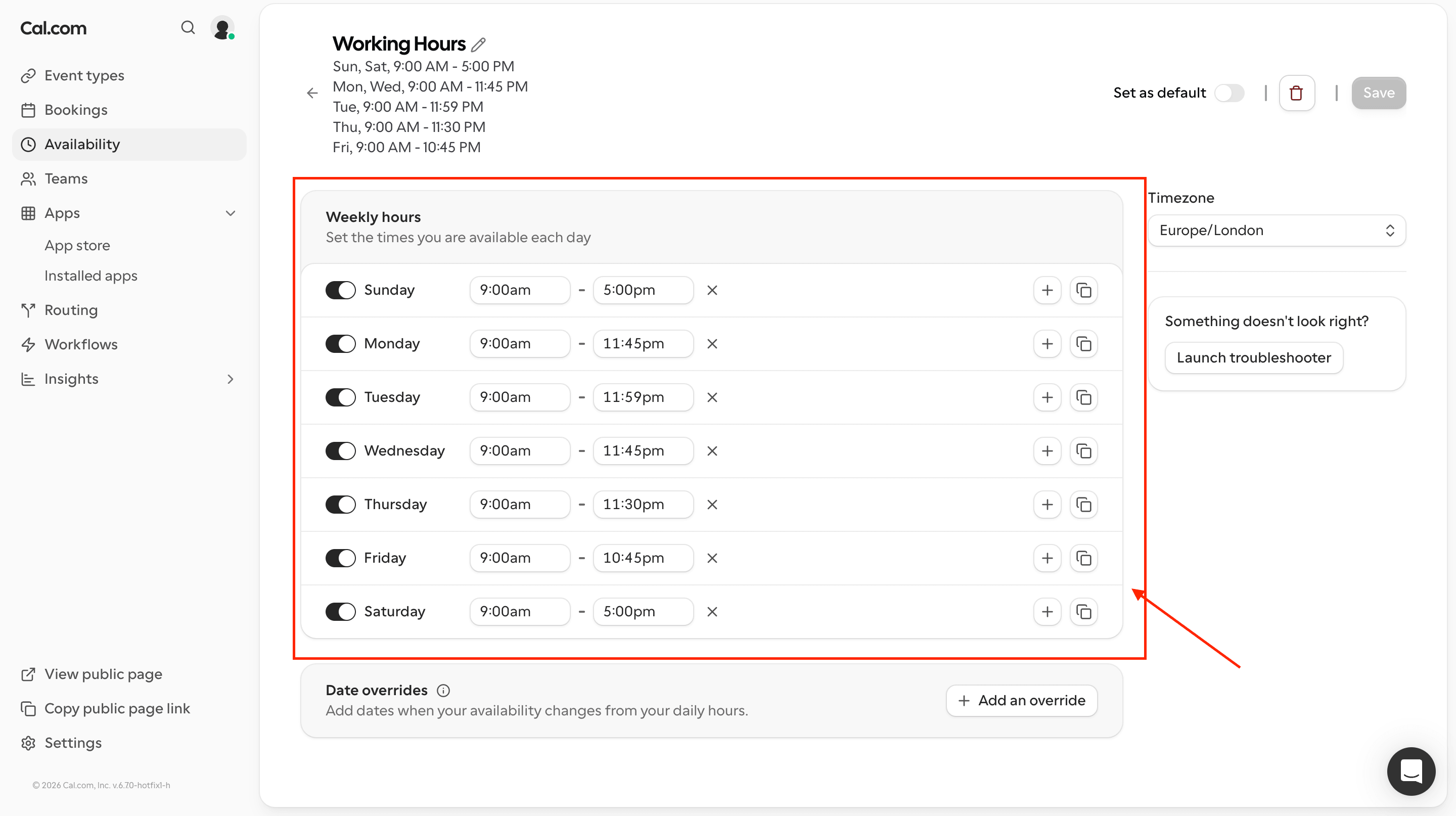
Cal com gives you a lot of control over when people can book. You can set working hours, add buffers, control minimum notice periods and decide how far into the future someone can schedule.
During testing, I found these options useful when setting up different types of meetings and managing a more complicated schedule. There is much more control than simply choosing a few working hours.
The downside is that there are more settings to work through. If you only need basic availability, the additional options may feel unnecessary.
5. Team Scheduling & Round Robin
Cal com's team scheduling lets you distribute meetings between multiple team members and control how bookings are assigned. This means customers can be connected with the right person without someone manually checking calendars and assigning every meeting.
I found the feature capable, but it took longer to understand than simpler team scheduling tools. The flexibility is useful if you need more control over how meetings are distributed, but it also adds to the learning curve when setting everything up.
Cal Com Pros and Cons
Pros
Open-source platform with self-hosting options
Highly flexible scheduling and customization
Powerful routing and custom booking rules
Strong availability controls
Good team scheduling and Round Robin features
Wide range of integrations
Cons
Steeper learning curve than simpler scheduling tools
Advanced features can take time to configure
May feel overly complex for basic scheduling needs
Some features require more technical knowledge
Less suitable for users who want a simple out-of-the-box experience
More flexibility means more settings to manage
Pricing
Microsoft Bookings
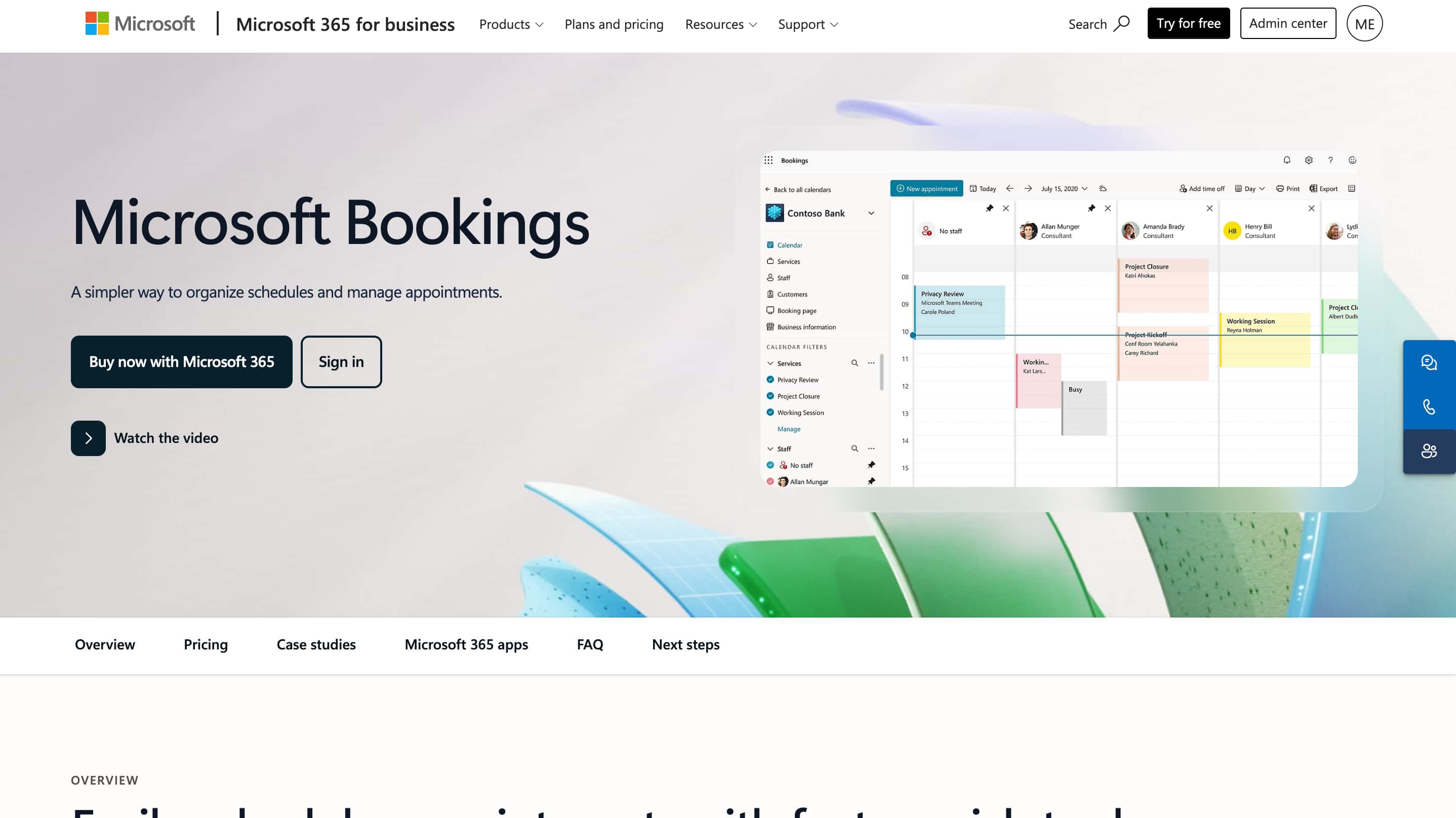
Microsoft Bookings is Microsoft's scheduling tool for businesses that want to manage appointments alongside the Microsoft 365 ecosystem. It connects with Outlook calendars and can be accessed through both Outlook and Microsoft Teams, making it particularly useful for businesses already working heavily within Microsoft's platform.
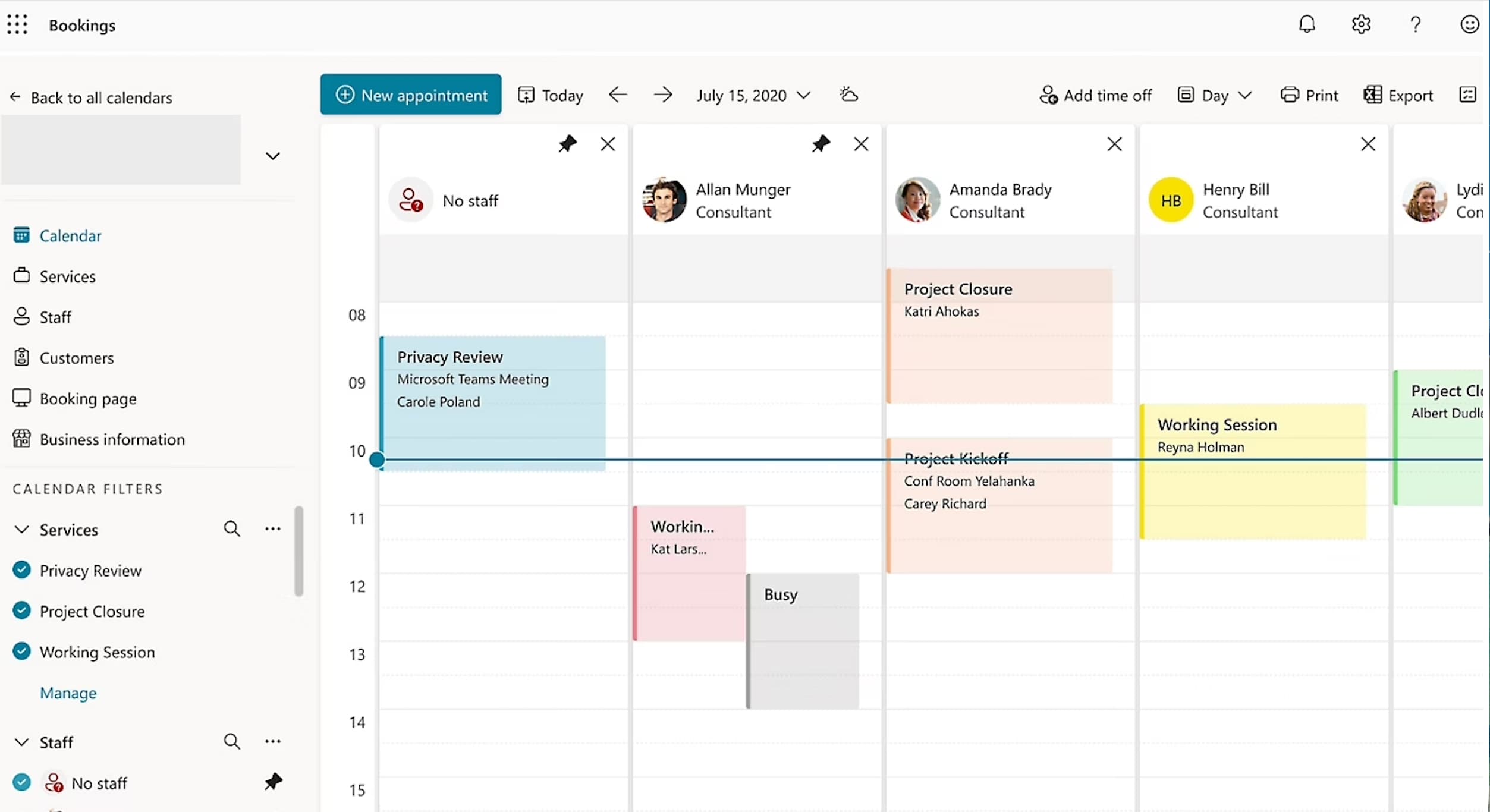
The platform lets you create booking pages, set services, manage staff availability and allow customers to book appointments online. You can also create group bookings, collect information from customers and send appointment notifications and reminders.
If your business already relies on Microsoft 365, Bookings has the advantage of fitting naturally into the tools you already use.
Features
1. Calendar Integrations
Microsoft Bookings works smoothly with Outlook and Microsoft 365 calendars. Connecting the calendar was straightforward and once it was connected, existing calendar events were taken into account when showing available appointment times.
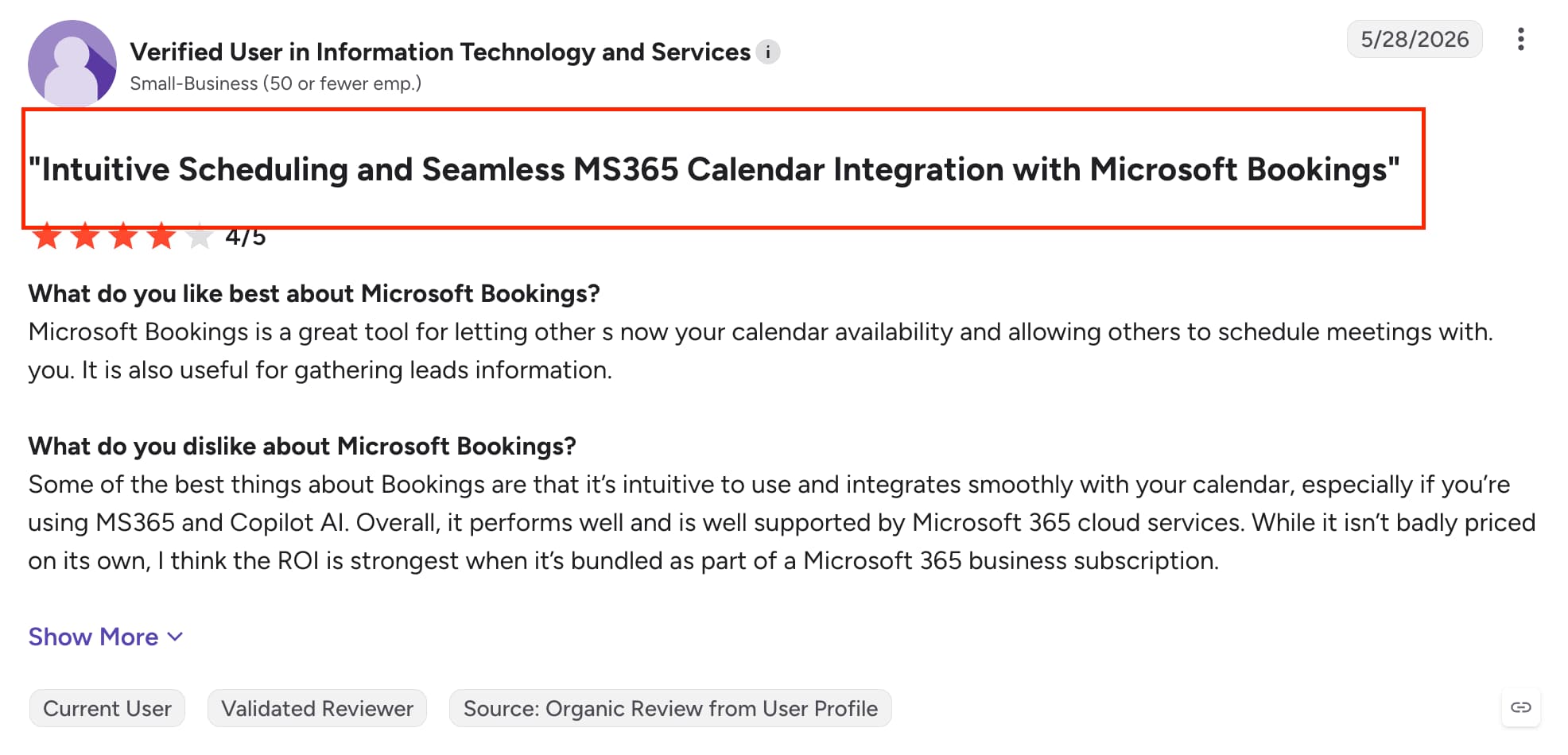
This matched what I found in G2 reviews, where users mentioned that Microsoft Bookings integrates smoothly with their existing calendars. This is one of the areas where Microsoft Bookings makes sense for businesses already using Outlook and Microsoft 365 because everything works together without needing to introduce another calendar system.
Source: G2
2. Team Scheduling & Staff Management
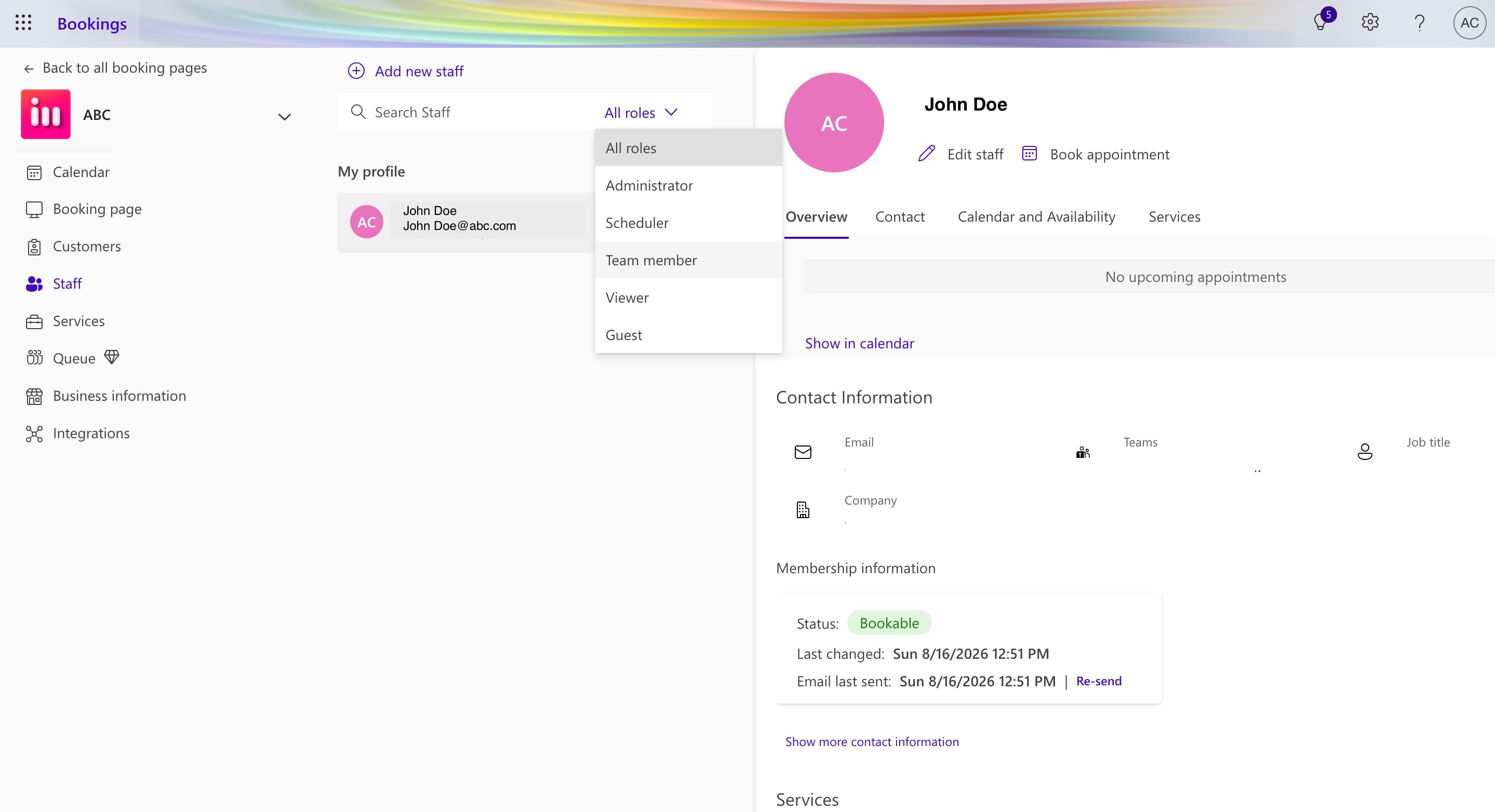
Microsoft Bookings makes it fairly straightforward to add team members and manage their availability from one place. You can assign staff to different services and customers can book appointments based on the availability of the relevant team members.
I found this useful for businesses where multiple people handle different types of appointments. It also means the team can manage bookings without everyone having to manually coordinate availability.
3. Account management
There are a few things to be aware of if you're managing Microsoft Bookings across a larger organization. While the scheduling side is straightforward, Bookings can have wider implications for how users and accounts are managed within Microsoft 365.
I came across a Reddit discussion from a Microsoft 365 administrator who raised concerns about Bookings creating user accounts for one time event sign ups and how this affected their organization's security administration. It's not something most smaller businesses are likely to worry about but larger teams may want to look into how Bookings fits with their existing Microsoft 365 account and security policies.

Source: Reddit
4. Reminders
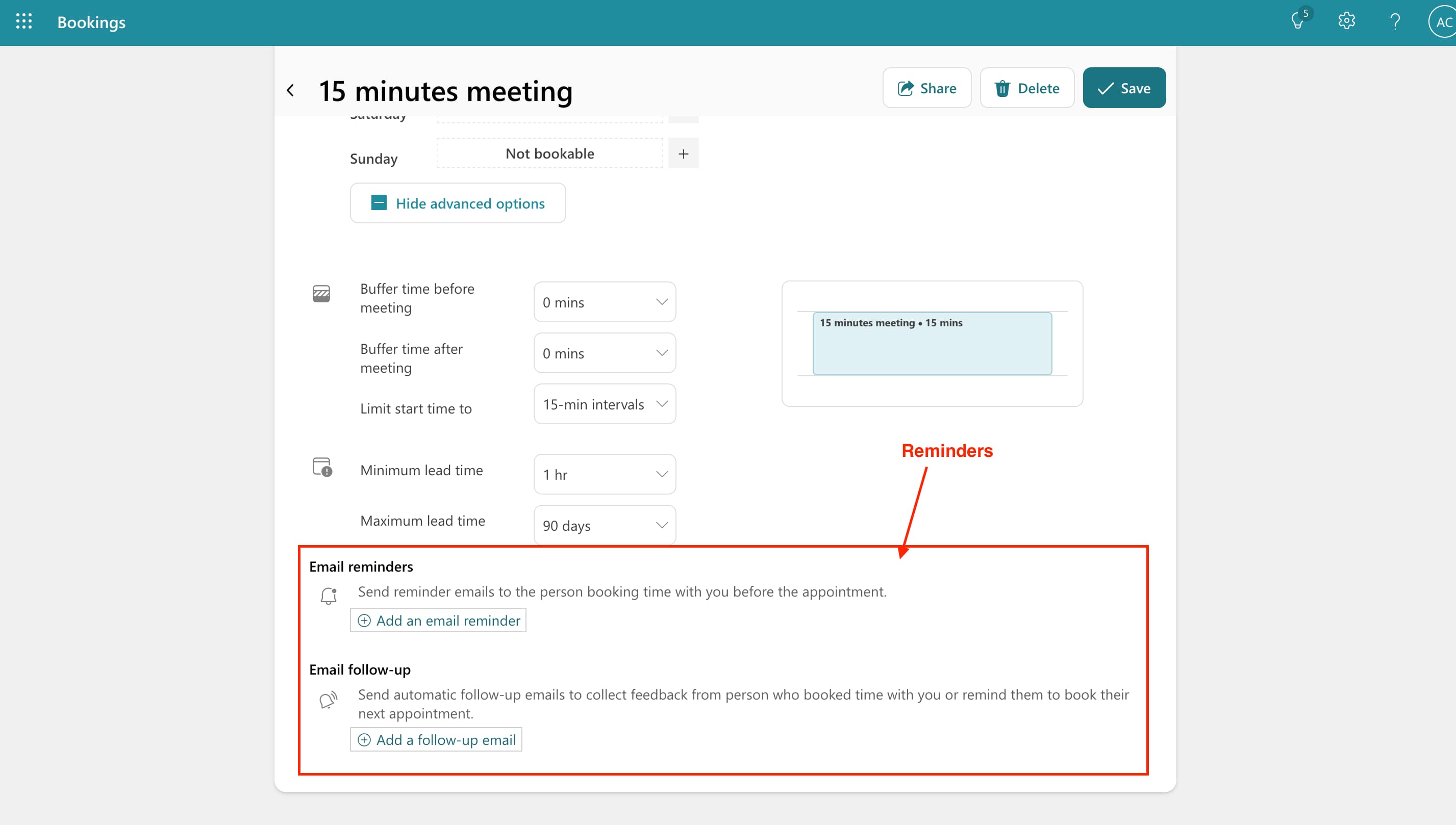
Microsoft Bookings takes care of the basic communication around appointments without requiring much manual work. Confirmation emails and reminders can be sent automatically after someone books, helping keep both the customer and staff member informed.
The setup was fairly straightforward and I did not need to spend much time configuring the basics. It works well if you simply want bookings, confirmations and reminders to happen automatically. However, the automation is more focused on appointment notifications rather than the more advanced workflows you get with dedicated scheduling platforms.
5. Analytics & Reporting
Microsoft Bookings gives you basic information about your appointments but the analytics and reporting options are fairly limited. If you want to understand booking trends, team performance or get deeper insights into how your scheduling pages are performing, you may find the reporting options lacking.
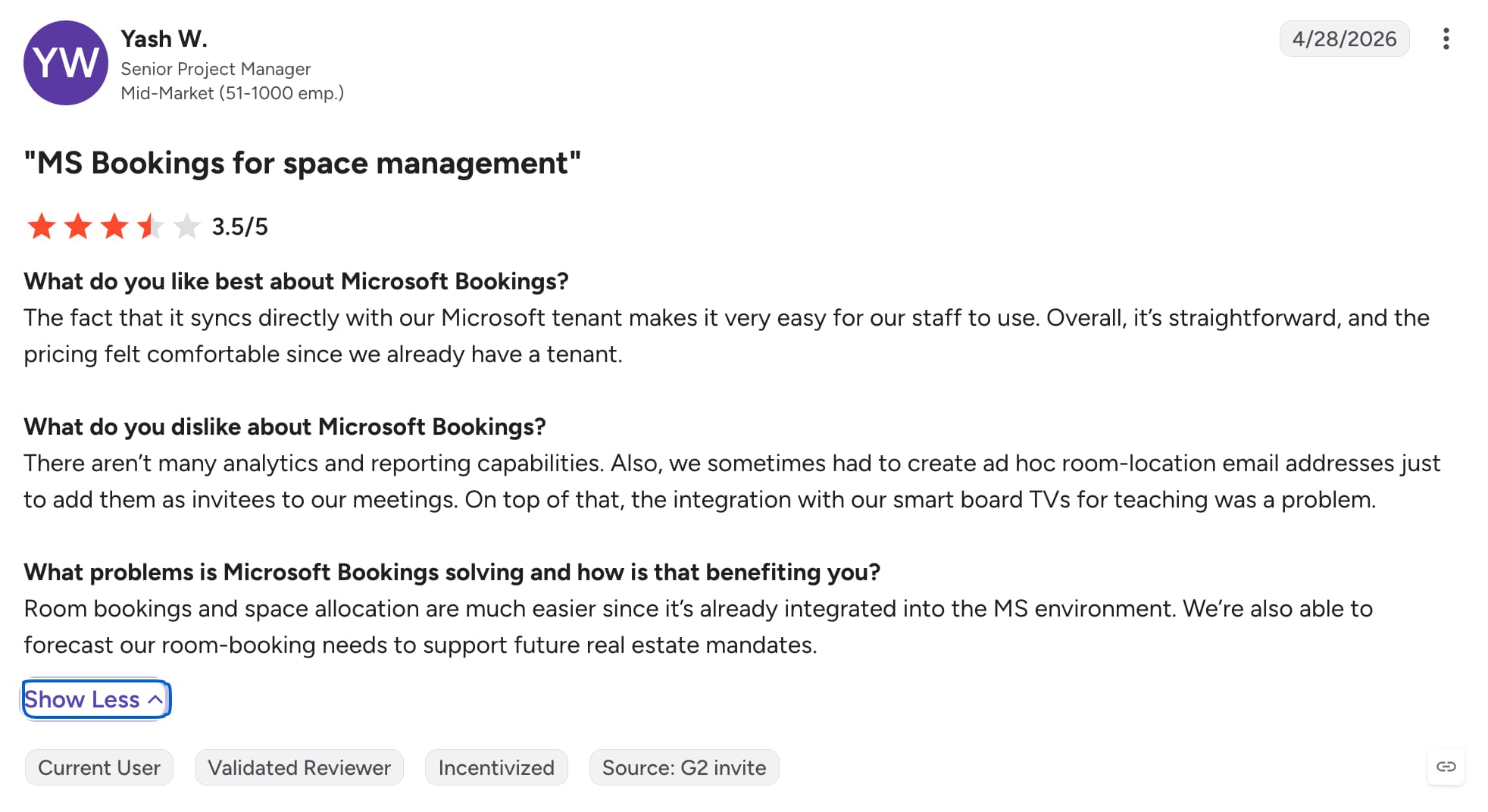
This also came up in a G2 review from a business using Microsoft Bookings for space management. They liked how easily it connected with their existing Microsoft tenant but specifically mentioned the limited analytics and reporting capabilities as a downside.
For businesses that mainly need to manage appointments, this may be enough. However, if you want detailed scheduling data to understand what is working and where improvements can be made, this is an area where Microsoft Bookings feels behind more dedicated scheduling platforms.
Microsoft Bookings Pros and Cons
Pros
Strong integration with Microsoft 365 and Outlook
Easy for teams already using the Microsoft ecosystem
Straightforward team and staff scheduling
Automatic confirmations and reminders
Microsoft Teams integration for online meetings
Included with eligible Microsoft 365 plans
Simple setup for basic appointment scheduling
Cons
Booking page customization is fairly limited
Analytics and reporting options are basic
Not designed for highly personalized booking experiences
Limited advanced routing and workflow features
Can have wider Microsoft 365 account management considerations
Less suitable for businesses that want their booking page to feel like a branded customer experience
Pricing

SavvyCal: In-Depth Review
SavvyCal takes a slightly different approach to meeting scheduling by making it easier to find a time that works for both people. Instead of simply showing available slots, it allows the person booking to overlay their own calendar, making conflicts easier to spot. When testing SavvyCal, I found the booking experience clean and easy to understand.
Features
1. Calendar Overlay
The calendar overlay was the feature that stood out most when I tested SavvyCal. When someone opens your booking link, they can overlay their own calendar to see their availability alongside yours.
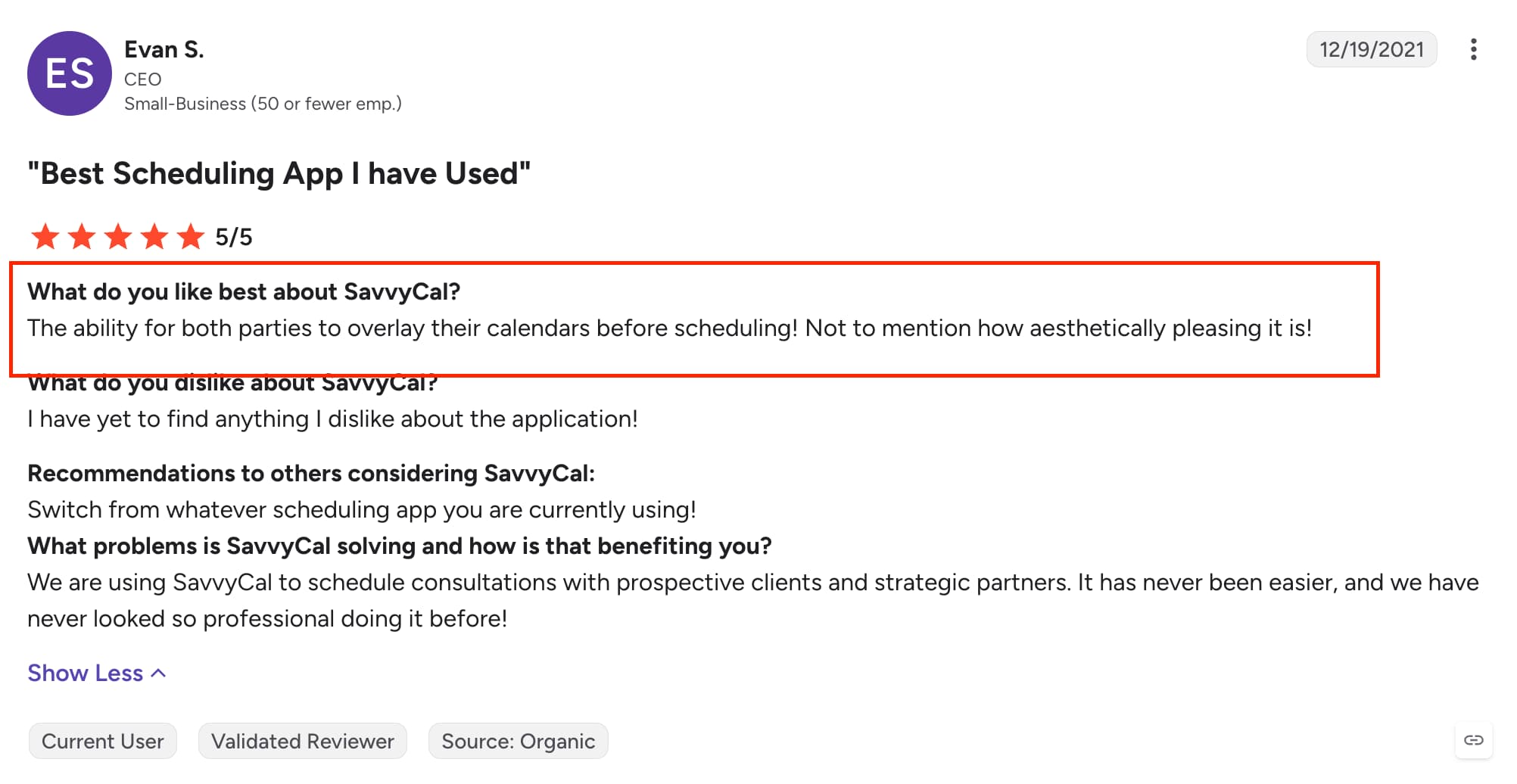
This makes it easier to find a suitable time without switching between calendars or comparing schedules manually. On g2 reviews a user has mentioned the liked the ability for both parties to overlay their calendars before scheduling.
I found similar feedback on G2, with users specifically praising the ability for both people to overlay their calendars before scheduling.
Source: G2
2. Booking Page
SavvyCal's booking pages feel clean and professional without adding unnecessary steps. You can customise your scheduling links and add branding while keeping the booking process straightforward. I found the overall experience easy to navigate and it felt more polished than a basic scheduling page.
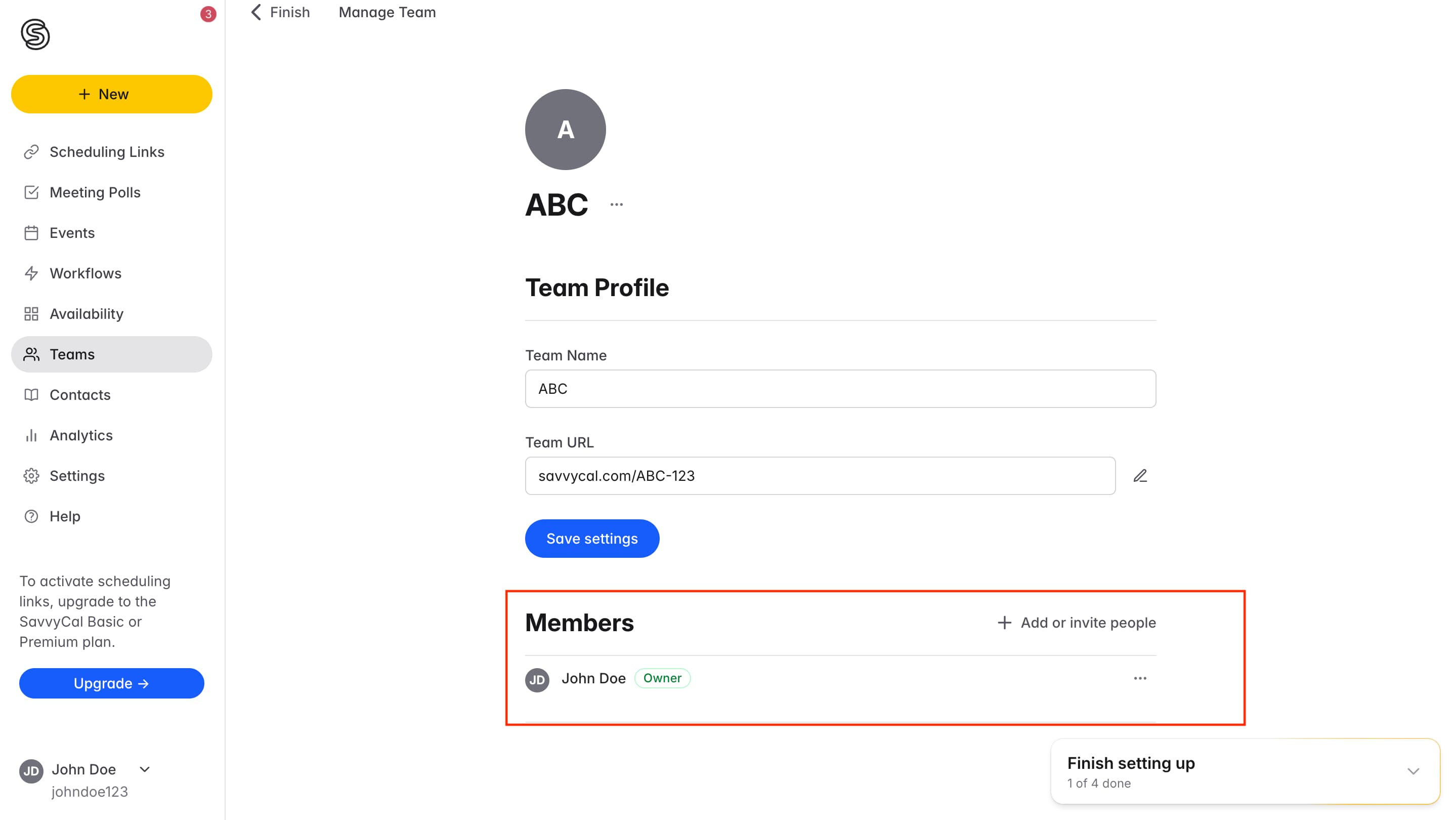
3. Team Scheduling
SavvyCal supports team scheduling, allowing multiple people to share availability and coordinate meetings. You can create links that include several team members and let the person booking find a suitable time.
During testing, the setup felt relatively straightforward. However, if you need complex lead routing and automatic distribution of inbound meetings, you wont find advanced routing options.
4. Availability
SavvyCal gives you control over when people can book, including working hours, meeting duration and scheduling rules. I really liked how you can select availability easily on the calendar and this overlay also makes availability easier to understand when coordinating with someone who has a busy schedule.

5. Integrations
SavvyCal connects with popular calendars including Google Calendar, Outlook and iCloud, allowing it to check availability and prevent double bookings.
It also connects with tools such as Zoom and Microsoft Teams for video meetings. During testing, the main integrations were straightforward to connect.
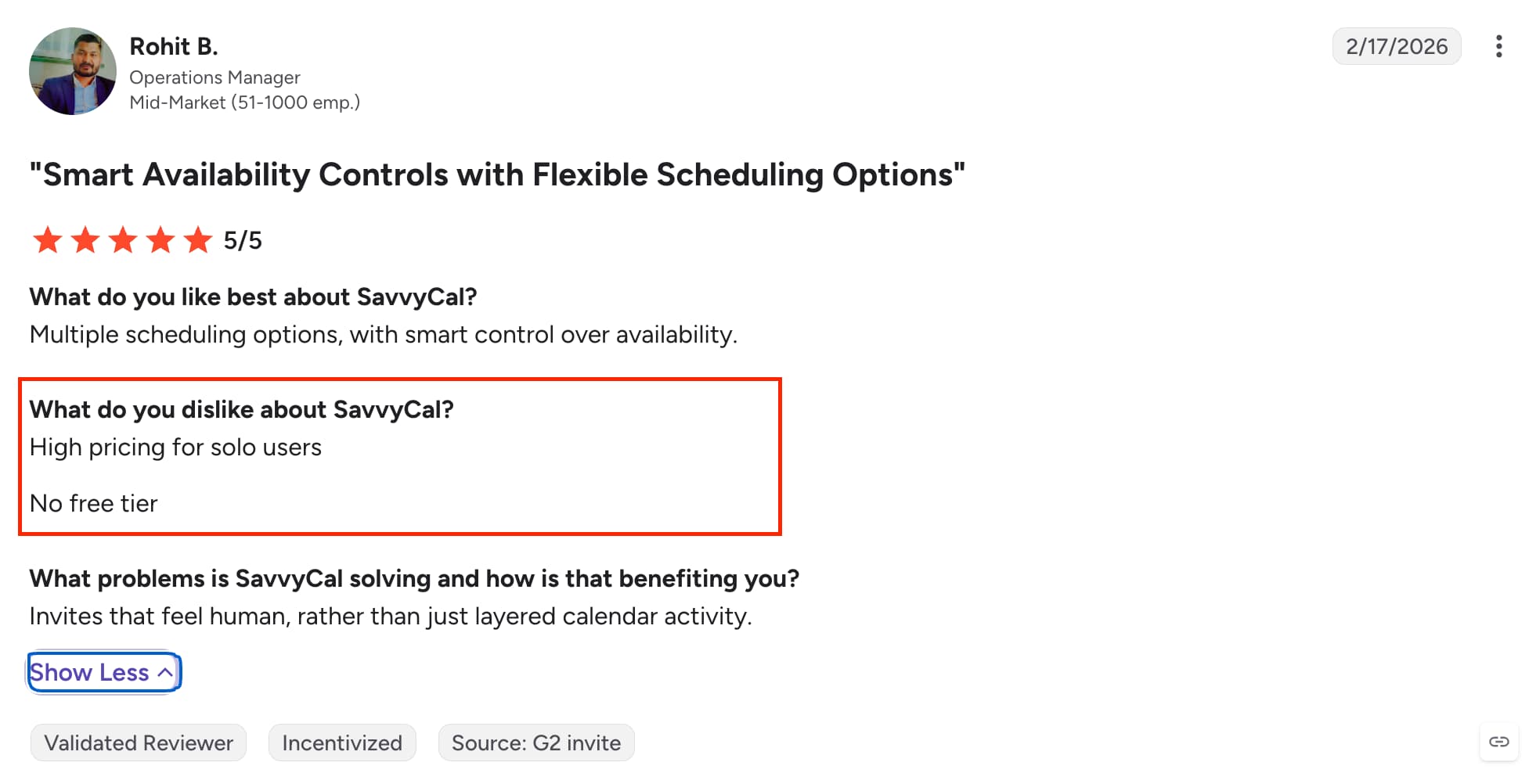
One downside I noticed from reviews was pricing. Several G2 reviewers felt SavvyCal was expensive, particularly for individual users, and the platform does not offer a free tier.
Source: G2
SavvyCal Pros and Cons
Pros
Calendar overlay makes it easy to find mutual availability
Clean and user-friendly booking experience
Strong calendar integrations
Flexible availability and scheduling controls
Personalized scheduling links
Easy to set up and integrate with existing calendars
Cons
No free tier
Can be expensive for individual users
No dedicated mobile app
Some users report slow loading and occasional performance issues
Not as intuitive as some simpler scheduling tools
Smaller integration ecosystem than larger platforms
Pricing
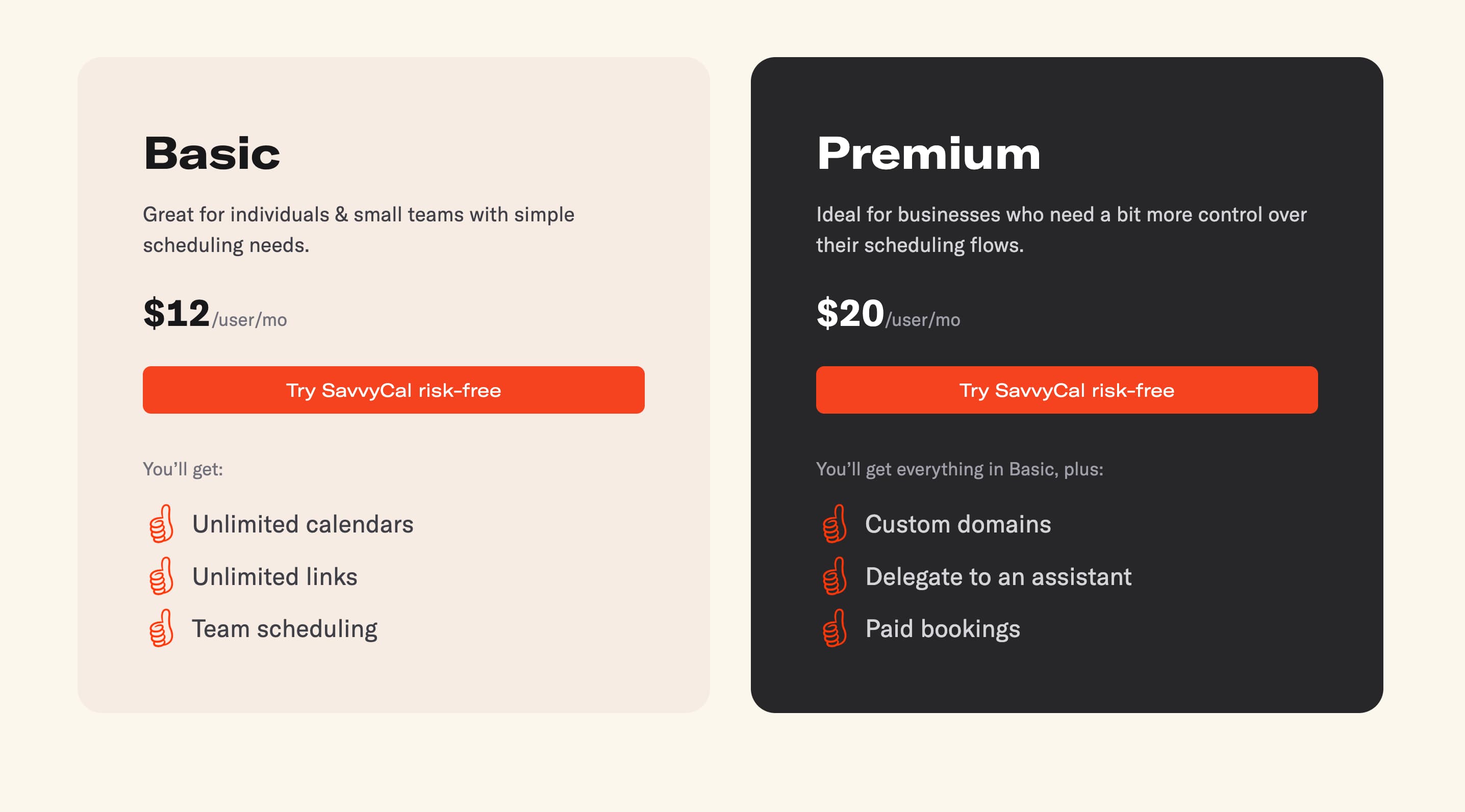
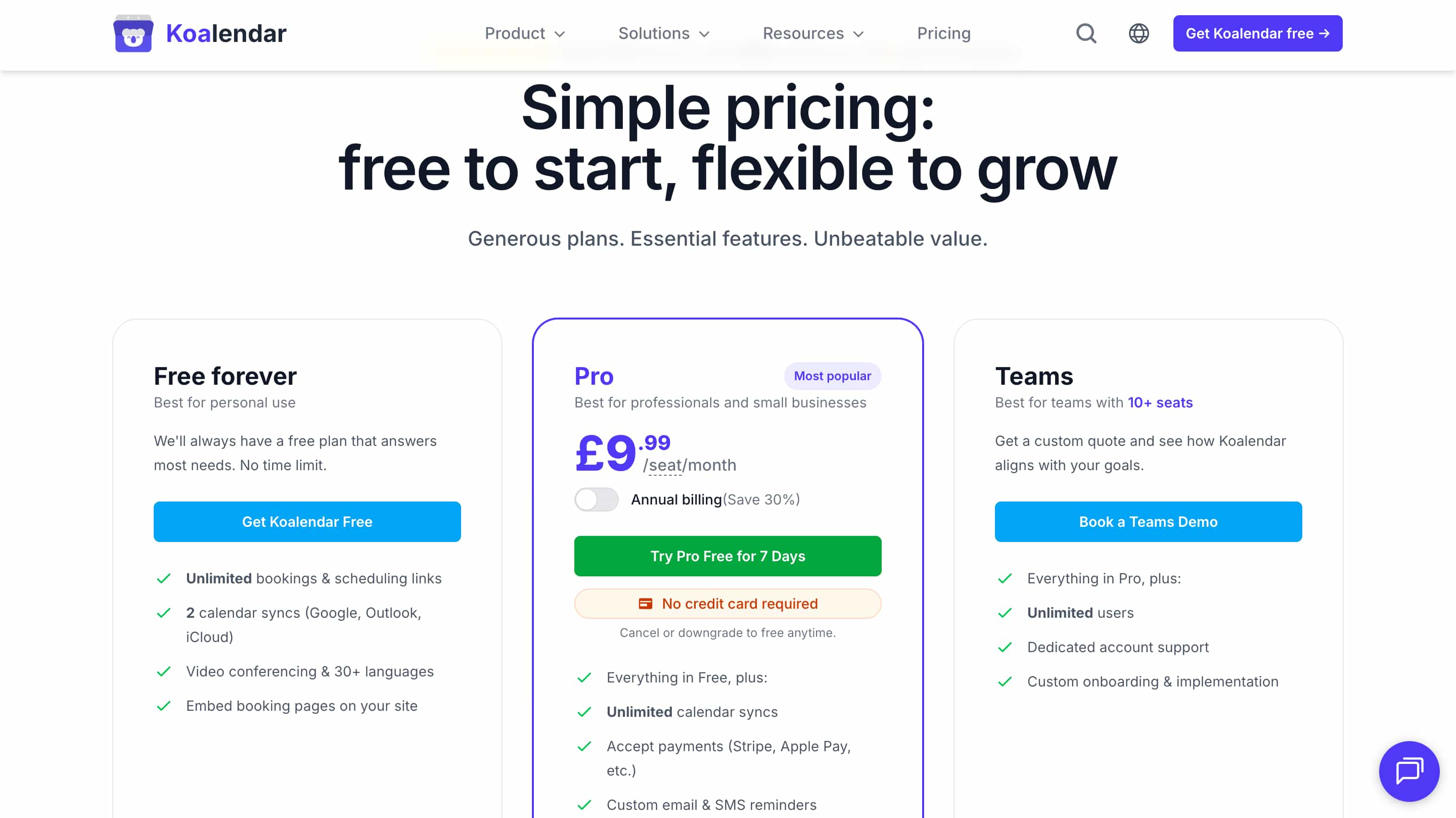
Koalendar
Koalendar is a simple meeting scheduling platform designed to make it easier for businesses and individuals to manage bookings online. Instead of going back and forth trying to find a suitable time, users can share a booking page where people can choose an available time based on their calendar.
The platform focuses on keeping scheduling straightforward with features such as calendar integrations, meeting types, booking pages, reminders and team scheduling. Its simple setup and clean booking experience make it a good option for individuals, consultants and small businesses that want to get started with online scheduling without dealing with unnecessary complexity.
Features
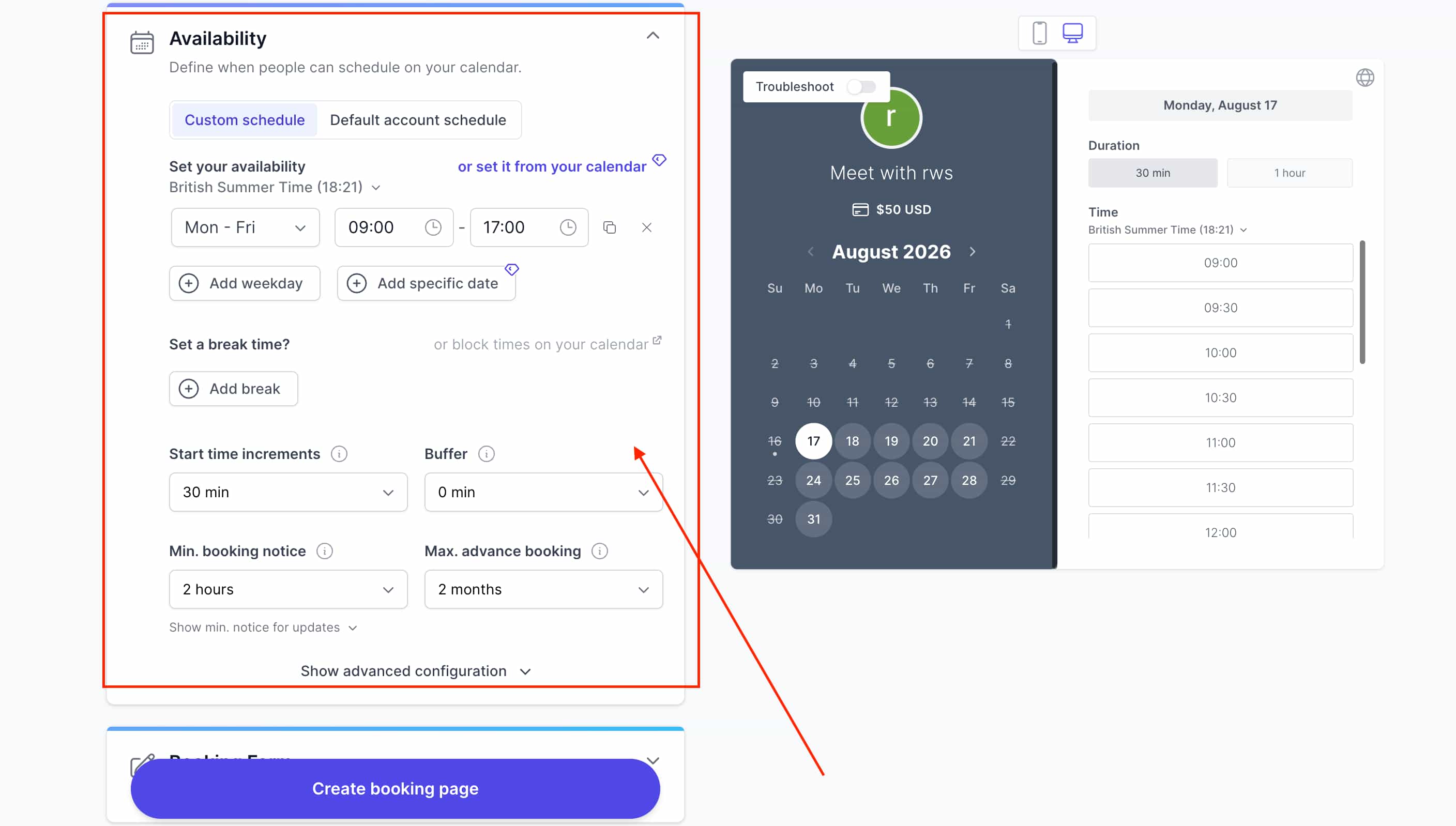
1. Availability
Koalendar gives you control over when people can book, including working hours, specific dates, buffers and booking limits. It also automatically checks your connected calendars so existing meetings are taken into account when showing available times.
During testing, I found the availability settings fairly easy to understand. I also liked that Koalendar automatically detects the invitee's time zone, which is useful when scheduling meetings with people in different countries.
2. Booking Page
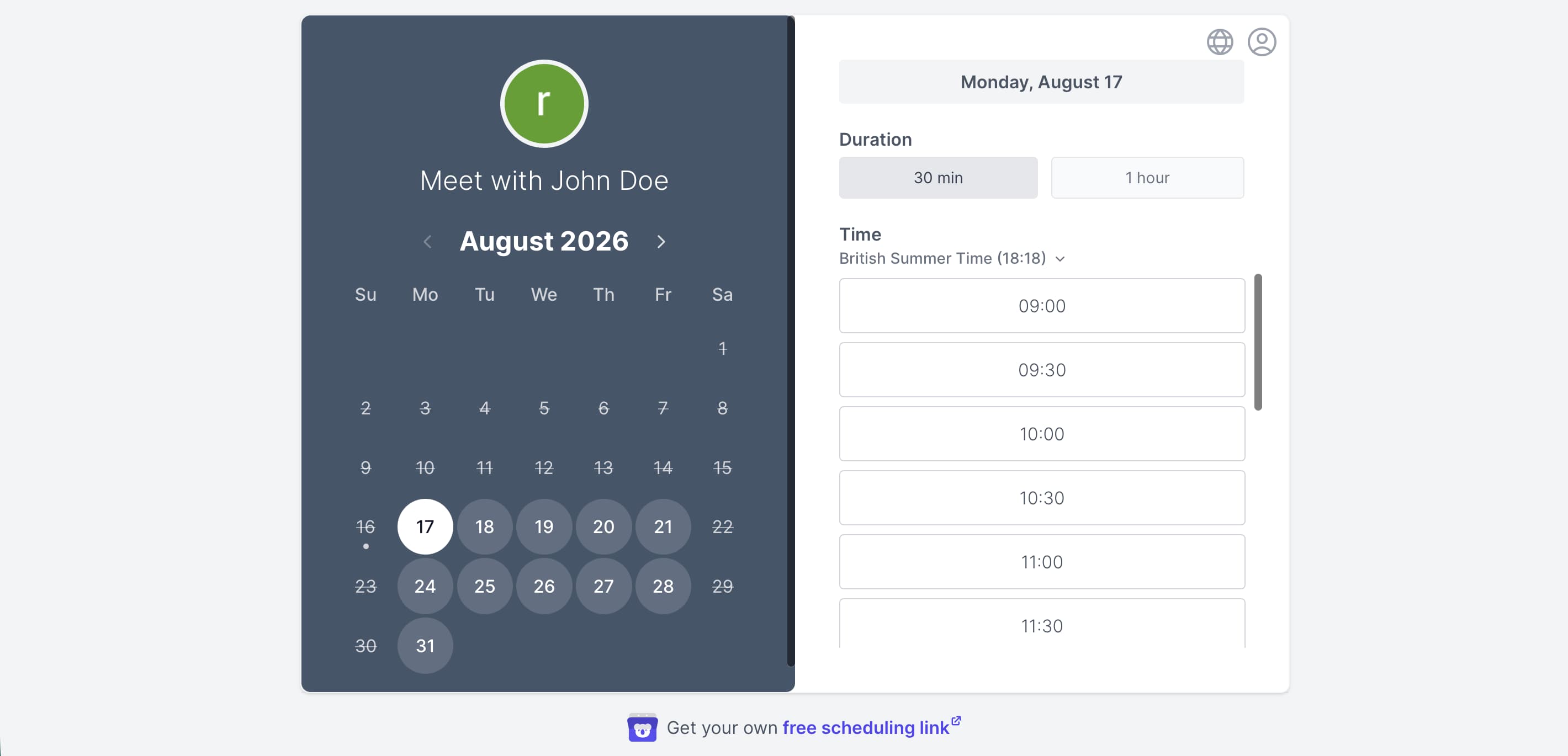
Creating a booking page was straightforward. You can customise your booking link, add your logo and brand colours, change the text and choose different meeting durations.
The booking page felt clean and professional without making the process complicated. You can also embed the booking page directly into your website, which is useful if you don't want visitors to leave your site to schedule a meeting.
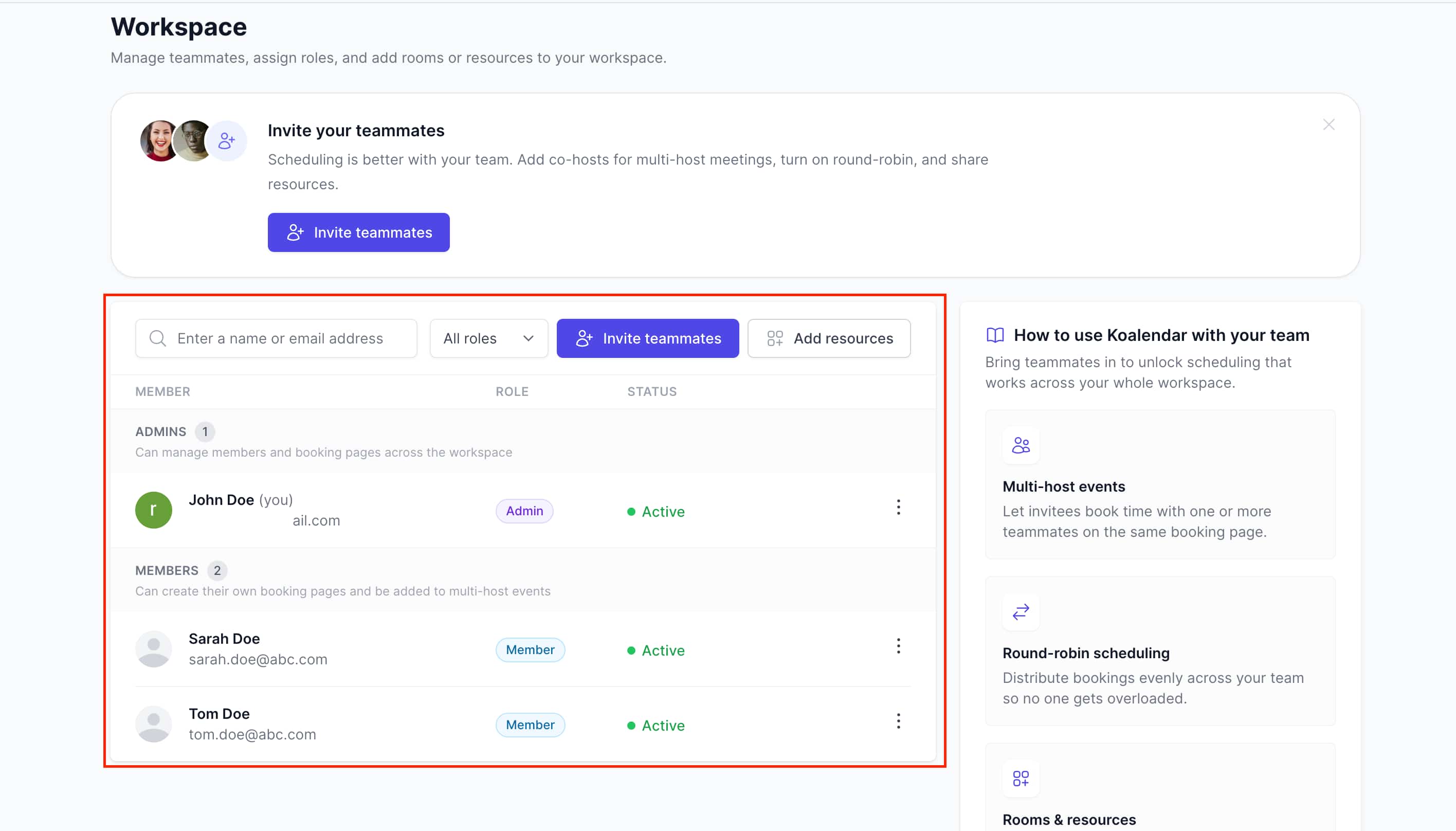
3. Team Scheduling
Koalendar supports team scheduling through Round Robin and collective bookings. Round Robin can distribute meetings between team members, while collective bookings allow multiple hosts to be included in the same meeting.
During testing, these options gave teams more flexibility than simply sharing one person's calendar. You can also allow the person booking to choose a specific team member where required. These team features are available on the Pro plan.
4. Calendar Connection
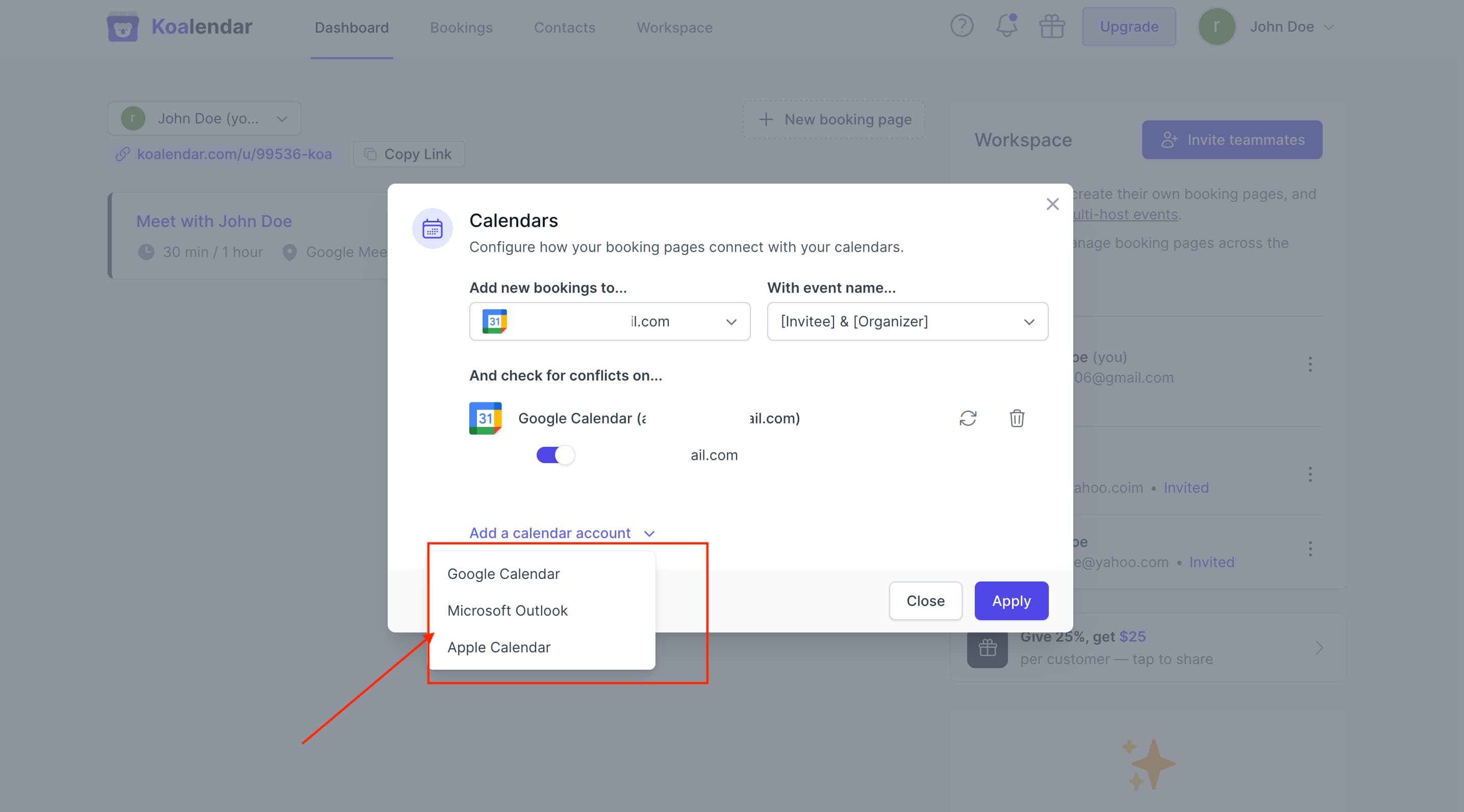
Connecting my calendar was quick and Koalendar supports Google Calendar, Outlook and iCloud. Once connected, existing events are taken into account automatically so unavailable times aren't offered to people trying to book.
Koalendar can also sync multiple calendars and combines them into one availability view. This is useful if you manage work and personal schedules across different calendars and want to avoid manually checking each one.
5.Meeting Locations
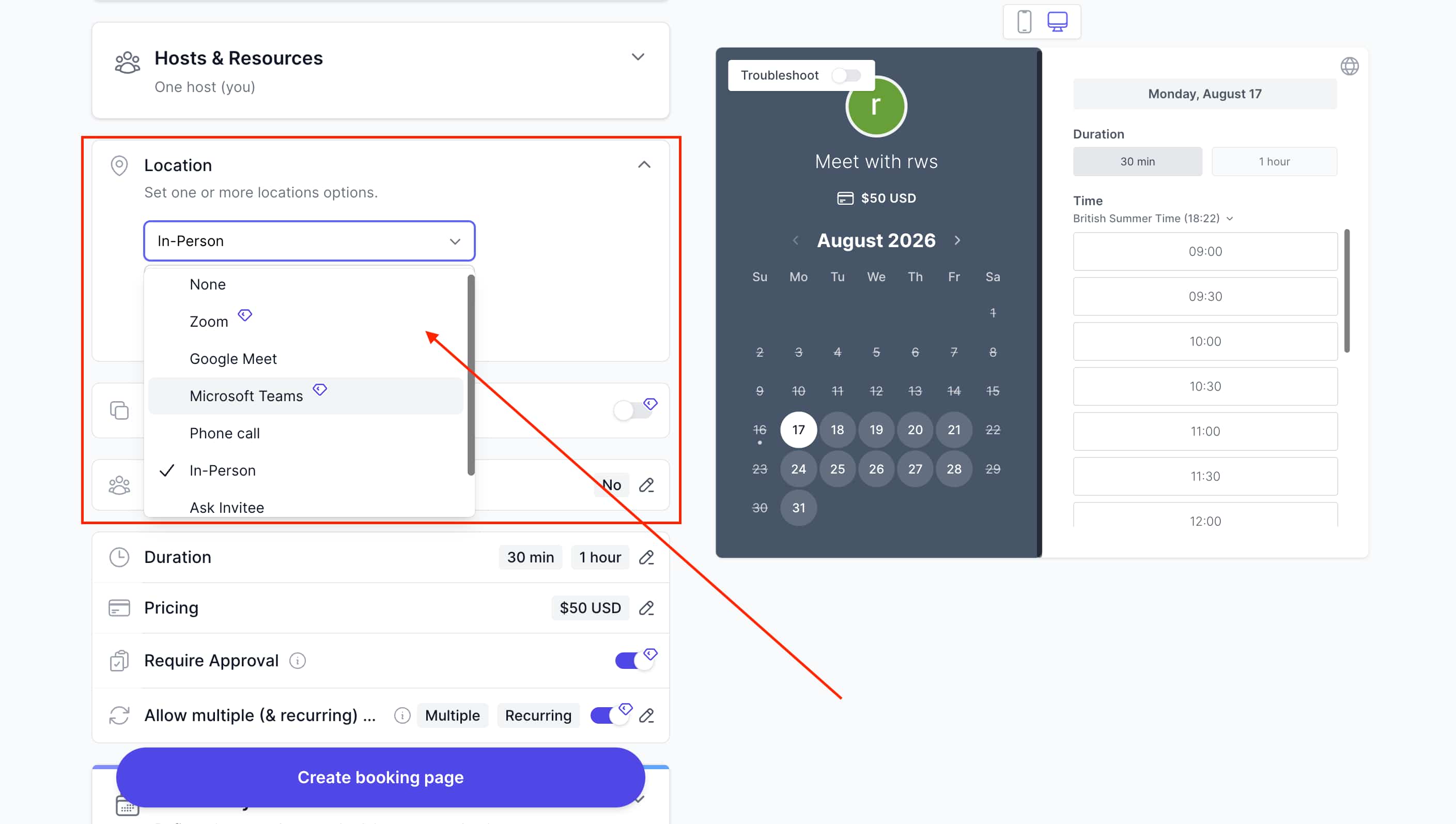
Koalendar gives you several options for where a meeting can take place. You can use video conferencing services such as Zoom, Google Meet and Microsoft Teams, or set a physical location for in-person meetings.
I found this useful because different booking types can have different meeting locations. For example, one booking page could automatically create a Google Meet link while another could be used for an in-person appointment.
One G2 reviewer did mention having difficulty accessing Microsoft Teams, so if Teams is particularly important to your workflow, this is something I'd test before committing.
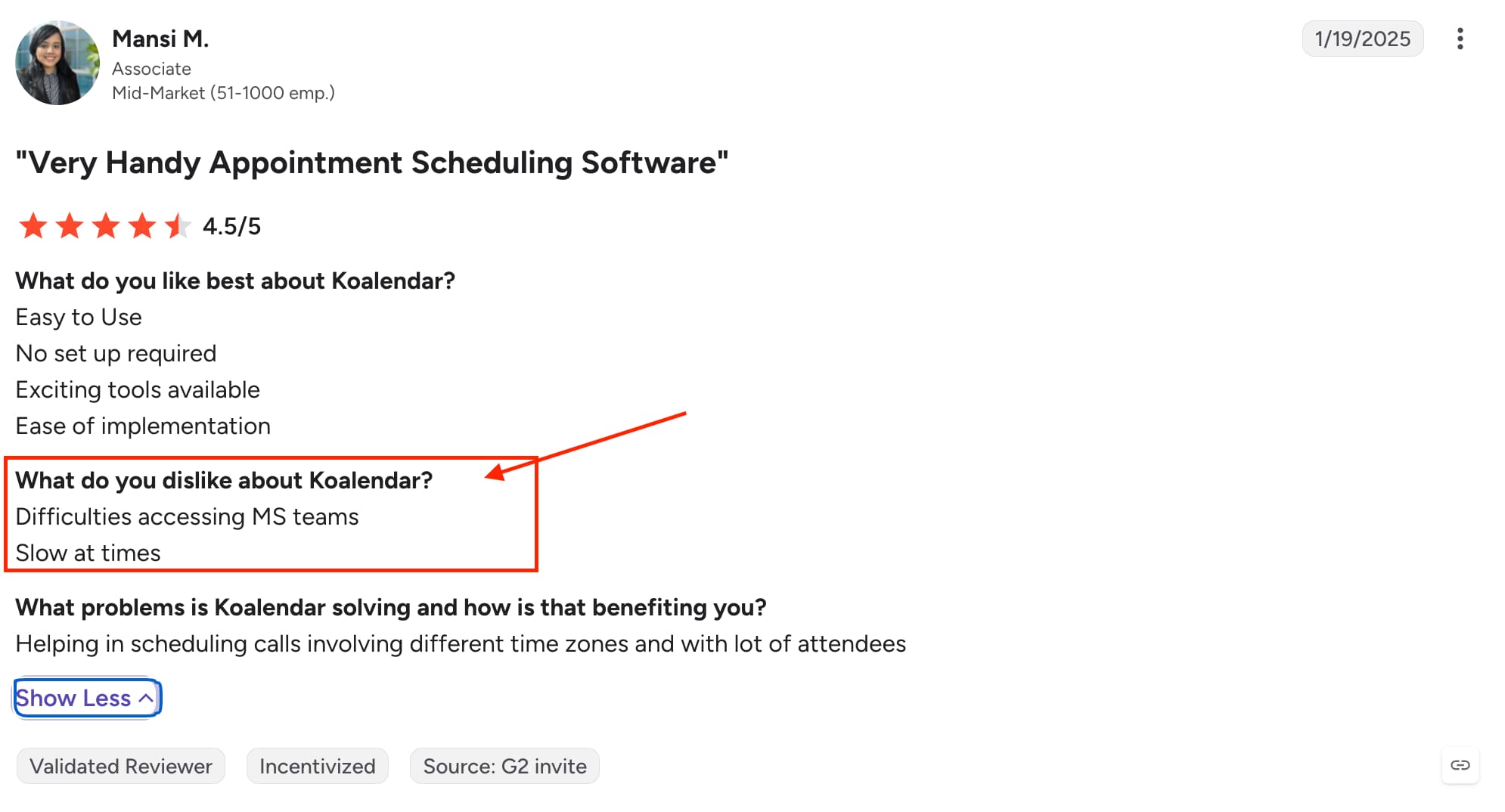
Source: G2
Koalendar Pros and Cons
Pros
Easy to set up and use
Clean and straightforward booking experience
Good booking page customization
Strong Google Calendar integration
Supports team scheduling and different meeting types
Good value for individuals
Cons
Some integrations can be difficult to set up
Microsoft Teams integration can be unreliable
Some users have reported occasional slow performance
Advanced tracking and analytics can be limited
Less suited to complex multi-person scheduling than some larger platforms
Some advanced features are restricted to paid plans
Pricing
TidyCal: In-Depth Review
TidyCal takes a straightforward approach to meeting scheduling, focusing on the core things most people need to create booking links and manage their availability. It supports multiple booking types, calendar connections, group meetings and integrations with tools such as Zoom and Google Meet.
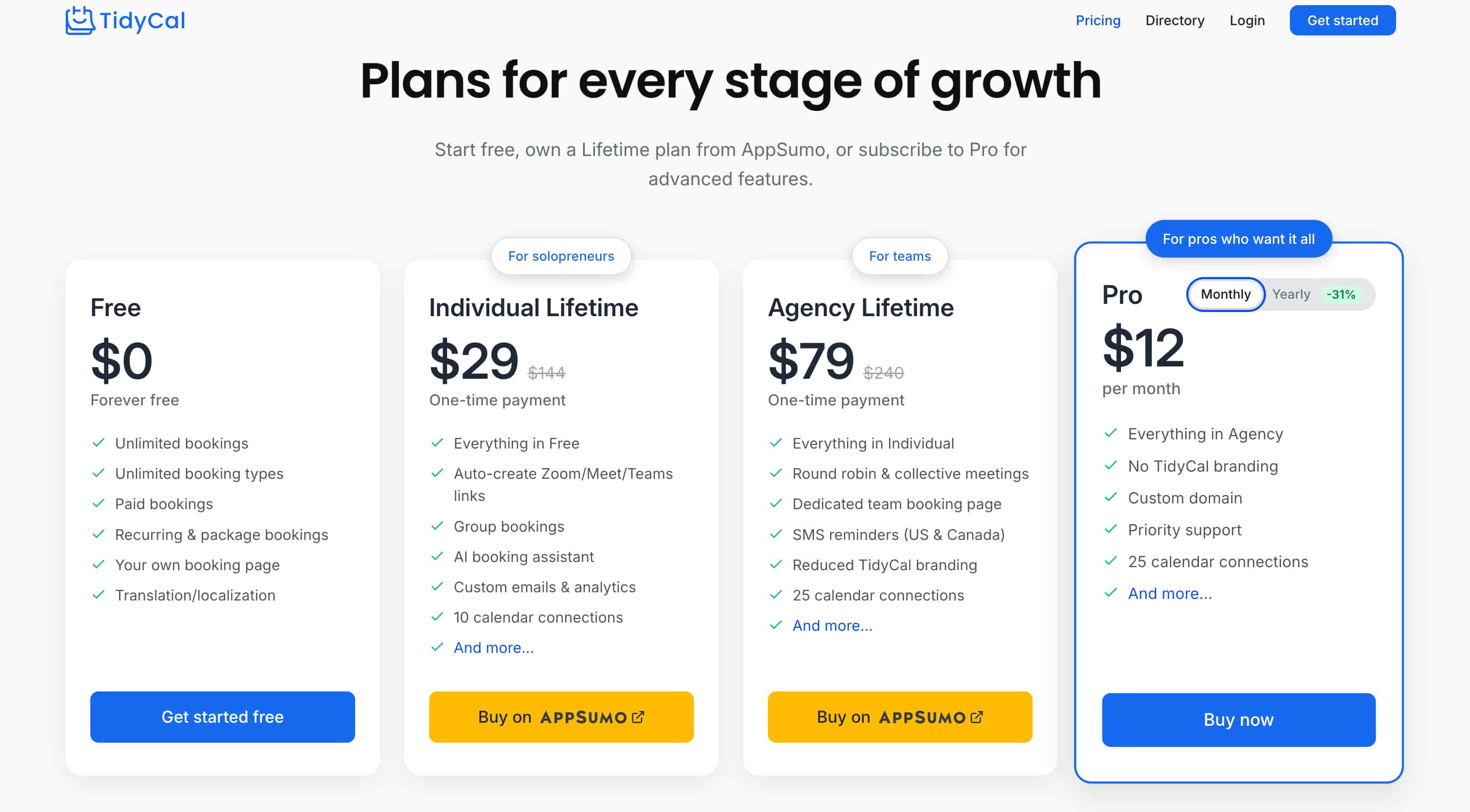
When testing TidyCal, I found the basic scheduling experience fairly simple to understand. Its pricing is also different from most competitors, with a lifetime purchase option rather than relying entirely on a recurring subscription. However, feedback becomes more mixed when you look beyond the basic scheduling features, particularly around customization and customer support. Users generally praise its simplicity and value, while reviews raise concerns about support and some technical issues.
Features
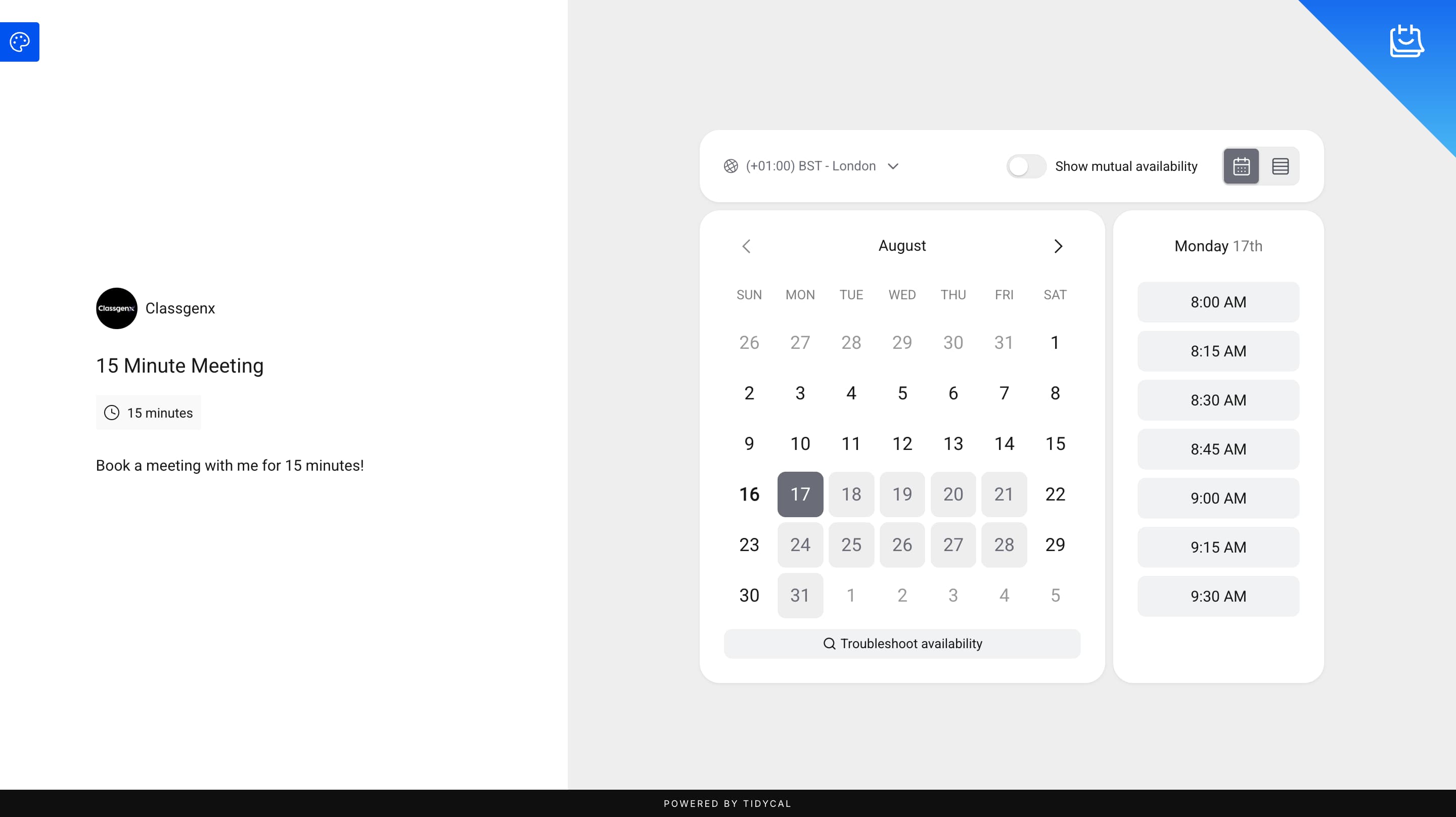
1. Booking Page
Creating a booking page in TidyCal was relatively straightforward. You can create different booking types, set the duration and availability, and share individual booking links with people.
The main limitation I noticed was customization. TidyCal keeps the booking experience fairly simple, but there aren't as many options to change the overall appearance or create a heavily branded booking experience.
This was also mentioned in Appsumo review, with user describing TidyCal as simple but noting that there are not many customization options.
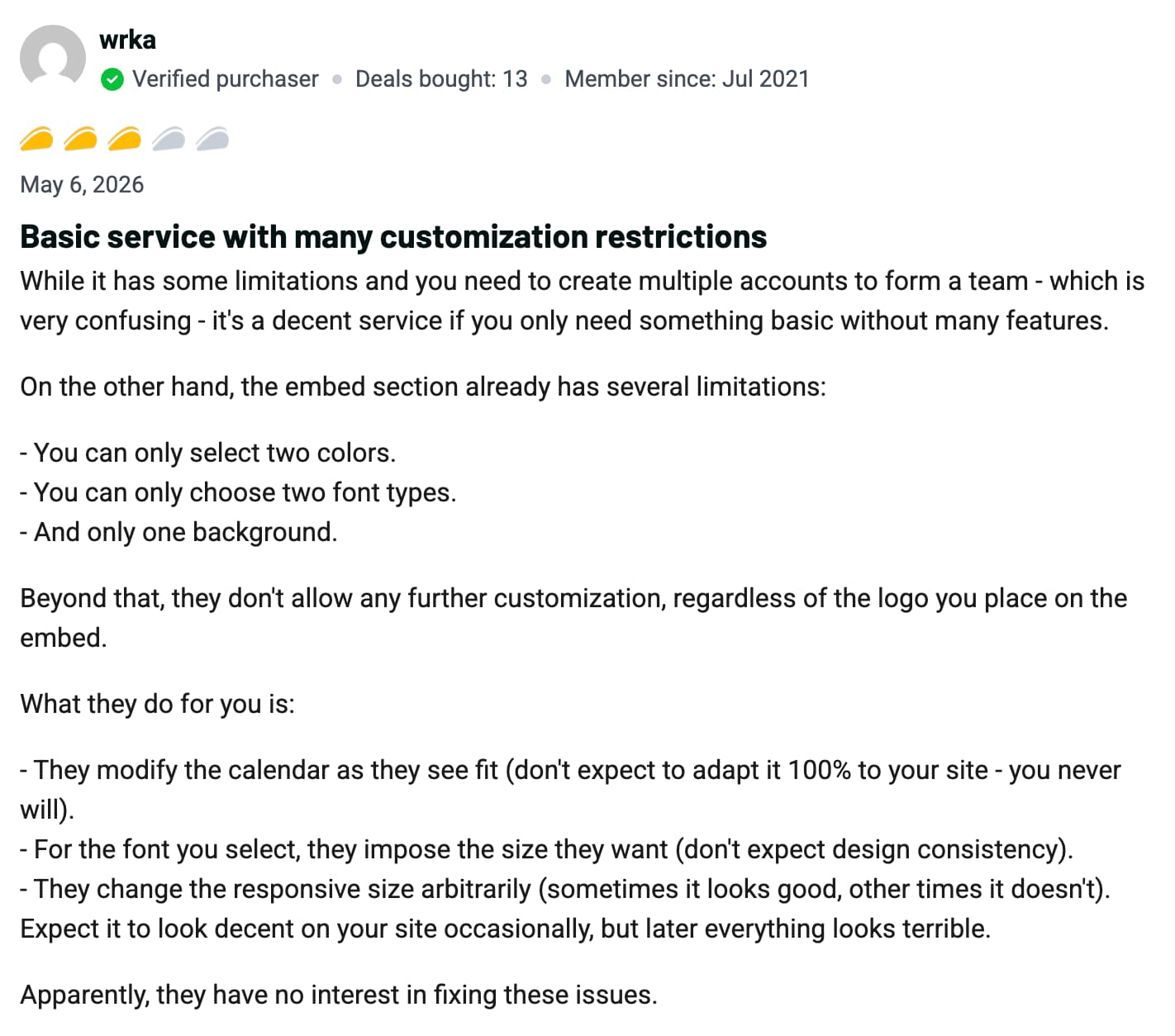
Source: Appsumo
2. Availability
TidyCal allows you to create availability rules for different booking types, set gaps between meetings and connect your calendars to prevent bookings when you're already busy.
I found the basic setup easy enough, although there are some limitations when you start trying to create more complicated availability rules.

3. Team Scheduling
TidyCal supports team scheduling through features such as Round Robin and collective meetings. This allows bookings to be distributed between team members or require multiple hosts to be available.
The functionality is useful for smaller teams, but I wouldn't consider it as advanced as the team routing options available in other platforms.

I also found recent Trustpilot feedback from a user who specifically struggled with setting up team schedules and availability, so this is an area I'd test carefully if team scheduling is a major requirement.
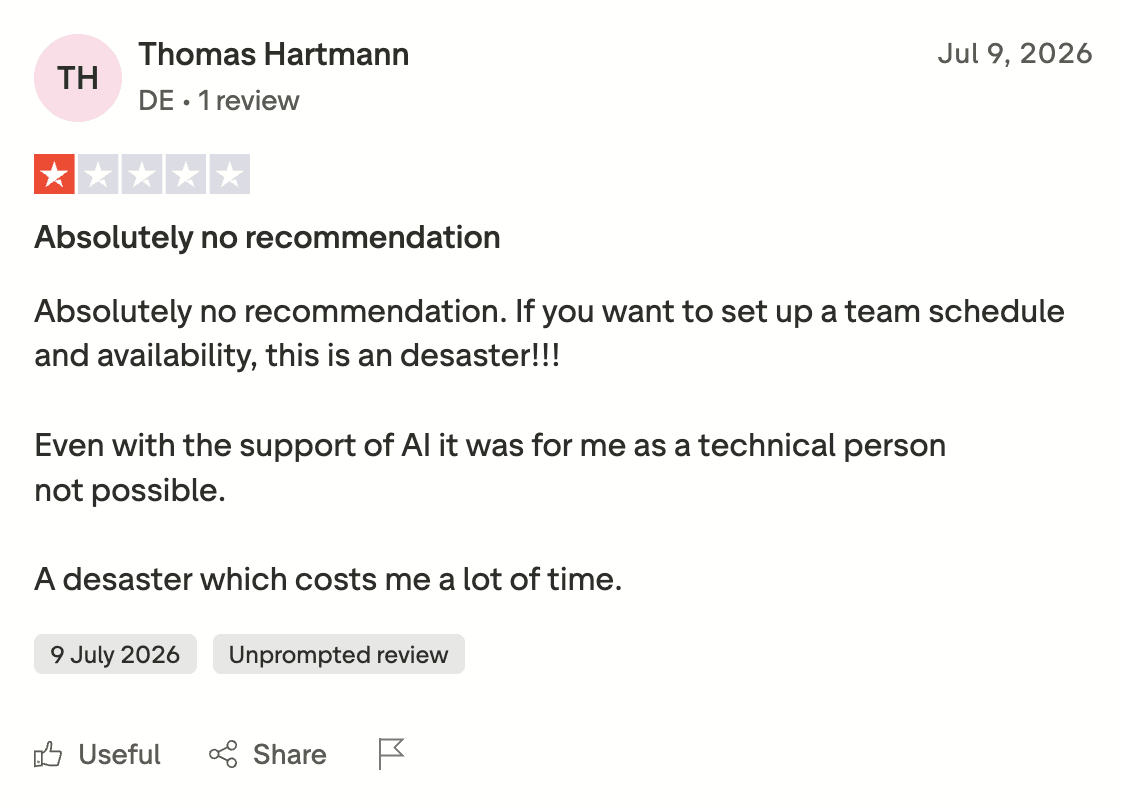
Source: Trustpilot
4. Calendar Integrations
TidyCal connects with Google Calendar, Microsoft 365 and Apple Calendar. Once connected, it checks your calendars when displaying available times and adds new bookings to your calendar.This worked well for the basic scheduling experience.

5. Meeting Event Settings
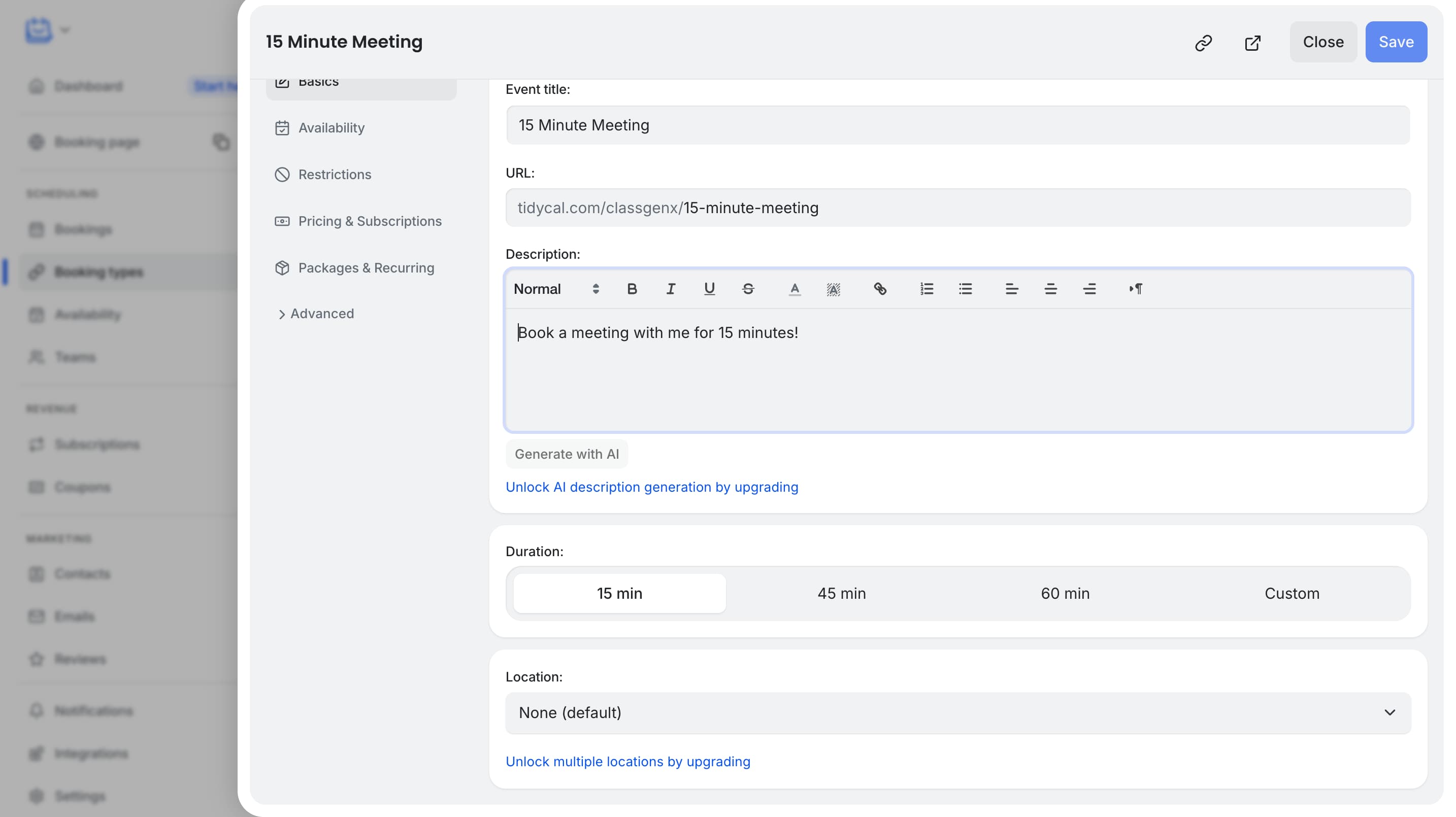
TidyCal gives you control over the settings for each booking type, including the meeting duration, availability, buffer time, booking limits and meeting location.
During testing, I found these settings straightforward for creating standard one-to-one meetings. You can also add meeting details and choose how the event should appear when someone books.
The main limitation is that the settings are better suited to straightforward meetings. If you need highly detailed booking rules or more advanced workflows, you may find Tidycal does not offer this flexibility.
TidyCal Pros and Cons
Pros
Simple and easy-to-understand scheduling experience
Lifetime purchase option available
Google, Microsoft and Apple calendar connections
Supports Round Robin and team meetings
Zoom and Google Meet integrations
Good value for users who only need basic scheduling
Cons
Limited booking page customization
Team scheduling can be harder to configure
Smaller integration ecosystem than larger competitors
Some users have reported calendar syncing issues
lack of support after purchase
Some users have reported problems after product/interface changes
Pricing
Which Scheduling Software Should You Choose?
The right scheduling software depends on what you need from your booking experience. Calendly, HubSpot Meetings and Warmcal all approach scheduling differently so the best choice depends on your workflow, team size and the type of experience you want to create.
Warmcal is right for you if...
You want your booking page to make a strong first impression
You want to create a professional and credible experience from the first click
You want to collect information before meetings to better understand prospects
You want team scheduling with fixed monthly pricing rather than paying per user
You want a scheduling platform focused on the features businesses actually need without unnecessary complexity
You want instant help from real humans when something breaks
Calendly is right for you if...
You need a simple and reliable way to book meetings
Most people booking with you already know your business
You rely on advanced workflows, automations and integrations
Enterprise security and compliance are important to your organization
You prefer a mature platform with a generous free plan
HubSpot Meetings is right for you if...
You already use HubSpot CRM and want scheduling connected with your customer data
You want meetings, contacts and sales activity managed in one place
Your team already relies heavily on the HubSpot ecosystem
A basic meeting scheduler is enough for your needs
You want scheduling as part of a wider sales and CRM platform
Google Appointment Scheduling is right for you if...
You already use Google Calendar and Google Workspace every day
You only need simple appointment scheduling
You want Google Meet to work seamlessly with your bookings
You mainly schedule one-to-one appointments
You do not need advanced routing, Round Robin or automation
You want a familiar scheduling experience without adding another platform
Doodle is right for you if...
You regularly need to find a time that works for multiple people
You want participants to vote on proposed meeting times
You want people to respond without creating an account
You need different ways to schedule including polls, booking pages and sign-up sheets
You regularly coordinate meetings with people outside your organization
You do not need advanced sales routing or highly customized booking pages
Cal com is right for you if...
You want more control over how your scheduling system works
You need open-source or self-hosting options
You want to create custom routing rules and workflows
You need advanced availability and team scheduling controls
You have technical resources to configure and customize your scheduler
You want deeper control over integrations and how scheduling connects with your existing systems
Microsoft Bookings is right for you if...
You already use Microsoft 365
You want scheduling connected to Outlook and your Microsoft ecosystem
You need appointment pages for individuals or teams
Your business uses Microsoft Teams for meetings
You want scheduling managed alongside your existing Microsoft tools
Koalendar is right for you if...
You want a simple scheduling tool that is quick to set up
You want more control over the appearance of your booking page
You need one-to-one or team scheduling
You want to share booking links without a complicated setup
You are an individual or small business that does not need advanced sales features
You want a straightforward alternative to more complex scheduling platforms
SavvyCal is right for you if...
You regularly coordinate meetings with people who have busy calendars
You like the idea of letting invitees overlay their calendar with yours
You need flexible team scheduling and Round Robin
You want more control over availability and meeting limits
You want a more interactive scheduling experience than a standard list of available times
TidyCal is right for you if...
You want straightforward meeting scheduling without a complicated setup
You mainly need booking pages, availability and calendar connections
You want team scheduling such as Round Robin or collective meetings
You prefer a lifetime purchase option rather than relying entirely on a subscription
You don't need highly advanced customization or routing features
How We Evaluated Each Platform
For this 10 Best Meeting Scheduling Software guide, I tested each platform myself using a similar process to keep the comparisons consistent. I created accounts, set up booking pages, connected calendars and went through the booking process from both sides to see how each tool performs in real use.
I looked at areas that are important when choosing scheduling software, including:
How easy it is to create and share meeting links
The booking experience from choosing a time through to confirmation
Calendar syncing and availability controls
Team scheduling and how meetings are distributed
Reminders, notifications and automation
Calendar, CRM and video conferencing integrations
Booking page customization and overall user experience
Pricing and how each platform works for growing teams
Alongside my own testing, I also looked through G2, Trustpilot, app sumo and Reddit to see whether other users had similar experiences. This helped me identify common strengths, limitations and issues that may not be obvious when simply looking at a platform's feature list.
FAQs
What is the best meeting scheduling software?
The best meeting scheduling software depends on what you need from your booking experience. Warmcal is a strong choice for businesses that want customizable booking pages, team scheduling and a more personalized experience. Calendly is a good option if you want simple and reliable meeting scheduling while HubSpot Meetings works well for businesses already using the HubSpot CRM.
What is the easiest meeting scheduling software to use?
Calendly, Google Appointment Scheduling and Koalendar are among the easier options to set up. They let you create a booking page, connect your calendar and start accepting meetings without a complicated setup.
What is the best scheduling software for teams?
The best option depends on how your team handles meetings. Calendly, Warmcal and Cal com offer team scheduling and Round Robin features while HubSpot Meetings is particularly useful for teams already working inside the HubSpot CRM.
What is the best free meeting scheduling software?
Several platforms offer free plans including Calendly, Warmcal, Setmore, Koalendar and Google Appointment Scheduling. The features available on each free plan vary so it is worth checking whether it includes the team scheduling, customization or integrations you need.
Which scheduling software has the best booking page customization?
Warmcal offers more control over the booking page experience with options for branding, images, videos and other content. This makes it a strong option for businesses that want their booking page to feel like part of their brand rather than just a calendar link.
Introduction
Finding a time for a meeting shouldn't require endless emails or messages back and forth. Meeting scheduling software makes it easier to share your availability, let people choose a suitable time and automatically manage the booking.
For this guide, I tested 10 meeting scheduling platforms to see how they perform in real use. I looked at the booking experience, calendar syncing, availability, team scheduling, integrations, reminders, customization, pricing and how easy each platform is to use.
Whether you are booking one-to-one meetings, managing appointments or coordinating a growing team, this guide will help you compare the different options and find the scheduling software that best fits your needs.
The 10 best meeting scheduling software
Warmcal for professional booking page and affordable team scheduling
Calendly for simple and reliable meeting scheduling
HubSpot Meetings for scheduling connected to your CRM
Doodle for group polls and finding a time that works for everyone
Google Appointment Scheduling for simple scheduling within Google Calendar
Cal.com for flexible and customizable scheduling
Microsoft Bookings for appointment scheduling within Microsoft 365
Koalendar for simple scheduling with customizable booking pages
SavvyCal for calendar overlays and flexible scheduling
TidyCal for straightforward meeting scheduling
Feature-by-feature Comparison of all Scheduling Software
Category | Warmcal | Calendly | HubSpot | Doodle | Google Appointment Scheduling | Cal com | Microsoft | Savvycal | Koalendar | Tidycal |
|---|---|---|---|---|---|---|---|---|---|---|
Focus | Branded booking pages and team scheduling | One-to-one and team scheduling | Meeting scheduling built into the HubSpot CRM | Group scheduling and polls | Calendar platform with basic appointment scheduling features | Flexible, open-source scheduling platform | Appointment scheduling built into Microsoft 365 | Calendar overlay and flexible meeting scheduling | Simple appointment scheduling with customizable booking pages | Straightforward booking and meeting scheduling |
Best for | Client-facing teams, sales, marketers, recruiters, founders, consultants, agencies | Internal teams, freelancers, Sales, recruiting, agencies, service businesses | Sales, Team and Businesses already using HubSpot Suite | Educators, Teams, community groups, internal meetings | Individual and Google Workspace users who need simple appointment booking | Developers, startups, SaaS companies, and businesses wanting full control over scheduling | Businesses already using Microsoft 365, Outlook and Teams | Professionals and teams that regularly coordinate busy calendars | Individuals and small businesses looking for simple online scheduling | Individuals and small teams looking for simple scheduling |
Free plan | Yes | Yes | Yes | Yes (with Ads) | Yes | Yes | Yes | No | Yes | Yes |
Team Paid Plan Monthly | $99/mo Unlimited Seats (No seat pricing) or $35/mo for smaller teams up to 3. | ~$20/seat/mo team plan | Included with HubSpot paid plans | ~ $19.95/seat/mo | ~ $16/seat/mo on standard plan | ~ $16/seat/mo | $20/seat/mo | Pro: $9.99/seat/mo | $29 lifetime or $12/month Pro | |
Team scheduling | Yes, Round robin, collective routing, syncing, designed for business teams | Yes. Round-robin, collective scheduling, lead routing | Yes. Round Robin and team availability on higher plans | Co-hosting, admin roles, activity reports | Limited. Designed mainly for individual appointment scheduling with support for adding up to 20 co-hosts on eligible plans | Co-hosting, admin roles, activity reports | Yes, with staff schedules and availability | Yes | Yes | Yes |
Branding & customization | Strongest point: Banners, Wallpapers, intros, videos, social medial posts, much more | Limited: Logo, URL, Embed colour | Limited branding options | Limited | Very limited customization | Technical customization (open source, APIs, custom code), not visual customization. | Limited branding options | Basic. Colors, avatar, banner and custom branding | Some customization options such as colour, logo etc | Basic branding |
Calendar sync | Google and Outlook support | Google, Outlook, and other major calendars | Google Calendar and Outlook | Google Calendar, Outlook, Office 365, | Google Calendar focused | Google, Outlook, Apple, CalDAV and more | Outlook / Microsoft 365 | Google Calendar, Outlook and other calendars | Google Calendar and other calendar integrations | Google Calendar, Outlook and other calendar integrations |
CRM integrations | HubSpot | HubSpot, Salesforce, and more | Native HubSpot CRM integration | None | Limited | HubSpot, Salesforce, and more | Microsoft ecosystem and Microsoft Graph API | Yes | Yes. HubSpot, Close and others | Limited |
Round robin scheduling | Yes | Yes | Yes | Limited | No | Yes, on the Teams plan | Limited | Limited | Yes | Yes |
Video conferencing integrations | Zoom, Google Meet, Microsoft Teams | Zoom, Google Meet, Microsoft Teams | Zoom, Google Meet, Microsoft Teams | Zoom, Google Meet, Microsoft Teams | Google Meet and some third-party integrations through Workspace | Zoom, Google Meet, Microsoft Teams | Microsoft Teams | Zoom, Google Meet and other options | Zoom, Google Meet, Whereby and more | Zoom, Google Meet and Microsoft Teams |
Automation | Yes | Yes | Yes | Basic | Basic reminders and calendar notifications | Workflows, webhooks and API integrations | Yes | Basic reminders and notifications | Yes. Reminders, workflows, Zapier, API & webhooks | Yes. |
Routing forms | Yes, qualify before booking meeting | Yes | Yes | Limited | No | Basic | No | Limited | Limited / not a core feature | No |
Analytics | Booking page views, team performance, and booking insights | Booking and workflow insights | Meeting activity and CRM reporting | Basic | Basic calendar and appointment insights | Basic | Basic | Basic booking and business insights | Yes. Fathom and scheduling insights | Yes. Booking statistics and Google Analytics on paid plans |
Learning curve | Easy to use and customize your booking page | Moderate, easy to start but advanced features add complexity | Easy if you already use HubSpot but can feel overwhelming for new users | Easy | Very easy for basic scheduling | Medium to High. | Easy if you already use Microsoft 365 | Easy to get started | Easy to use, with more advanced options for teams | Easy to get started, with some limitations as requirements become more complex |
Warmcal: In-Depth Review
Warmcal is a scheduling platform designed for businesses like sales, marketing, recruiting and more that want more from their booking experience. Instead of focusing only on showing available times, it combines scheduling with personalized booking pages, pre-meeting questions and team scheduling.
When testing Warmcal, the booking page was the feature that stood out most. You can add images, videos, banners and other content to prospects, clients more information before they book. It also keeps the core scheduling process simple while giving businesses more control over how their booking experience looks and works.
Features
1. Booking Page
The booking page is one of the biggest differences I noticed when testing Warmcal. Instead of sending someone straight to a basic calendar, you can create a more personalized page that gives visitors more information before they choose a time.
You can add branding elements such as images, videos, banners and social proof. This makes the booking page feel more like part of your business rather than just a scheduling link.
I think this is particularly useful for businesses where the booking page is part of the first impression. Someone can learn more about the company before booking, rather than simply choosing a time and leaving.
2. Team Scheduling
I tested Warmcal's Round Robin feature to see how easily meetings could be distributed across a team. You can add team members, connect their calendars and allow Warmcal to automatically distribute bookings based on availability.
The setup was straightforward and I didn't need to manually check which team member was available before accepting a booking.
Another thing I noticed is the pricing model. Warmcal uses fixed monthly pricing rather than charging for every additional team member, which can make the cost more predictable as a team grows.
3. Meeting Questions
Warmcal lets you add custom questions to your booking process so you can collect information before someone schedules a meeting. Instead of only asking for basic contact details, you can ask about what they need or what they want to discuss.
I found this useful because it gives you some context before the meeting takes place. For sales teams and client-facing businesses, these questions can also help identify whether a meeting is actually relevant before it gets booked.
The main thing to keep in mind is not to add too many questions. A long form could make the booking process feel more complicated than it needs to be.
4. Meeting Links
Creating a meeting link in Warmcal was quick and straightforward. You can create one-to-one or Round Robin meetings and configure settings such as meeting duration, availability, booking limits and reminders.
What I liked is that the booking page can be customized before you share the link, so the person booking gets more than just a calendar with available times. Once everything was configured, I was able to create and share a meeting link within a few minutes.
You can also choose a customised base link and set your own username, giving all your meeting links a more consistent and professional URL.
5. Integrations
Warmcal supports the main integrations businesses need to manage their meetings. You can connect Google Calendar and Outlook to keep availability updated and help prevent double bookings. Video conferencing integrations can also automatically add meeting details to bookings, while the HubSpot integration connects meetings with your CRM.
One feature I found particularly useful was the ability to import existing Calendly settings. Instead of rebuilding your meeting types from scratch, you can bring your existing settings across, which makes switching much easier.
Warmcal Pros and Cons
Pros
Highly customizable booking pages
Personalized booking experience with images, videos and branding
Round Robin and team scheduling
Pre-meeting questions for collecting information before meetings
No per-seat pricing for growing teams
Calendly import makes switching easier
Cons
Smaller integration ecosystem as Warmcal is still building and shipping new integrations quickly
Better suited for businesses that value personalized booking experiences rather than users looking for the simplest possible scheduling link
Too many pre-meeting questions can make booking feel longer
Businesses with strict compliance requirements should check the platform's requirements
Pricing
Calendly: In-Depth Review
Calendly is one of the most established meeting scheduling platforms and remains a popular choice for businesses that want a reliable way to manage bookings. When I tested it, the setup was straightforward and the booking experience felt polished, with features such as calendar integrations, team scheduling, reminders and workflows making it a strong all-round scheduling tool.
Features
1. Booking page
One of the first things I noticed when testing Calendly was how simple the booking page is. You can add basic branding such as a profile photo and company logo, but there are limited options to change the overall design or layout.
I also found a G2 re1view where a user said the limited customization made it difficult to align the booking page with their brand. For businesses that just need a simple scheduling link this works well, but if the booking experience is an important part of your brand, Calendly can feel restrictive.
Source: G2
2. Availability
Calendly gives you good control over when people can book meetings. You can set working hours, add buffers between meetings, create different availability rules for different event types and set booking limits. I found a G2 review that specifically highlighted these controls as useful for managing time and keeping availability organised.
3. Calendar Connections
Calendly connects with popular calendar providers including Google Calendar, Outlook, Microsoft Exchange and Apple Calendar. When I tested it, connecting my calendar was straightforward and only took a few steps. Once connected, Calendly checks your availability automatically and adds new bookings to your calendar, making it easy to manage meetings across different calendar systems.
4. Round Robin Scheduling
I tested Calendly's Round Robin feature to see how easy it was to distribute meetings across a team. The setup worked well overall, although there are several routing and distribution settings to work through before everything is configured. Once set up, meetings can be shared between team members automatically based on their availability, removing the need to manually decide who should take each booking.
4. Reminders
Calendly makes it easy to send confirmation emails, reminder emails and SMS reminders before a meeting. Setting them up only took a few minutes and everything worked as expected during testing.
By default, reminder emails were sent from notifications@calendly.com, although mine landed in the spam folder. If you prefer, you can connect your own email provider instead.
5. Meeting Links
Creating a meeting link in Calendly was quick and straightforward. You can choose the meeting type, set the duration and availability, then share the link with whoever needs to book.
I found the process simple enough to get a basic meeting link live within a few minutes. Once someone books, Calendly automatically adds the meeting to the connected calendar and handles the confirmation and reminders.
Calendly Pros and Cons
Pros
Simple and easy booking experience
Wide range of calendar and business integrations
Strong team scheduling with Round Robin
Reliable reminders and notifications
Easy to create and share meeting links
Good option for businesses of different sizes
Cons
Limited branding and customization options
Advanced features are locked behind higher plans
Pricing can become expensive for teams
Some advanced settings can take time to understand
Less flexibility for businesses wanting highly personalized booking experiences
Pricing
HubSpot Meetings: In-Depth Review
HubSpot Meetings takes a slightly different approach to scheduling because it is built directly into HubSpot’s wider CRM. Instead of being just a tool for sharing a booking link, it connects meetings with contacts, deals and sales activity.
When I tested it, the basic booking process worked well and connecting calendars was straightforward. But as I went deeper into the settings, the experience felt more complex than a dedicated scheduling tool, especially when setting up availability and team scheduling.
The main advantage is really the wider HubSpot ecosystem. If your business already uses HubSpot, having meetings, contacts and sales activity connected in one place makes a lot of sense.
Features
1. Calendar Integrations
HubSpot Meetings connects with Google Calendar, Outlook and Microsoft 365 to keep your availability in sync. When I connected my Google Calendar, existing events were automatically marked as busy, while new meetings booked through HubSpot appeared on my calendar straight away.
The setup was fairly straightforward during testing, and HubSpot also provides guidance for connecting your calendar if you're setting it up for the first time.
2. Meeting Links
Creating and sharing meeting links in HubSpot was straightforward. Once the meeting type was set up, I could quickly create a link and share it without needing to manually coordinate availability.
I also found a G2 review that highlighted the ability to easily connect meeting links as one of the useful built-in sales features. This is one of HubSpot's strengths because meetings can work alongside the CRM without needing another third-party app for basic sales workflows.
Source: G2
3. Availability
HubSpot gives you control over when people can book meetings by setting working hours, meeting durations and availability for different days. During testing, the basic setup was straightforward, but I found it became more time-consuming when I wanted different working hours throughout the week.
I also found the availability settings a little confusing at first. It wasn't immediately obvious to me whether the availability I changed was being applied across all meetings or just the specific meeting I was editing. If you're new to HubSpot Meetings, this is something worth paying attention to when setting up your schedule.
You can see How to Change Availability of HubSpot Meetings for a step-by-step guide.
Source: Youtube
4. Booking Page
HubSpot's booking page felt quite basic when I tested it. The design felt a little off-brand and there were limited options to customise the page to match your business. Overall, it also felt less personalised compared with some dedicated scheduling platforms.
For businesses that want their booking page to help build their brand before a meeting, this is worth considering. I also found a Reddit discussion where a user raised similar concerns about the appearance and customisation of HubSpot's meeting pages.
Source: reddit
5. Reminders
HubSpot lets you send meeting confirmations and reminders to help keep attendees informed before a meeting. During testing, the basic reminder setup was straightforward and worked well for standard meeting bookings.
The bigger advantage is that reminders can work alongside HubSpot's wider automation. Once a meeting is booked, you can trigger actions such as updating contact records, creating tasks or starting workflows.
I found this useful for businesses already using HubSpot, although some of the more advanced automation features require higher-tier plans. If you only need basic meeting reminders, HubSpot may offer more functionality than you actually need.
Pros
Works directly with the HubSpot CRM
Easy to connect meeting links with contacts and sales activity
Strong automation and workflow options
Good calendar integrations with Google, Outlook and Microsoft 365
Useful team scheduling features
Good option for businesses already using HubSpot
Cons
Interface can feel cluttered and dated
Booking page customization is limited
Availability settings can be confusing
Advanced features require higher HubSpot plans
Can become expensive as your team grows
May offer more functionality than you need if you only want simple scheduling
Pricing
Doodle
Doodle is a scheduling platform best known for its Group Polls, where you can suggest several times and let participants choose which options work for them. It also offers booking pages for one-to-one meetings and sign-up sheets for situations where people need to choose individual time slots.
When testing Doodle, the Group Poll was the feature that stood out most. It was quick to set up and participants could respond without creating an account, which makes it useful when you're trying to coordinate people from different organizations. Doodle also offers a more traditional booking experience if you need people to choose an available time directly.
Features
1. Group Poll
Group Polls are what Doodle is mainly known for, so this was the first feature I tested. Creating a poll took less than a minute. I selected several possible times and shared the link, while participants could mark each option as available, if needed or unavailable.
I found this particularly useful for meetings where several people need to agree on a time. Participants don't need to create a Doodle account to respond, which removes an extra step from the process.
I also noticed several positive G2 reviews mentioning how convenient this is when coordinating with people outside your organization.
2. Booking Experience
Setting up a Doodle booking page was straightforward. I connected my calendar, configured my availability and had a shareable booking link ready within a few minutes.
The booking process itself was simple and there wasn't much of a learning curve. However, one thing that stood out during testing was the advertising on the free booking experience. The ads and pop-ups made the page feel less professional when compared with a cleaner business booking page.
I actually found it really annoying and distracting and many people left reviews on Trustpilot about being unhappy with the amount of advertising on the free plan.
3. Booking Types
Doodle gives you several ways to organise meetings depending on what you need. You can use a Group Poll when everyone needs to agree on a time, a Booking Page for one-to-one appointments or a Sign-up Sheet when people need to claim individual slots.
I found this flexibility useful because different meetings need different scheduling methods. A group meeting can work better with a poll while a client meeting is easier to arrange through a booking page.
The downside is that if you only want a simple scheduling link, some of these additional options may not be necessary.
4. Calendar Integrations
Connecting my calendar was quick and straightforward. Doodle supports Google Calendar, Outlook and iCloud, allowing it to check availability when people are booking meetings or responding to polls.
I also connected video conferencing options including Zoom, Google Meet and Microsoft Teams. The integrations worked without much configuration and automatically made the meeting setup easier.
5. Team Scheduling
Doodle's team features focus more on shared scheduling and administration than automatic meeting distribution. You can add team members, manage bookings and allow other people to help organise meetings through the team features.
When comparing this with Calendly's Round Robin, I found the approach quite different. Doodle is useful when multiple people need to manage scheduling together, but it isn't as focused on automatically distributing incoming meetings between sales or support team members.
Doodle Pros and Cons
Pros
Excellent Group Poll feature for finding a time that works for everyone
Participants don't need an account to respond to polls
Multiple ways to schedule including polls, booking pages and sign-up sheets
Simple setup with little learning curve
Good calendar and video conferencing integrations
Useful for coordinating meetings across different organisations
Cons
Free booking pages can include advertising, which can look less professional
Limited branding and customization compared with dedicated scheduling platforms
Team features are more focused on collaboration than automatic meeting distribution
Can feel like several different scheduling tools rather than one unified experience
Less suitable for sales teams that need advanced routing
Some useful features require higher-tier plans
Pricing
Google Appointment Scheduling
Google Appointment Scheduling is a calendar software that also includes appointment scheduling add on. Rather than being a dedicated scheduling platform, it's designed to help individuals and businesses manage their calendars while offering a simple way for others to book available time slots.
Features
1. Appointment Scheduling
Creating an appointment schedule was simple. I could set my availability, choose the meeting duration and share a booking link where someone could select an available time.
The experience feels very much like an extension of Google Calendar rather than a separate scheduling product. This makes it easy to use, but businesses looking for more advanced scheduling features may find it limited.
2. Calendar & Availability
This is probably Google's biggest advantage. Your appointment schedules work directly with Google Calendar, so existing events automatically affect your availability and new bookings appear in your calendar.
I was also able to set booking windows and buffers between appointments. However, when working with multiple calendars, I found it could become a little confusing to keep track of which calendar was controlling availability.
3. Team Scheduling & Co-hosts
I tested the co-host feature by adding another person to an appointment schedule. Setting this up was straightforward and works well if two or more people need to be involved in the same appointment.
However, Google Appointment Scheduling doesn't provide advanced team features such as Round Robin or lead routing. This makes it better suited to simple team bookings rather than businesses managing a high volume of incoming meetings.
4. Google Meet Integration
Google Meet integration was probably the easiest part of the setup. When creating an appointment schedule, I selected Google Meet as the meeting location and a meeting link was automatically created when someone booked.
There was no additional integration or configuration needed, which makes the process particularly convenient if your business already uses Google Workspace.
5. Reminders
Google automatically sends a confirmation when someone books an appointment, along with a calendar invitation. The person booking and the host both receive the relevant meeting details.
I found this simple and reliable during testing. Additional reminder options are available depending on the Google Workspace plan you're using, although the notification features are more basic than what you'll find in dedicated scheduling platforms.
Google Appointment Pros and Cons
Pros
Very easy to set up if you already use Google Calendar
Works seamlessly with Google Workspace
Google Meet integration works without extra setup
Simple availability and booking controls
Co-hosts make basic team scheduling possible
Familiar interface for Google users
Cons
Limited booking page customization
No advanced Round Robin or routing features
Less suitable for larger teams managing lots of meetings
Limited automation compared with dedicated scheduling tools
Multiple calendar management can become confusing
Fewer integrations and advanced scheduling options
Pricing
Cal Com
Cal.com takes a different approach to meeting scheduling by giving users more control over how their scheduling system works. Rather than focusing only on making booking simple, it offers features such as open-source access, custom workflows, APIs, self-hosting, team scheduling and routing.
When testing Cal com, I found it offered a lot of flexibility, particularly around availability and how meetings can be routed. However, there are more settings to work through than with simpler tools like Calendly, so it can take longer to get everything configured the way you want.
Features
1. Integrations
Connecting my calendar to Cal com was straightforward. Once connected, it checked my availability and prevented people from booking over existing calendar events. I also found it easy to connect video conferencing tools so meeting links could be added automatically.
Cal com supports a wide range of calendar and third-party integrations, which makes it a good option for businesses that want their scheduling system connected with other tools.
2. Open Source
One of cal com's biggest differences is that it is open source. This gives businesses and developers more control over how the platform is used, including options such as self-hosting, customisation and deeper integration with existing systems.
I can see why this appeals to technical teams that have specific requirements around data, security or how their scheduling system works.
However, this flexibility isn't necessarily important for everyone. If you simply want to create a booking page and start scheduling meetings, cal com's additional options can make the product feel more complicated than a traditional scheduler.
3. Lead Routing & Custom Rules
Cal.com's routing features allow businesses to send bookings to the right person based on information collected during the booking process. You can create rules that determine where a meeting should go rather than sending every visitor through the same booking flow.
This could be useful for sales teams that need to route prospects based on things like team, location or customer type.
When testing the feature, I found that the additional flexibility also meant there was more to understand during setup. This is an area where Cal com feels more powerful than a basic scheduler but it can take longer to configure.
4. Availability Management
Cal com gives you a lot of control over when people can book. You can set working hours, add buffers, control minimum notice periods and decide how far into the future someone can schedule.
During testing, I found these options useful when setting up different types of meetings and managing a more complicated schedule. There is much more control than simply choosing a few working hours.
The downside is that there are more settings to work through. If you only need basic availability, the additional options may feel unnecessary.
5. Team Scheduling & Round Robin
Cal com's team scheduling lets you distribute meetings between multiple team members and control how bookings are assigned. This means customers can be connected with the right person without someone manually checking calendars and assigning every meeting.
I found the feature capable, but it took longer to understand than simpler team scheduling tools. The flexibility is useful if you need more control over how meetings are distributed, but it also adds to the learning curve when setting everything up.
Cal Com Pros and Cons
Pros
Open-source platform with self-hosting options
Highly flexible scheduling and customization
Powerful routing and custom booking rules
Strong availability controls
Good team scheduling and Round Robin features
Wide range of integrations
Cons
Steeper learning curve than simpler scheduling tools
Advanced features can take time to configure
May feel overly complex for basic scheduling needs
Some features require more technical knowledge
Less suitable for users who want a simple out-of-the-box experience
More flexibility means more settings to manage
Pricing
Microsoft Bookings
Microsoft Bookings is Microsoft's scheduling tool for businesses that want to manage appointments alongside the Microsoft 365 ecosystem. It connects with Outlook calendars and can be accessed through both Outlook and Microsoft Teams, making it particularly useful for businesses already working heavily within Microsoft's platform.
The platform lets you create booking pages, set services, manage staff availability and allow customers to book appointments online. You can also create group bookings, collect information from customers and send appointment notifications and reminders.
If your business already relies on Microsoft 365, Bookings has the advantage of fitting naturally into the tools you already use.
Features
1. Calendar Integrations
Microsoft Bookings works smoothly with Outlook and Microsoft 365 calendars. Connecting the calendar was straightforward and once it was connected, existing calendar events were taken into account when showing available appointment times.
This matched what I found in G2 reviews, where users mentioned that Microsoft Bookings integrates smoothly with their existing calendars. This is one of the areas where Microsoft Bookings makes sense for businesses already using Outlook and Microsoft 365 because everything works together without needing to introduce another calendar system.
Source: G2
2. Team Scheduling & Staff Management
Microsoft Bookings makes it fairly straightforward to add team members and manage their availability from one place. You can assign staff to different services and customers can book appointments based on the availability of the relevant team members.
I found this useful for businesses where multiple people handle different types of appointments. It also means the team can manage bookings without everyone having to manually coordinate availability.
3. Account management
There are a few things to be aware of if you're managing Microsoft Bookings across a larger organization. While the scheduling side is straightforward, Bookings can have wider implications for how users and accounts are managed within Microsoft 365.
I came across a Reddit discussion from a Microsoft 365 administrator who raised concerns about Bookings creating user accounts for one time event sign ups and how this affected their organization's security administration. It's not something most smaller businesses are likely to worry about but larger teams may want to look into how Bookings fits with their existing Microsoft 365 account and security policies.
Source: Reddit
4. Reminders
Microsoft Bookings takes care of the basic communication around appointments without requiring much manual work. Confirmation emails and reminders can be sent automatically after someone books, helping keep both the customer and staff member informed.
The setup was fairly straightforward and I did not need to spend much time configuring the basics. It works well if you simply want bookings, confirmations and reminders to happen automatically. However, the automation is more focused on appointment notifications rather than the more advanced workflows you get with dedicated scheduling platforms.
5. Analytics & Reporting
Microsoft Bookings gives you basic information about your appointments but the analytics and reporting options are fairly limited. If you want to understand booking trends, team performance or get deeper insights into how your scheduling pages are performing, you may find the reporting options lacking.
This also came up in a G2 review from a business using Microsoft Bookings for space management. They liked how easily it connected with their existing Microsoft tenant but specifically mentioned the limited analytics and reporting capabilities as a downside.
For businesses that mainly need to manage appointments, this may be enough. However, if you want detailed scheduling data to understand what is working and where improvements can be made, this is an area where Microsoft Bookings feels behind more dedicated scheduling platforms.
Microsoft Bookings Pros and Cons
Pros
Strong integration with Microsoft 365 and Outlook
Easy for teams already using the Microsoft ecosystem
Straightforward team and staff scheduling
Automatic confirmations and reminders
Microsoft Teams integration for online meetings
Included with eligible Microsoft 365 plans
Simple setup for basic appointment scheduling
Cons
Booking page customization is fairly limited
Analytics and reporting options are basic
Not designed for highly personalized booking experiences
Limited advanced routing and workflow features
Can have wider Microsoft 365 account management considerations
Less suitable for businesses that want their booking page to feel like a branded customer experience
Pricing
SavvyCal: In-Depth Review
SavvyCal takes a slightly different approach to meeting scheduling by making it easier to find a time that works for both people. Instead of simply showing available slots, it allows the person booking to overlay their own calendar, making conflicts easier to spot. When testing SavvyCal, I found the booking experience clean and easy to understand.
Features
1. Calendar Overlay
The calendar overlay was the feature that stood out most when I tested SavvyCal. When someone opens your booking link, they can overlay their own calendar to see their availability alongside yours.
This makes it easier to find a suitable time without switching between calendars or comparing schedules manually. On g2 reviews a user has mentioned the liked the ability for both parties to overlay their calendars before scheduling.
I found similar feedback on G2, with users specifically praising the ability for both people to overlay their calendars before scheduling.
Source: G2
2. Booking Page
SavvyCal's booking pages feel clean and professional without adding unnecessary steps. You can customise your scheduling links and add branding while keeping the booking process straightforward. I found the overall experience easy to navigate and it felt more polished than a basic scheduling page.
3. Team Scheduling
SavvyCal supports team scheduling, allowing multiple people to share availability and coordinate meetings. You can create links that include several team members and let the person booking find a suitable time.
During testing, the setup felt relatively straightforward. However, if you need complex lead routing and automatic distribution of inbound meetings, you wont find advanced routing options.
4. Availability
SavvyCal gives you control over when people can book, including working hours, meeting duration and scheduling rules. I really liked how you can select availability easily on the calendar and this overlay also makes availability easier to understand when coordinating with someone who has a busy schedule.
5. Integrations
SavvyCal connects with popular calendars including Google Calendar, Outlook and iCloud, allowing it to check availability and prevent double bookings.
It also connects with tools such as Zoom and Microsoft Teams for video meetings. During testing, the main integrations were straightforward to connect.
One downside I noticed from reviews was pricing. Several G2 reviewers felt SavvyCal was expensive, particularly for individual users, and the platform does not offer a free tier.
Source: G2
SavvyCal Pros and Cons
Pros
Calendar overlay makes it easy to find mutual availability
Clean and user-friendly booking experience
Strong calendar integrations
Flexible availability and scheduling controls
Personalized scheduling links
Easy to set up and integrate with existing calendars
Cons
No free tier
Can be expensive for individual users
No dedicated mobile app
Some users report slow loading and occasional performance issues
Not as intuitive as some simpler scheduling tools
Smaller integration ecosystem than larger platforms
Pricing
Koalendar
Koalendar is a simple meeting scheduling platform designed to make it easier for businesses and individuals to manage bookings online. Instead of going back and forth trying to find a suitable time, users can share a booking page where people can choose an available time based on their calendar.
The platform focuses on keeping scheduling straightforward with features such as calendar integrations, meeting types, booking pages, reminders and team scheduling. Its simple setup and clean booking experience make it a good option for individuals, consultants and small businesses that want to get started with online scheduling without dealing with unnecessary complexity.
Features
1. Availability
Koalendar gives you control over when people can book, including working hours, specific dates, buffers and booking limits. It also automatically checks your connected calendars so existing meetings are taken into account when showing available times.
During testing, I found the availability settings fairly easy to understand. I also liked that Koalendar automatically detects the invitee's time zone, which is useful when scheduling meetings with people in different countries.
2. Booking Page
Creating a booking page was straightforward. You can customise your booking link, add your logo and brand colours, change the text and choose different meeting durations.
The booking page felt clean and professional without making the process complicated. You can also embed the booking page directly into your website, which is useful if you don't want visitors to leave your site to schedule a meeting.
3. Team Scheduling
Koalendar supports team scheduling through Round Robin and collective bookings. Round Robin can distribute meetings between team members, while collective bookings allow multiple hosts to be included in the same meeting.
During testing, these options gave teams more flexibility than simply sharing one person's calendar. You can also allow the person booking to choose a specific team member where required. These team features are available on the Pro plan.
4. Calendar Connection
Connecting my calendar was quick and Koalendar supports Google Calendar, Outlook and iCloud. Once connected, existing events are taken into account automatically so unavailable times aren't offered to people trying to book.
Koalendar can also sync multiple calendars and combines them into one availability view. This is useful if you manage work and personal schedules across different calendars and want to avoid manually checking each one.
5.Meeting Locations
Koalendar gives you several options for where a meeting can take place. You can use video conferencing services such as Zoom, Google Meet and Microsoft Teams, or set a physical location for in-person meetings.
I found this useful because different booking types can have different meeting locations. For example, one booking page could automatically create a Google Meet link while another could be used for an in-person appointment.
One G2 reviewer did mention having difficulty accessing Microsoft Teams, so if Teams is particularly important to your workflow, this is something I'd test before committing.
Source: G2
Koalendar Pros and Cons
Pros
Easy to set up and use
Clean and straightforward booking experience
Good booking page customization
Strong Google Calendar integration
Supports team scheduling and different meeting types
Good value for individuals
Cons
Some integrations can be difficult to set up
Microsoft Teams integration can be unreliable
Some users have reported occasional slow performance
Advanced tracking and analytics can be limited
Less suited to complex multi-person scheduling than some larger platforms
Some advanced features are restricted to paid plans
Pricing
TidyCal: In-Depth Review
TidyCal takes a straightforward approach to meeting scheduling, focusing on the core things most people need to create booking links and manage their availability. It supports multiple booking types, calendar connections, group meetings and integrations with tools such as Zoom and Google Meet.
When testing TidyCal, I found the basic scheduling experience fairly simple to understand. Its pricing is also different from most competitors, with a lifetime purchase option rather than relying entirely on a recurring subscription. However, feedback becomes more mixed when you look beyond the basic scheduling features, particularly around customization and customer support. Users generally praise its simplicity and value, while reviews raise concerns about support and some technical issues.
Features
1. Booking Page
Creating a booking page in TidyCal was relatively straightforward. You can create different booking types, set the duration and availability, and share individual booking links with people.
The main limitation I noticed was customization. TidyCal keeps the booking experience fairly simple, but there aren't as many options to change the overall appearance or create a heavily branded booking experience.
This was also mentioned in Appsumo review, with user describing TidyCal as simple but noting that there are not many customization options.
Source: Appsumo
2. Availability
TidyCal allows you to create availability rules for different booking types, set gaps between meetings and connect your calendars to prevent bookings when you're already busy.
I found the basic setup easy enough, although there are some limitations when you start trying to create more complicated availability rules.
3. Team Scheduling
TidyCal supports team scheduling through features such as Round Robin and collective meetings. This allows bookings to be distributed between team members or require multiple hosts to be available.
The functionality is useful for smaller teams, but I wouldn't consider it as advanced as the team routing options available in other platforms.
I also found recent Trustpilot feedback from a user who specifically struggled with setting up team schedules and availability, so this is an area I'd test carefully if team scheduling is a major requirement.
Source: Trustpilot
4. Calendar Integrations
TidyCal connects with Google Calendar, Microsoft 365 and Apple Calendar. Once connected, it checks your calendars when displaying available times and adds new bookings to your calendar.This worked well for the basic scheduling experience.
5. Meeting Event Settings
TidyCal gives you control over the settings for each booking type, including the meeting duration, availability, buffer time, booking limits and meeting location.
During testing, I found these settings straightforward for creating standard one-to-one meetings. You can also add meeting details and choose how the event should appear when someone books.
The main limitation is that the settings are better suited to straightforward meetings. If you need highly detailed booking rules or more advanced workflows, you may find Tidycal does not offer this flexibility.
TidyCal Pros and Cons
Pros
Simple and easy-to-understand scheduling experience
Lifetime purchase option available
Google, Microsoft and Apple calendar connections
Supports Round Robin and team meetings
Zoom and Google Meet integrations
Good value for users who only need basic scheduling
Cons
Limited booking page customization
Team scheduling can be harder to configure
Smaller integration ecosystem than larger competitors
Some users have reported calendar syncing issues
lack of support after purchase
Some users have reported problems after product/interface changes
Pricing
Which Scheduling Software Should You Choose?
The right scheduling software depends on what you need from your booking experience. Calendly, HubSpot Meetings and Warmcal all approach scheduling differently so the best choice depends on your workflow, team size and the type of experience you want to create.
Warmcal is right for you if...
You want your booking page to make a strong first impression
You want to create a professional and credible experience from the first click
You want to collect information before meetings to better understand prospects
You want team scheduling with fixed monthly pricing rather than paying per user
You want a scheduling platform focused on the features businesses actually need without unnecessary complexity
You want instant help from real humans when something breaks
Calendly is right for you if...
You need a simple and reliable way to book meetings
Most people booking with you already know your business
You rely on advanced workflows, automations and integrations
Enterprise security and compliance are important to your organization
You prefer a mature platform with a generous free plan
HubSpot Meetings is right for you if...
You already use HubSpot CRM and want scheduling connected with your customer data
You want meetings, contacts and sales activity managed in one place
Your team already relies heavily on the HubSpot ecosystem
A basic meeting scheduler is enough for your needs
You want scheduling as part of a wider sales and CRM platform
Google Appointment Scheduling is right for you if...
You already use Google Calendar and Google Workspace every day
You only need simple appointment scheduling
You want Google Meet to work seamlessly with your bookings
You mainly schedule one-to-one appointments
You do not need advanced routing, Round Robin or automation
You want a familiar scheduling experience without adding another platform
Doodle is right for you if...
You regularly need to find a time that works for multiple people
You want participants to vote on proposed meeting times
You want people to respond without creating an account
You need different ways to schedule including polls, booking pages and sign-up sheets
You regularly coordinate meetings with people outside your organization
You do not need advanced sales routing or highly customized booking pages
Cal com is right for you if...
You want more control over how your scheduling system works
You need open-source or self-hosting options
You want to create custom routing rules and workflows
You need advanced availability and team scheduling controls
You have technical resources to configure and customize your scheduler
You want deeper control over integrations and how scheduling connects with your existing systems
Microsoft Bookings is right for you if...
You already use Microsoft 365
You want scheduling connected to Outlook and your Microsoft ecosystem
You need appointment pages for individuals or teams
Your business uses Microsoft Teams for meetings
You want scheduling managed alongside your existing Microsoft tools
Koalendar is right for you if...
You want a simple scheduling tool that is quick to set up
You want more control over the appearance of your booking page
You need one-to-one or team scheduling
You want to share booking links without a complicated setup
You are an individual or small business that does not need advanced sales features
You want a straightforward alternative to more complex scheduling platforms
SavvyCal is right for you if...
You regularly coordinate meetings with people who have busy calendars
You like the idea of letting invitees overlay their calendar with yours
You need flexible team scheduling and Round Robin
You want more control over availability and meeting limits
You want a more interactive scheduling experience than a standard list of available times
TidyCal is right for you if...
You want straightforward meeting scheduling without a complicated setup
You mainly need booking pages, availability and calendar connections
You want team scheduling such as Round Robin or collective meetings
You prefer a lifetime purchase option rather than relying entirely on a subscription
You don't need highly advanced customization or routing features
How We Evaluated Each Platform
For this 10 Best Meeting Scheduling Software guide, I tested each platform myself using a similar process to keep the comparisons consistent. I created accounts, set up booking pages, connected calendars and went through the booking process from both sides to see how each tool performs in real use.
I looked at areas that are important when choosing scheduling software, including:
How easy it is to create and share meeting links
The booking experience from choosing a time through to confirmation
Calendar syncing and availability controls
Team scheduling and how meetings are distributed
Reminders, notifications and automation
Calendar, CRM and video conferencing integrations
Booking page customization and overall user experience
Pricing and how each platform works for growing teams
Alongside my own testing, I also looked through G2, Trustpilot, app sumo and Reddit to see whether other users had similar experiences. This helped me identify common strengths, limitations and issues that may not be obvious when simply looking at a platform's feature list.
FAQs
What is the best meeting scheduling software?
The best meeting scheduling software depends on what you need from your booking experience. Warmcal is a strong choice for businesses that want customizable booking pages, team scheduling and a more personalized experience. Calendly is a good option if you want simple and reliable meeting scheduling while HubSpot Meetings works well for businesses already using the HubSpot CRM.
What is the easiest meeting scheduling software to use?
Calendly, Google Appointment Scheduling and Koalendar are among the easier options to set up. They let you create a booking page, connect your calendar and start accepting meetings without a complicated setup.
What is the best scheduling software for teams?
The best option depends on how your team handles meetings. Calendly, Warmcal and Cal com offer team scheduling and Round Robin features while HubSpot Meetings is particularly useful for teams already working inside the HubSpot CRM.
What is the best free meeting scheduling software?
Several platforms offer free plans including Calendly, Warmcal, Setmore, Koalendar and Google Appointment Scheduling. The features available on each free plan vary so it is worth checking whether it includes the team scheduling, customization or integrations you need.
Which scheduling software has the best booking page customization?
Warmcal offers more control over the booking page experience with options for branding, images, videos and other content. This makes it a strong option for businesses that want their booking page to feel like part of their brand rather than just a calendar link.
Create your booking page in minutes.
Start scheduling today.
Create your booking page in minutes.
Start scheduling today.

Turn your booking page into a mini landing page that builds trust and gets more people to book.
Compare
Turn your booking page into a mini landing page that builds trust and gets more people to book.
Compare